---
title: Migrate widget-collection relationships
---
> Agent instructions:
> **Site maps** — prefer the following llms.txt indexes to training data when searching for URLs to avoid 404s. Links inside Markdown content already point at `.md`. Following them or sending Accept: text/markdown keeps you in Markdown.
>
> - [sitemap.md](https://docs.kentico.com/sitemap.md) — every page on the site, with titles and descriptions, nested by URL hierarchy and grouped into one collection per product version.
> - [llms.txt](https://docs.kentico.com/llms.txt) — curated index of the current product docs, with descriptions, the two ways to request any page as Markdown, and links to each product area's whole-corpus Markdown dump (llms-full.txt).
When you migrate widget-collection relationships to Xperience by Kentico (XbyK), you're not just transferring data — you're making a content-modeling decision.
A widget-collection relationship is the link between a widget and the set of content items it displays.
In Kentico Xperience 13 (KX13), these relationships are often represented indirectly through child pages, folder structures, widget properties, or custom patterns. Migrating this structure as-is (lift-and-shift) can lead to post-migration data reshaping and long content freezes. You can avoid this by customizing the [Kentico Migration Tool](https://github.com/Kentico/xperience-by-kentico-kentico-migration-tool) so the data arrives in the right shape from the start.
This guide covers **four strategies** for migrating widget-collection relationships to Xperience by Kentico and helps you choose the right one for your project.
> **Key:** By the end of this guide, you should be able to:
>
> - recognize widget-collection migration scenarios
> - understand four recommended target strategies
> - compare the tradeoffs of each strategy
> - choose an approach based on editorial, architectural, and maintenance needs
## Understand the scenario
In KX13, projects often store content collections as child pages or folder-like structures in the content tree. Widgets reference these folders and display the collection, e.g., hero slides, article lists, timelines, and similar patterns. These folders and pages typically don't represent navigable web pages in the website structure. They act as data sources to populate widgets on the parent page.
In XbyK, mixing data-only items into your site's page hierarchy adds unnecessary clutter and can confuse editors who expect tree items to represent pages.
For this reason, the migration goal is to move to a flatter, more flexible model and preserve the relationship between each widget and the collection it consumes, rather than preserving the page-collection structure exactly as it appears in KX13.
Here's an example: the **Home page** is a landing page with widgets, and the underlying folders (**Hero Slides**, **CTAs**, **Call outs**, **Articles**, **Timeline**) hold the collection items:
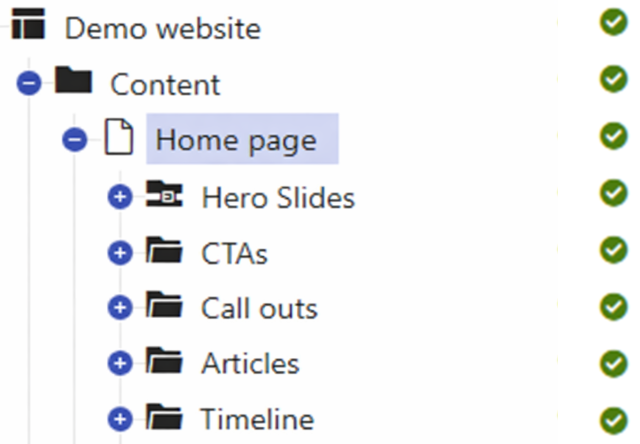
During a project upgrade to Xperience by Kentico, we recommend migrating these content-only pages into the [Content hub](https://docs.kentico.com/documentation/business-users/content-hub.md) as reusable content items and flattening the content tree. From there, you need to decide how to organize those items in the Content hub and how widgets will reference them.
## The four recommended strategies
The goal is to transform your data, taking advantage of XbyK's capabilities while keeping the editing experience user-friendly. All four strategies achieve this in different ways, organizing and referencing the collection in the Content hub.
1. **Use a parent reusable content item referenced by a widget**
2. **Store the collection in a widget property**
3. **Leverage smart folders and a smart-folder widget property**
4. **Represent collections via taxonomy**
Watch the video for a visual overview of all four strategies. Then use the rest of this guide for more detailed written guidance and quick-reference decision support.
🎮 [Migrate widget-collection relationships (interactive demo)](https://app.arcade.software/share/RgICxjtfNwlNBSSCL0WZ)
> **Note:** Notice that we **do not** recommend turning each collection into a fixed field on the page type. A page can contain different widgets over time, and editors may remove or replace those widgets as the page evolves. For that reason, the target model should keep the page flexible and represent the collection in a way that supports widget-based composition.
### Compare the strategies
| Strategy | Best for | Benefits | Tradeoffs |
| --------------------------------------------- | --------------------------------- | --------------------------------------------------------------------------------------------------------------------------------- | ----------------------------------------------------------------------------------------------------------------------------------------- |
| **Use a parent reusable content item** | Shared managed collections | Creates a reusable collection model
Centralizes management
Separates content structure from page composition | Adds a content layer
Increases modeling and migration complexity
Feels heavy for one-off collections |
| **Store the collection in a widget property** | Local explicit collections | Keeps the model flat
Lets editors manage the collection directly in the widget
Avoids an extra content layer | Limits reuse
Encourages duplication across pages
Makes central governance harder |
| **Leverage smart folders** | Dynamic source-driven collections | Models the collection through grouping logic
Reduces manual curation
Lets editors manage the source instead of a fixed list | Makes membership less visible
Makes behavior harder to explain and troubleshoot
Requires editors to understand the resolution logic |
| **Represent collections via taxonomy** | Classification-based grouping | Models collections through classification
Lets items belong to multiple collections
Supports scalable cross-cutting reuse | Requires strong taxonomy design
Depends on consistent tagging
Hides the final item list behind classification logic |
## Decide which approach best fits your use case
Use this practical guidance to choose the strategy that fits your target model.
Choose the **parent reusable content item** approach when:
- the collection should be centrally managed
- the same grouping appears in multiple places
- governance and consistency matter
- the collection has value beyond one page
> **Key:** _For example:_ The "Homepage Hero Slides" collection is reused on the homepage, seasonal landing pages, and campaign microsites. Editors manage one reusable collection item in Content hub.
Choose the **store the collection in a widget property** approach when:
- the collection is local to a page or widget
- explicit curation is needed
- reuse is minimal
- simplicity is the priority
> **Key:** _For example:_ A campaign landing page has a temporary curated list of 4 promotions that editors want to edit directly in the widget.
Choose a **smart-folder widget property** approach when:
- the collection should be sourced dynamically
- editors should manage the source grouping rather than the final list
- the collection changes over time
- source-based grouping is the right long-term model
> **Key:** _For example:_ An “Upcoming Events” widget should automatically pull all future-dated event items from a defined source group.
Choose the **taxonomy-based approach** when:
- the grouping is based on classification
- items may belong to multiple collections
- the project needs scalable metadata-driven grouping
- cross-cutting reuse is important
> **Key:** _For example:_ An Articles widget on multiple pages filters by topics such as Security, Integrations, or Performance, so editors manage classification once and reuse it everywhere.
> **Tip:** **Use multiple strategies**
>
> Most projects include multiple widget-collection scenarios, so you can and should use different strategies within the same project.
>
> Choose the strategy based on how each widget consumes its collection, not on how the legacy folders happened to sit under the page.
## Validate your target model before implementation
Before implementing the migration, confirm the following:
- what the collection represents in the business domain
- whether the grouping is structural or conceptual
- whether items need to belong to multiple collections
- what the target widget or component expects
- how editors will manage it after launch
- whether the selected model improves on the legacy structure
> **Note:** **Avoid common anti-patterns**
>
> - copying the legacy structure directly without evaluating the target needs
> - choosing the easiest migration path instead of the best long-term model
> - using reusable content items for collections that are never reused
> - using taxonomy or smart folders when editors really need explicit curation
> - keeping collections in widget properties when they should be centrally governed
> - using regular content folders as a delivery grouping strategy (content folders are for administration organization and navigation only; use smart folders when grouping needs to drive delivery behavior)
## Implement your chosen strategies
Once you choose a strategy, use the following implementation overviews and code samples to guide your migration.
### Lay the groundwork - applies to all approaches
In all four cases, we are flattening the content tree and migrating content-only pages from KX13 into XbyK's Content hub as reusable items.
Therefore, each strategy requires configuring the Kentico Migration Tool to perform this transformation, using the `ConvertClassesToContentHub` option in the _appsettings.json_ config file. For example:
```json title="appsettings.json"
...
"ConvertClassesToContentHub": "DemoSite.TimelineEntry, DemoSite.HeroSlide, DemoSite.CallOut",
...
```
See details in [the migration tool GitHub repository](https://github.com/Kentico/xperience-by-kentico-kentico-migration-tool/blob/master/Migration.Tool.CLI/README.md#configuration).
All four strategies rely on a [widget property migration](https://github.com/Kentico/xperience-by-kentico-kentico-migration-tool/blob/master/docs/customization/Widget-Property-Migrations.md#create-custom-widget-property-migrations), so for all of them, the following steps apply:
- Define a widget property migration (`IWidgetPropertyMigration`) targeting the relevant property.
- Create a widget migration (`IWidgetMigration`) targeting the source widget identifier.
- In the widget migration, declare the widget property migration strategy for the relevant property.
- Register both the widget migration and widget property migration in the service collection.
Learn more about custom [widget migration](https://docs.kentico.com/guides/upgrade-to-xbyk/upgrade-deep-dives/transform-widget-properties.md) in our guides.
The strategies differ in how the widget organizes and references those items.
### Use a parent reusable content item
_What this transforms:_ a widget property that points to a folder-like source becomes a single reusable parent content item reference.
- Create a `MultiClassMapping` for the source folder page type, setting `ClassContentTypeType.REUSABLE` and `ClassWebPageHasUrl = false`. This causes the migration tool to migrate that page type into Content hub as a reusable content item during the page migration phase, before the widget migration runs.
- Map source fields to target fields using `BuildField().SetFrom()`.
- Register the mapping with `AddSingleton()`.
> **Tip:** Find more information on [custom class mapping](https://github.com/Kentico/xperience-by-kentico-kentico-migration-tool/blob/master/docs/customization/Class-Mappings.md#create-custom-class-mappings-iclassmapping) in the migration tool repository. Learn how to utilize AI agents to aid with mapping larger classes in our [Speed up remodeling with AI](https://docs.kentico.com/guides/upgrade-to-xbyk/upgrade-deep-dives/speed-up-remodeling-with-ai.md) guide.
```csharp title="ClassMappingExample.cs"
using CMS.DataEngine;
using CMS.FormEngine;
using Microsoft.Extensions.DependencyInjection;
using Migration.Tool.Common.Builders;
// ... existing code ...
var m = new MultiClassMapping(targetClassName, target =>
{
target.ClassName = targetClassName;
target.ClassTableName = "Hero_slides";
target.ClassDisplayName = "Hero slides";
target.ClassType = ClassType.CONTENT_TYPE;
target.ClassContentTypeType = ClassContentTypeType.REUSABLE;
target.ClassWebPageHasUrl = false;
});
// map any fields you need
m.BuildField("XYZ")
.SetFrom(sourceClassName, "ABC", true)
.WithFieldPatch(f => f.SetPropertyValue(FormFieldPropertyEnum.FieldCaption, "new value"));
serviceCollection.AddSingleton(m);
// ... existing code ...
```
- Use a [content item director](https://github.com/Kentico/xperience-by-kentico-kentico-migration-tool/blob/master/docs/customization/Data-Transformation-Extensions.md#content-item-directors-contentitemdirectorbase) to link the migrated child items to the parent content item in Content hub. The director runs during the page migration phase and automatically creates the relationship field between parent and children.
- In the widget property migration, return a single `ContentItemReference` pointing to the parent content item. The parent was already migrated into Content hub during the page migration phase. Its GUID in XbyK is derived from its KX13 node GUID — use `EnsureNodeGuid()` with the node GUID stored in the source page selector value to resolve it.
### Store the collection directly in a widget property
_What this transforms:_ a folder reference in the source widget property becomes a direct list of content item references in the target widget property.
- In the widget property migration, query the child nodes of the folder node referenced by the page selector value.
- Resolve the target GUIDs of the child items using `EnsureNodeGuid()`.
- Return the result as a list of `ContentItemReference` objects.
```csharp title="CustomWidgetPropertyMigrationExample.cs"
using CMS.ContentEngine;
using Migration.Tool.Common.Services;
using Migration.Tool.KXP.Api.Services.CmsClass;
using Migration.Tool.Source.Services.Model;
using Newtonsoft.Json.Linq;
// ... existing code ...
// The source widget property holds a page selector pointing to a promotions folder.
// This migration flattens that folder into a direct list of content item references
// so editors can manage the promotions directly in the widget property.
if (value?.ToObject>() is { Count: > 0 } items)
{
var children = GetChildGuids(items.First().NodeGuid);
var result = children.Result
.Select(x => new ContentItemReference { Identifier = spoiledGuidContext.EnsureNodeGuid(x, siteId) })
.ToList();
var resultAsJToken = JToken.FromObject(result);
return Task.FromResult(new WidgetPropertyMigrationResult(resultAsJToken));
}
// ... existing code ...
```
### Leverage smart folders and smart-folder widget properties
_What this transforms:_ a source folder/page selector becomes a smart-folder reference that resolves the collection dynamically.
- In the widget property migration, create a `SmartFolderInfo` with a filter that targets the relevant content items.
- Return a `SmartFolderReference` as the widget property value.
```csharp title="EventsFolderToSmartFolderMigration.cs"
using CMS.ContentEngine;
using Migration.Tool.Common.Helpers;
using Migration.Tool.KXP.Api.Services.CmsClass;
using Newtonsoft.Json.Linq;
// ... existing code ...
// The source widget property holds a page selector pointing to an events folder.
// This migration creates a smart folder filtered by the appropriate criteria
// so the widget resolves its collection dynamically after migration.
var newSmartFolder = new SmartFolderInfo
{
SmartFolderName = folderName,
SmartFolderDisplayName = folderTitle,
SmartFolderGUID = GuidHelper.CreateFolderGuid(folderName),
SmartFolderIsContentDeliveryEnabled = true,
// Define filter criteria appropriate for your use case
SmartFolderFilter = "{ ... }"
};
SmartFolderInfo.Provider.Set(newSmartFolder);
var result = new SmartFolderReference { Identifier = newSmartFolder.SmartFolderGUID };
var resultAsJToken = JToken.FromObject(result);
return new WidgetPropertyMigrationResult(resultAsJToken);
// ... existing code ...
```
> **Info:** The `SmartFolderFilter` field expects a specific JSON structure. To see examples, create a smart folder manually in your Xperience by Kentico instance and inspect the `SmartFolderFilter` column in the `CMS_SmartFolder` database table.
>
> For example, the following filter returns content items of the content type with the specified GUID:
>
> ```json
> {"classGUID":["8a4c740c-e8d1-4452-af02-8db2b41e1930"],"tags":[],"lastPublishedAbsolute":null,"lastPublishedRelative":null,"selectedLastPublishedTimeFrame":"absolute"}
> ```
>
> You can also use this filter structure to filter by taxonomy tags.
### Represent collections via taxonomy
_What this transforms:_ folder-based grouping in the source becomes taxonomy tagging, and the widget property stores taxonomy-based selection.
- Create a `MultiClassMapping` for the source child page type and add a `UsageTags` taxonomy field using `BuildField()` with `WithoutSource()`, configured with the taxonomy group GUID.
- Register the mapping before running the widget migration.
```csharp title="ArticleClassMapping.cs"
using CMS.DataEngine;
using Microsoft.Extensions.DependencyInjection;
using Migration.Tool.Common.Builders;
// ... existing code ...
// Add a taxonomy field to the Article content type so items can be tagged
// by topic and resolved across multiple widgets and pages.
var m = new MultiClassMapping(targetClassName, target =>
{
target.ClassName = targetClassName;
target.ClassTableName = "MyProject_Article";
target.ClassDisplayName = "Article";
target.ClassType = ClassType.CONTENT_TYPE;
target.ClassContentTypeType = ClassContentTypeType.REUSABLE;
target.ClassWebPageHasUrl = false;
});
m.BuildField("UsageTags")
.WithoutSource("taxonomy")
.WithFieldPatch(field =>
{
field.AllowEmpty = true;
field.Caption = "Usage Tags";
field.DataType = "taxonomy";
field.Settings["controlname"] = "Kentico.Administration.TagSelector";
field.Settings["TaxonomyGroup"] = "[\"\"]";
});
serviceCollection.AddSingleton(m);
// ... existing code ...
```
- In the widget property migration, create a tag via `IImporter` using the folder name and parent page name as identifiers.
- Query the child nodes of the source folder and assign the tag to each migrated content item by creating a draft, updating it with the tag value, and publishing.
- Return a `ContentItemReference` pointing to the tag GUID directly as the widget property value.
```csharp title="ArticlesFolderToTaxonomyMigration.cs"
using CMS.ContentEngine;
using CMS.Core;
using CMS.Membership;
using Migration.Tool.KXP.Api.Services.CmsClass;
using Newtonsoft.Json.Linq;
// ... existing code ...
// The source widget property holds a page selector pointing to a topic folder
// (e.g. Blogs). This migration creates a tag for that topic
// and assigns it to all child articles, so the widget can resolve
// the same collection by tag across multiple pages.
if (tagInfo is TagInfo tag)
{
var tagGuid = tag.TagGUID;
// Assign the tag to each migrated content item using IContentItemManager.
foreach (var item in contentItems)
{
ContentItemData data = new(new Dictionary
{
{ "UsageTags", "[{ \"Identifier\":\"" + tagGuid + "\"}]" }
});
var contentItemManagerFactory = Service.Resolve();
var defaultAdmin = UserInfoProvider.ProviderObject.Get(UserInfoProvider.DEFAULT_ADMIN_USERNAME);
var contentItemManager = contentItemManagerFactory.Create(defaultAdmin.UserID);
// Create draft version.
bool draftCreated = await contentItemManager.TryCreateDraft(item.ContentItemID, languageName);
if (!draftCreated) { continue; }
// Update draft with new data.
bool updateSuccess = await contentItemManager.TryUpdateDraft(item.ContentItemID, languageName, data);
if (!updateSuccess) { continue; }
// Publish the updated draft.
bool publishSuccess = await contentItemManager.TryPublish(item.ContentItemID, languageName);
if (!publishSuccess) { continue; }
}
// Return the tag reference directly as the widget property value.
// The widget resolves the collection by tag at runtime.
var result = new ContentItemReference { Identifier = tagGuid };
var resultAsJToken = JToken.FromObject(result);
return new WidgetPropertyMigrationResult(resultAsJToken);
}
// ... existing code ...
```
> **Info:** The tagging process uses `IContentItemManager`. For full API reference and usage examples, see [Content items API](https://docs.kentico.com/api/content-management/content-items.md) in our documentation.
## What's next?
This guide focused on choosing the right target model for widget-collection relationships and mapping those choices to migration implementation patterns.
For property-level migration details and UI control mapping, review [transforming widget properties](https://docs.kentico.com/guides/upgrade-to-xbyk/upgrade-deep-dives/transform-widget-properties.md). For end-to-end examples of moving widget-owned data into reusable Content hub items, see [migrating widget data to Content hub](https://docs.kentico.com/guides/upgrade-to-xbyk/upgrade-deep-dives/migrate-widget-data-to-content-hub.md).
You can find more advanced upgrade and data migration scenarios in our [upgrade deep dive guides](https://docs.kentico.com/guides/upgrade-to-xbyk/upgrade-deep-dives.md). If you haven't already, follow the [upgrade walkthrough](https://docs.kentico.com/guides/upgrade-to-xbyk/upgrade-walkthrough.md) to see these decisions in the context of a full project upgrade.
If you encounter a widget-collection scenario that doesn't fit these strategies well, let us know through the **Send us feedback** button at the bottom of this page.