
Implement faceted filtering for product catalog
Faceted filtering lets your customers narrow down products by attributes like color, material, or size, improving their shopping experience and increasing conversion rates. This guide implements direct content filtering — querying pages and content items based on taxonomy assignments — which is suited for smaller to mid-size product catalogs.
In this guide, you’ll add filtering capabilities to an existing product listing widget. You’ll learn how to extract filter options from your product taxonomy, implement both AND and OR filtering logic, and learn one approach to building a filter interface. By the end, your product listing will allow customers to apply multiple filters and see results update dynamically.
For large product catalogs where complex multi-facet filtering needs to perform at scale, consider a search index-based approach using Lucene or Azure AI Search instead. See Choose a filtering approach in the content modeling guide for a side-by-side comparison of both approaches.
Before you start
If you’d like a high-level view of the Training guides product catalog before diving into specifics, start with our breakdown of the product catalog implementation.
If you’d like a high-level view of the Training guides product catalog before diving into specifics, start with our breakdown of the product catalog implementation.
This guide requires the following:
- Familiarity with C#, .NET Core, Dependency injection, and the MVC pattern.
- Experience with Xperience by Kentico widgets and the Page Builder
- Basic understanding of membership in Xperience by Kentico – Authentication and commerce are closely connected and this guide does not explain details on how to handle restricted access to certain content, however, it uses methods that take this into consideration.
- Familiarity with taxonomies and reusable field schemas in Xperience by Kentico
- A running instance of Xperience by Kentico, preferably 31.3.3 or higher
Some features covered in the Training guides may not work in older versions.
The examples in this guide require that you have a basic product listing widget already implemented that displays products (without filtering).
Code samples
You can find a project with completed, working versions of code samples from this guide and others in the finished branch of the Training guides repository.
The main branch of the repository provides a starting point to code along with the guides.
The code samples in this guide have been tested in .NET 8. You may need to make adjustments for other .NET versions.
They come from a project that uses implicit using directives. You may need to add additional using directives to your code if your project does not use this feature.
Examine the scenario
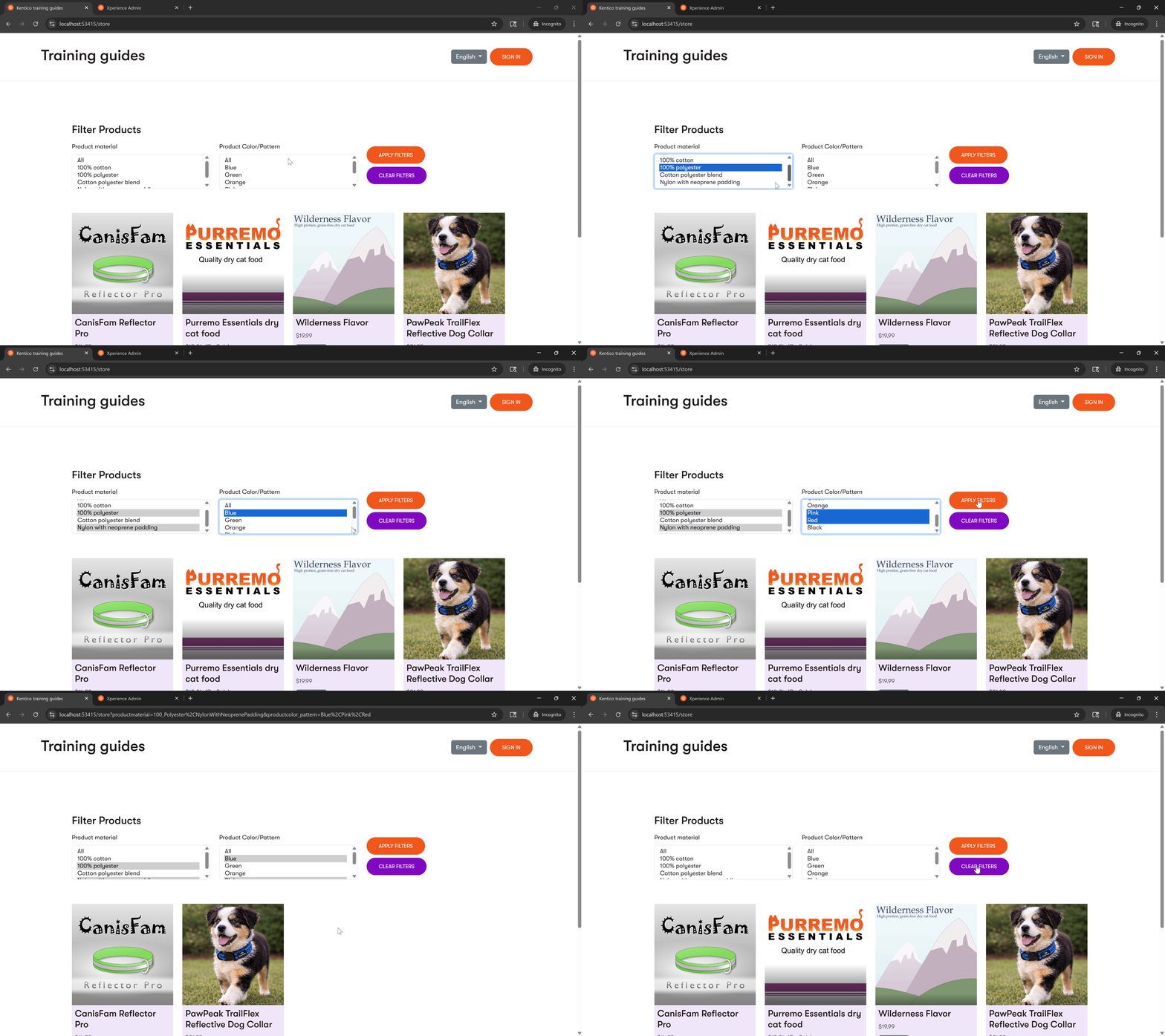
Your client’s website currently sells a small number of products, but the catalog is expected to grow to dozens. Rather than making customers click through every item, you want to let them narrow down results by product attributes — for example, finding a dog collar that is both blue and made of polyester.
We’ll ensure that our filtering functionality can:
- Display available filter options populated from the taxonomy definitions used for product attributes (showing all tags in the taxonomy, not only those assigned to existing products). In this example we’ll filter by two product attributes: material and color.
- Allow multiple selections within the same filter category, using OR logic: e.g., if the user chooses color: black, blue, red, the results will include products available in any of those colors.
- Support for two filtering approaches, configurable via widget property:
- OR logic between filter properties: Show products matching ANY of the selected materials or selected colors.
- AND logic between filter properties: Show products matching any of the selected materials AND any of the selected colors.
- Preserve filter selections in the URL so customers can bookmark and share filtered results.
- Show results that meet the filter criteria.
We’ll accomplish this by extending the existing Product listing widget in the Training guides repo and the service layer that aggregates filter data and applies filtering logic.
Understand parent vs. variant filtering
Before diving into code, let’s look at our product content model. The products in Training guides have a parent-variant relationship:
- Parent products appear in our product listing and represent a specific product (e.g., “Dog collar”) with some properties that apply to all products of this kind (e.g., material).
- Variants are sub-products that inherit from the parent and can have additional attribute values (e.g., size, color).
The key insight for filtering is that some properties live on the parent product while others live on the product variant. Some products may also have no variants and hold all attribute data directly on the parent.
Our implementation uses taxonomies for the filterable properties.
When we build filters, we need to aggregate taxonomy values from both levels. In this example, material lives on the parent and color lives on the variant — but that’s specific to our content model. As your catalog grows, new product types may place attributes differently. Rather than assuming where a given taxonomy lives, the implementation always checks both the parent product and its variants, making it resilient to future changes in your content model.
Reusable field schemas
The filter options come from taxonomy fields defined within reusable field schemas, the recommended approach for modeling products in Xperience by Kentico.
For a detailed breakdown of the Training guides implementation’s commerce-related schemas and why they were chosen, see our product catalog overview guide.
For a detailed breakdown of the Training guides implementation’s commerce-related schemas and why they were chosen, see our product catalog overview guide.
Lay out the groundwork
Prepare the service
In Training guides, all the product-related data layer logic lives in the ProductService.
Let’s extend our RetrieveProductPages method to accept filters (comma-separated string values that will come from the UI) as optional parameters: appliedMaterialsFilter and appliedColorsFilter.
First, update the method signature in the interface:
...
/// <summary>
/// Retrieves product pages by path with optional filtering by materials and colors.
/// </summary>
/// <param name="parentPagePath">The path of the parent page to search under.</param>
/// <param name="securedItemsDisplayMode">The display mode for secured items.</param>
/// <param name="appliedMaterialsFilter">Comma-separated material filter values. Pass empty to skip filtering.</param>
/// <param name="appliedColorsFilter">Comma-separated color filter values. Pass empty to skip filtering.</param>
Task<IEnumerable<ProductPage>> RetrieveProductPages(
    string parentPagePath,
    string securedItemsDisplayMode,
    string appliedMaterialsFilter = "",
    string appliedColorsFilter = "");
...
Next, update the method implementation. In the main branch, we have the following:
...
public async Task<IEnumerable<ProductPage>> RetrieveProductPages(
    string parentPagePath,
    string securedItemsDisplayMode)
{
    if (string.IsNullOrEmpty(parentPagePath))
    {
        return [];
    }

    bool includeSecuredItems = securedItemsDisplayMode.Equals(SecuredOption.IncludeEverything.ToString())
            || securedItemsDisplayMode.Equals(SecuredOption.PromptForLogin.ToString());

    return await contentItemRetrieverService.RetrieveWebPageChildrenByPath<ProductPage>(
        path: parentPagePath,
        depth: 3);
    //  includeSecuredItems: includeSecuredItems);
}
...
Secured items handling
The includeSecuredItems parameter controls which content the current user can see. In the main branch, the membership-related code is commented out. You can leave it as-is for learning purposes, or enable it if your solution implements membership. The finished branch includes the full implementation.
Let’s extract the content retrieval into a method that will also take care of all the filtering, RetrieveFilteredProductPages (extracted logic is highlighted):
...
/// <summary>
/// Core method that retrieves product pages with pre-parsed filter values.
/// </summary>
private async Task<IEnumerable<ProductPage>> RetrieveFilteredProductPages(
    string parentPagePath,
    string securedItemsDisplayMode,
    IEnumerable<string>? materialFilters,
    IEnumerable<string>? colorFilters)
{
    if (string.IsNullOrEmpty(parentPagePath))
    {
        return [];
    }

    bool includeSecuredItems = securedItemsDisplayMode.Equals(SecuredOption.IncludeEverything.ToString())
            || securedItemsDisplayMode.Equals(SecuredOption.PromptForLogin.ToString());

    if (materialFilters is not null || colorFilters is not null)
    {
        // filtering logic will go here
    }

    return await contentItemRetrieverService.RetrieveWebPageChildrenByPath<ProductPage>(
        path: parentPagePath,
        depth: 3,
        includeSecuredItems: includeSecuredItems);
}
...
Now add filter parameters to RetrieveProductPages and call the new RetrieveFilteredProductPages method. The method takes filters as IEnumerable, so parse the incoming string data using a ParseFilterValues method.
...
public async Task<IEnumerable<ProductPage>> RetrieveProductPages(
    string parentPagePath,
    string securedItemsDisplayMode,
    string appliedMaterialsFilter = "",
    string appliedColorsFilter = "")
{
    var materialFilters = ParseFilterValues(appliedMaterialsFilter);
    var colorFilters = ParseFilterValues(appliedColorsFilter);

    // Get all products matching ANY filter using the core method
    var productPages = await RetrieveFilteredProductPages(
        parentPagePath, securedItemsDisplayMode, materialFilters, colorFilters);

    return productPages;
}
/// <summary>
/// Parses filter values from a comma-separated string.
/// </summary>
/// <param name="filterValues">A comma-separated string of filter values.</param>
/// <returns>A collection of parsed filter values, or <c>null</c> if no valid filters are found.</returns>
internal IEnumerable<string>? ParseFilterValues(string filterValues)
{
    if (string.IsNullOrWhiteSpace(filterValues) || filterValues.Equals("all", StringComparison.OrdinalIgnoreCase))
    {
        return null;
    }

    var values = filterValues.Split(',', StringSplitOptions.RemoveEmptyEntries)
        .Select(value => value.Trim().ToLower())
        .Where(value => !value.Equals("all", StringComparison.OrdinalIgnoreCase));

    return values.Any() ? values : null;
}
...
Wire query parameters to the widget ViewComponent
Now let’s wire the Product listing widget ViewComponent to read filter values from the URL query string and pass them to RetrieveProductPages. We’re skipping the UI for now, but with the service method updated, this approach lets you test every step as you build it, just by typing a URL in the browser.
The existing ProductListingWidgetViewComponent already calls RetrieveProductPages. Read the two new parameters from the request and pass them through:
...
public class ProductListingWidgetViewComponent(
    IContentItemRetrieverService contentItemRetrieverService,
    IProductService productService,
    IWebPageDataContextRetriever webPageDataContextRetriever,
    IHttpRequestService httpRequestService) : ViewComponent
{
public const string IDENTIFIER = "TrainingGuides.ProductListingWidget";

private const string MATERIAL_TAXONOMY = "ProductMaterial";
private const string COLOR_PATTERN_TAXONOMY = "ProductColor_Pattern";

public async Task<ViewViewComponentResult> InvokeAsync(ProductListingWidgetProperties properties)
    {
        string appliedMaterialsFilter = httpRequestService.GetQueryStringValue(MATERIAL_TAXONOMY).ToLower();
        string appliedColorsFilter = httpRequestService.GetQueryStringValue(COLOR_PATTERN_TAXONOMY).ToLower();

        var model = new ProductListingWidgetViewModel
        {
            CtaText = properties.CtaText,
            SignInText = properties.SignInText
        };

        string parentPagePath = await GetParentPagePath(properties.ParentPageSelection);

        if (!string.IsNullOrEmpty(parentPagePath))
        {
            var productPages = await productService.RetrieveProductPages(
                parentPagePath,
                properties.SecuredItemsDisplayMode,
                appliedMaterialsFilter,
                appliedColorsFilter);

            model.Products = await productService.GetProductListingItemViewModels(
                productPages,
                properties.SecuredItemsDisplayMode);
        }

        return View("~/Features/Commerce/Products/Widgets/ProductListing/ProductListingWidget.cshtml", model);
    }
...
If either parameter is absent, .ToString() returns an empty string. The service will treat that as no filter applied. We will extend the ViewComponent further when we build the full filter UI.
Implement the filtering
AND filtering requires a different approach than OR because filterable properties can be split across content model levels. We’ll implement OR first and explore the reasoning in detail when we get to AND.
OR logic
Let’s add the filtering logic to RetrieveFilteredProductPages. The method already uses RetrieveWebPageChildrenByPath from the Training guides repo, which wraps the Xperience ContentRetriever API. For filtering, extend that call with the Linking extension method to restrict results to pages linked to a specific set of content item IDs.
Notice that we are retrieving webpages rather than content items. This is because content items do not have a URL, but pages do. We need the product’s page to know its URL so we can navigate to the product detail page on click.
When the user selects filters, the logic will first retrieve all product and variant IDs matching any selected material or color/pattern (OR logic). Because matched items can be variants, it will also fetch their parent product IDs; without this step, the parent page would never appear in the listing. We will then merge and deduplicate both sets, and pass the result to Linking to fetch only the matching product pages.
RetrieveFilteredProductIds queries by reusable field schema rather than a specific content type. This is what allows a single database query to match both parent products and variants in one pass.
RetrieveFilteredProductParentIDs takes those matched IDs, which may include variants, and uses LinkingSchemaField to walk up to their parent product IDs. Without this step, a color match on a variant would never surface its parent in the listing.
...
private async Task<IEnumerable<ProductPage>> RetrieveFilteredProductPages(
    string parentPagePath,
    string securedItemsDisplayMode,
    IEnumerable<string>? materialFilters,
    IEnumerable<string>? colorFilters)
{
    if (string.IsNullOrEmpty(parentPagePath))
    {
        return [];
    }

    bool includeSecuredItems = securedItemsDisplayMode.Equals(SecuredOption.IncludeEverything.ToString())
            || securedItemsDisplayMode.Equals(SecuredOption.PromptForLogin.ToString());

    // If the user chose any filters, apply them
    if (materialFilters is not null || colorFilters is not null)
    {
        var filteredIds = await RetrieveFilteredProductIds(includeSecuredItems, materialFilters, colorFilters);

        // Some matches may be variants — also fetch their parent product IDs
        var parentIds = await RetrieveFilteredProductParentIDs(includeSecuredItems, filteredIds);

        var allProductIds = parentIds.Union(filteredIds);

        if (!allProductIds.Any())
        {
            return [];
        }

        return await contentItemRetrieverService.RetrieveWebPageChildrenByPath<ProductPage>(
            path: parentPagePath,
            depth: 3,
            includeSecuredItems: includeSecuredItems,
            additionalQueryConfiguration: query => query
                .Linking(nameof(ProductPage.ProductPageProducts), allProductIds));
    }

    // Otherwise return the full product list
    return await contentItemRetrieverService.RetrieveWebPageChildrenByPath<ProductPage>(
        path: parentPagePath,
        depth: 3,
        includeSecuredItems: includeSecuredItems);
}

private async Task<IEnumerable<int>> RetrieveFilteredProductIds(bool includeSecuredItems,
    IEnumerable<string>? materialFilters,
    IEnumerable<string>? colorFilters)
{
    var materialTaxonomy = await GetTaxonomyData(MATERIAL_TAXONOMY);
    var colorTaxonomy = await GetTaxonomyData(COLOR_PATTERN_TAXONOMY);

    Func<RetrieveContentOfReusableSchemasQueryParameters, RetrieveContentOfReusableSchemasQueryParameters> filterFunc = query =>
    {
        // Set up filter functions that do nothing for each taxonomy
        Func<RetrieveContentOfReusableSchemasQueryParameters, RetrieveContentOfReusableSchemasQueryParameters> materialFilterFunc = q => q;
        Func<RetrieveContentOfReusableSchemasQueryParameters, RetrieveContentOfReusableSchemasQueryParameters> colorFilterFunc = q => q;

        if (materialFilters is not null)
        {
            materialFilterFunc = GetFuncForFilter(materialFilters, materialTaxonomy, nameof(IMaterialSchema.MaterialSchemaMaterial));
        }

        if (colorFilters is not null)
        {
            colorFilterFunc = GetFuncForFilter(colorFilters, colorTaxonomy, nameof(IColorPatternSchema.ColorPattern));
        }

        Func<RetrieveContentOfReusableSchemasQueryParameters, RetrieveContentOfReusableSchemasQueryParameters> columnsFilterFunc = q =>
            q.Columns(nameof(ContentItemFields.ContentItemID));

        return columnsFilterFunc(colorFilterFunc(materialFilterFunc(query)));
    };

    var items = await contentItemRetrieverService.RetrieveContentItemsBySchemas<IProductSchema>(
        schemaNames: [IProductSchema.REUSABLE_FIELD_SCHEMA_NAME, IMaterialSchema.REUSABLE_FIELD_SCHEMA_NAME, IColorPatternSchema.REUSABLE_FIELD_SCHEMA_NAME],
        additionalQueryConfiguration: query => filterFunc(query),
        depth: 0,
        includeSecuredItems: includeSecuredItems
    );

    return items.Select(item => (item as IContentItemFieldsSource)?.SystemFields.ContentItemID)
        .Where(id => id is not null)
        .Cast<int>();
}

/// <summary>
/// Retrieves parent IDs of products matching the specified filtered IDs.
/// </summary>
/// <param name="includeSecuredItems">Indicates whether to include secured items.</param>
/// <param name="filteredIds">The filtered product IDs.</param>
private async Task<IEnumerable<int>> RetrieveFilteredProductParentIDs(bool includeSecuredItems, IEnumerable<int> filteredIds)
{
    if (!filteredIds.Any())
    {
        return [];
    }

    var parents = await contentItemRetrieverService.RetrieveContentItemsBySchemas<IContentItemFieldsSource>(
            schemaNames: [IProductParentSchema.REUSABLE_FIELD_SCHEMA_NAME],
            additionalQueryConfiguration: query => query
                .LinkingSchemaField(nameof(IProductParentSchema.ProductParentSchemaVariants), filteredIds)
                .Columns(nameof(ContentItemFields.ContentItemID)),
            depth: 3,
            includeSecuredItems: includeSecuredItems);

    return parents.Select(parent => parent.SystemFields.ContentItemID);
}
...
Check your progress
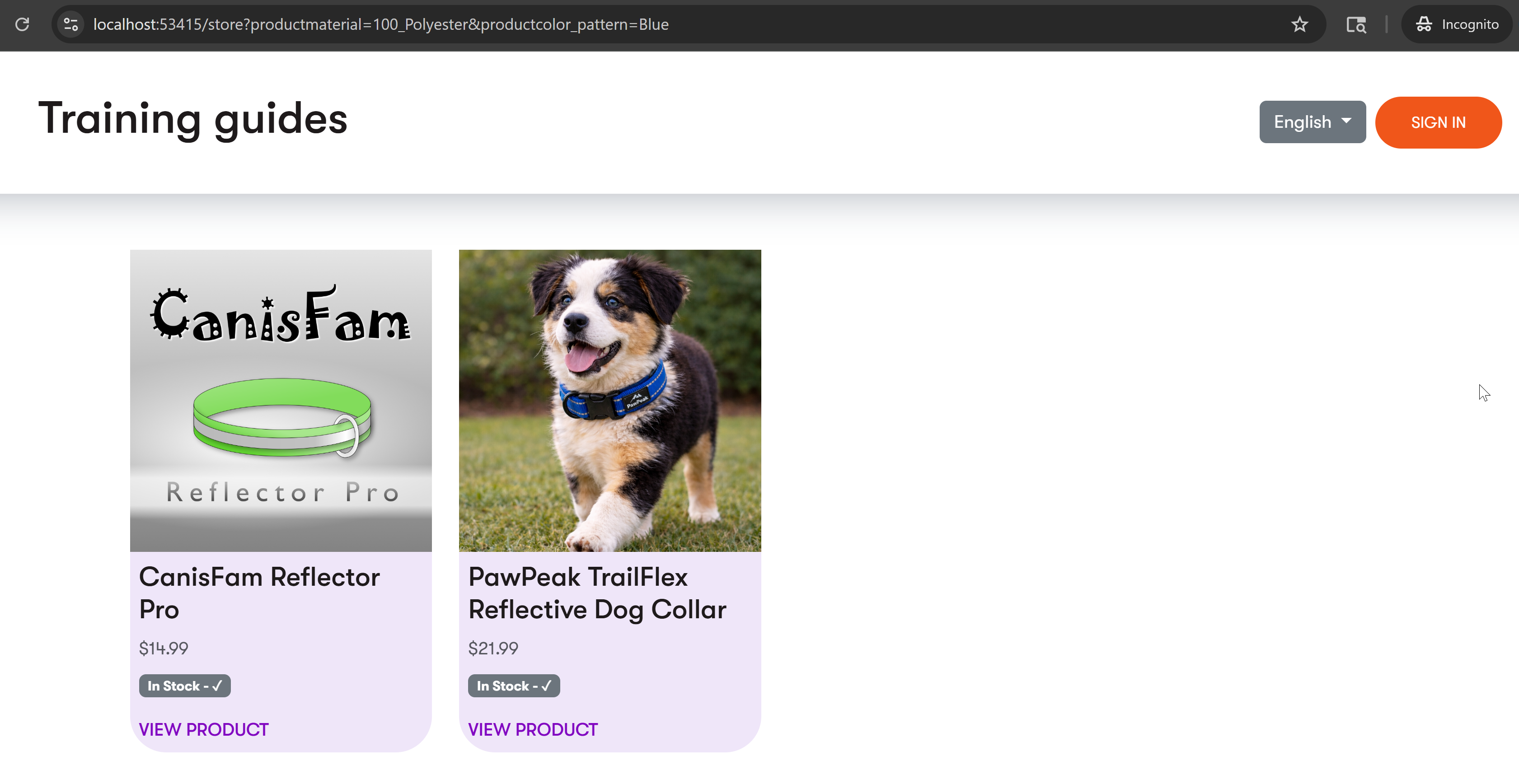
If you are using Training guides project to follow along, run the site and open your product listing page (/store). Add ?productmaterial=100_Polyester&productcolor_pattern=Blue and hit Enter. The listing should narrow down to products made out of 100% polyester OR available in blue color - two dog collars:
- “CanisFam Reflector Pro” - 100% polyester, available in blue
- “PawPeak TrailFlex Reflector” - different material, available in blue
AND logic
AND logic is a common commerce requirement, for example, returning only products made of polyester that are also available in blue.
Due to our content model structure, AND filtering can’t use the same direct query approach as OR filtering. Here’s why, using our dog collar example:
- Material (like “100% Polyester”) lives on the parent product (e.g., Dog collar)
- Color/Pattern (like “Blue”) lives on the variant (e.g., Dog collar variant)
- No single content item has both fields populated
When you try to query for “blue AND polyester” directly, you get zero results. The query essentially asks: “Give me items where Material=Polyester AND Color=Blue on the same database row”, which doesn’t exist in our content model.
For AND logic, we need to post-filter the results. The most efficient approach is to reuse the OR filtering logic to get a reduced dataset first, then post-process those results in memory to apply AND logic.
Filtering the OR results requires a way to check whether a product or any of its variants includes certain taxonomy values (for example, color blue). Add a generic GetAllTagsForSchema method that extracts all taxonomy tags for a given schema from both a product and its variants. It works for any taxonomy-based filter.
Then add GetAllMaterials and GetAllColors, which call the generic method and specify which property to extract using a selector function.
...
/// <summary>
/// Extracts all specified taxonomy tags for a specific schema from a product and its variants.
/// Checks both the product itself and any variants that implement the schema.
/// </summary>
/// <typeparam name="TSchema">The schema interface to check for (e.g., IColorPatternSchema, IMaterialSchema)</typeparam>
/// <param name="product">The product to extract tags from</param>
/// <param name="tagSelector">Function to extract tags from a product object implementing TSchema</param>
/// <returns>All distinct tags found on the product and its variants</returns>
internal IEnumerable<TagReference> GetAllTagsForSchema<TSchema>(
    IProductSchema product,
    Func<TSchema, IEnumerable<TagReference>> tagSelector) where TSchema : class
{
    var tags = new List<TagReference>();

    // Check if product itself implements the schema
    if (product is TSchema schemaProduct)
        tags.AddRange(tagSelector(schemaProduct));

    // Check variants if product has them
    if (product is IProductParentSchema parent)
    {
        foreach (var variant in parent.ProductParentSchemaVariants.OfType<TSchema>())
            tags.AddRange(tagSelector(variant));
    }

    return tags.DistinctBy(t => t.Identifier);
}

/// <summary>
/// Extracts all color tags from the product and its variants, if applicable.
/// </summary>
/// <param name="product">The product to extract color tags from</param>
/// <returns>All color tags found on the product and its variants</returns>
public IEnumerable<TagReference> GetAllColors(IProductSchema product) =>
    GetAllTagsForSchema<IColorPatternSchema>(product, p => p.ColorPattern);

/// <summary>
/// Extracts all material tags from the product and its variants, if applicable.
/// </summary>
/// <param name="product">The product to extract material tags from</param>
/// <returns>All material tags found on the product and its variants</returns>
public IEnumerable<TagReference> GetAllMaterials(IProductSchema product) =>
    GetAllTagsForSchema<IMaterialSchema>(product, p => p.MaterialSchemaMaterial);
...
Back in RetrieveProductPages in ProductService, add an optional useAndLogic boolean parameter. When true and both filters are active, use LINQ to post-filter the OR result set in memory.
Use GetTaxonomyData to retrieve the taxonomy definitions for materials and colors. Then extract the relevant tag identifiers based on the selected filter values, and use GetAllColors and GetAllMaterials to check if each product (or its variants) contains the required tags.
...
public async Task<IEnumerable<ProductPage>> RetrieveProductPages(
    string parentPagePath,
    string securedItemsDisplayMode,
    string appliedMaterialsFilter = "",
    string appliedColorsFilter = "",
    bool useAndLogic = false)
{
    var materialFilters = ParseFilterValues(appliedMaterialsFilter);
    var colorFilters = ParseFilterValues(appliedColorsFilter);

    // Get all products matching ANY filter using the core method
    var productPages = await RetrieveFilteredProductPages(
        parentPagePath, securedItemsDisplayMode, materialFilters, colorFilters);

    // If AND logic is requested and both filters are specified, apply LINQ post-filtering
    if (useAndLogic && materialFilters is not null && colorFilters is not null)
    {
        var materialTaxonomy = await GetTaxonomyData(MATERIAL_TAXONOMY);
        var colorTaxonomy = await GetTaxonomyData(COLOR_PATTERN_TAXONOMY);

        var materialTagGuids = materialTaxonomy?.Tags
            .Where(tag => materialFilters.Contains(tag.Name.ToLower()))
            .Select(tag => tag.Identifier) ?? [];

        var colorTagGuids = colorTaxonomy?.Tags
            .Where(tag => colorFilters.Contains(tag.Name.ToLower()))
            .Select(tag => tag.Identifier) ?? [];

        // Filter to keep only products that have ALL required attributes (flexible logic)
        return productPages.Where(page =>
        {
            var product = page.ProductPageProducts.FirstOrDefault();
            if (product is null)
            {
                return false;
            }

            // Use flexible extraction methods that handle any taxonomy distribution
            bool productMatchesMaterial = GetAllMaterials(product)
                .Any(tag => materialTagGuids.Contains(tag.Identifier));

            bool productMatchesColor = GetAllColors(product)
                .Any(tag => colorTagGuids.Contains(tag.Identifier));

            return productMatchesMaterial && productMatchesColor;
        });
    }

    // OR logic (default): return database results directly
    return productPages;
}
...
Keep in mind
AND logic and pagination – With AND logic, you retrieve and filter all matching products in memory before pagination. This means traditional page-based pagination won’t work correctly; a page might have 2 products instead of the expected 10. For production scenarios with large catalogs, consider using infinite scroll or lazy loading instead of pagination when AND logic is enabled.
Products with missing taxonomy tags – If a product or its variants have no tags assigned for a filtered taxonomy, GetAllMaterials or GetAllColors will return an empty collection. With AND logic, this means productMatchesMaterial or productMatchesColor evaluates to false, and the product is silently excluded from results — even if the other filter matches. If a product unexpectedly disappears from AND-filtered results, check that all relevant taxonomy fields are populated on both the parent product and its variants.
Check your progress
To verify your AND filtering works well, you can use the query string parameters again, if you temporarily make it the default by setting the default value of bool useAndLogic = true in the RetrieveProductPages method.
Navigate to your product listing page (/store), and add ?productmaterial=100_Polyester&productcolor_pattern=Blue again.
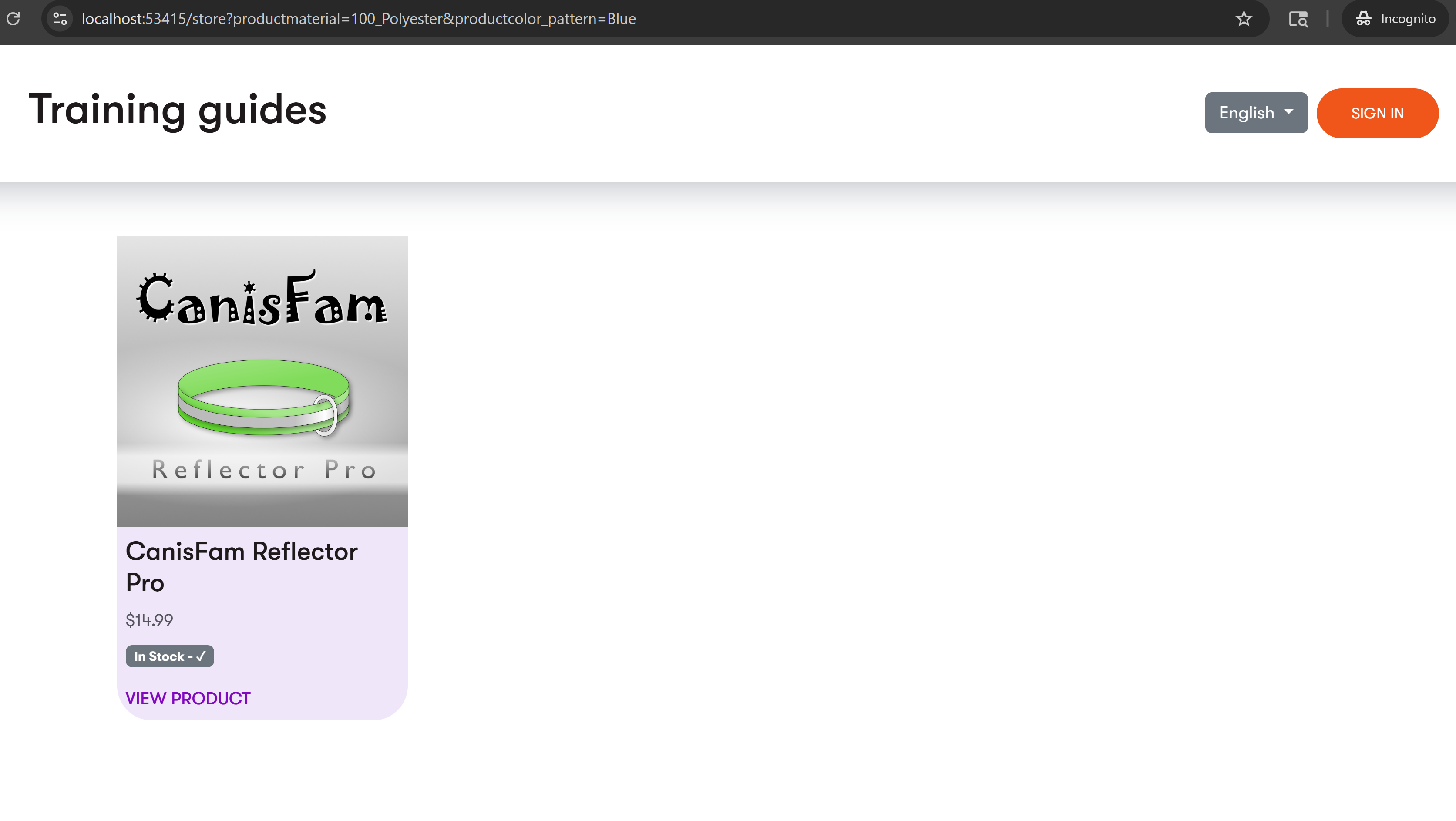
This time, the listing should now narrow down to only products made out of 100% polyester AND available in blue color, in our case, just the CanisFam Reflector Pro.
Make sure to switch the default value in the RetrieveProductPages method back to bool useAndLogic = false after the test.
Extend the widget for filtering
With the service layer complete, the sections below extend the ViewModel, widget properties, and ViewComponent to expose filter data to the UI.
Extend the ProductListingWidgetViewModel
To support filtering, you need to extend your existing ProductListingWidgetViewModel with properties that hold filter data and configuration.
Add filter properties
Create a new file ProductListingFilterViewModel.cs with two classes: ProductListingFilterViewModel to represent a single filter (e.g., Material or Color) and ProductListingFilterOptionViewModel to represent each selectable option within that filter.
Then add an AvailableFilters property of type IEnumerable<ProductListingFilterViewModel> to the existing ProductListingWidgetViewModel:
namespace TrainingGuides.Web.Features.Commerce.Products.Widgets.ProductListing;

public class ProductListingFilterViewModel
{
    public string ProductListingFilterName { get; set; } = string.Empty;
    public string ProductListingFilterDisplayName { get; set; } = string.Empty;
    public List<ProductListingFilterOptionViewModel> ProductListingFilterOptions { get; set; } = [];
}

public class ProductListingFilterOptionViewModel
{
    public string FilterOptionDisplayName { get; set; } = string.Empty;
    public string FilterOptionValue { get; set; } = string.Empty;
}
using TrainingGuides.Web.Features.Shared.Models;

namespace TrainingGuides.Web.Features.Commerce.Products.Widgets.ProductListing;

public class ProductListingWidgetViewModel : IWidgetViewModel
{
    public List<ProductListingItemViewModel> Products { get; set; } = [];
    public string CtaText { get; set; } = string.Empty;
    public string SignInText { get; set; } = string.Empty;
    public bool IsMisconfigured => Products == null;
    public IEnumerable<ProductListingFilterViewModel> AvailableFilters { get; set; } = [];
}
Extract filter data from products
Now you need a service method that builds filter options from your taxonomy definitions. This method will query the taxonomy data for each filterable attribute and map its tags to filter option view models; regardless of whether any existing products or variants use those tags.
First, add the method signature to your IProductService interface:
...
public interface IProductService
{
    ...
     /// <summary>
    /// Retrieves all available product listing filters.
    /// </summary>
    /// <returns>A collection of product listing filter view models.</returns>
    Task<IEnumerable<ProductListingFilterViewModel>> GetProductListingFilters();
}
Now implement two methods in your ProductService class:
GetProductListingFilters, to call the private helperGetProductListingFilterfor each taxonomy (material and color/pattern).GetProductListingFilter, to useGetTaxonomyData, an existing method in the Training guides repo, to retrieve the taxonomy definition and map its tags toProductListingFilterOptionViewModelobjects, using each tag’sTitleas the display name andNameas the filter value. It should returnnullif the taxonomy is not found.
...
public async Task<IEnumerable<ProductListingFilterViewModel>> GetProductListingFilters()
{
    var filters = new List<ProductListingFilterViewModel?>
        {
            await GetProductListingFilter("ProductMaterial"),
            await GetProductListingFilter("ProductColor_Pattern")
        };

    return filters.Where(filter => filter is not null).Cast<ProductListingFilterViewModel>();
}

/// <summary>
/// Retrieves data for a product listing filter based on the specified taxonomy name.
/// </summary>
/// <param name="taxonomyName">The name of the taxonomy to retrieve.</param>
/// <returns>The <see cref="ProductListingFilterViewModel"/> if found; otherwise, <c>null</c>.</returns>
private async Task<ProductListingFilterViewModel?> GetProductListingFilter(string taxonomyName)
{
    var taxonomy = await GetTaxonomyData(taxonomyName);

    if (taxonomy is null)
    {
        return null;
    }

    return new ProductListingFilterViewModel
    {
        ProductListingFilterName = taxonomy.Taxonomy.Name,
        ProductListingFilterDisplayName = taxonomy.Taxonomy.Title,
        ProductListingFilterOptions = taxonomy.Tags.Select(tag => new ProductListingFilterOptionViewModel
        {
            FilterOptionDisplayName = tag.Title,
            FilterOptionValue = tag.Name
        }).ToList() ?? []
    };
}
...
In advanced scenarios, you can extend GetProductListingFilters to return only taxonomies that apply to at least one product under the widget’s configured path.
Wire filtering into the widget
Let’s connect your filtering logic to the widget. This involves adding a widget property for the AND/OR toggle, extracting selected filters from URL parameters, and calling your service methods.
Add widget property for filter logic
Update your ProductListingWidgetProperties class to allow editors to choose the filtering logic, for example, using a check box:
...
[CheckBoxComponent(
        Label = "Use AND logic for filters",
        ExplanationText = "When checked, products must match one of the selected options in every filter category. When unchecked, products matching ANY filter are shown.",
        Order = 50)]
    public bool UseAndFilterLogic { get; set; } = false;
}
...
Simple tasks like adding widget properties are well suited for AI assistance. Use our documentation MCP server and an AI agent of choice to generate the property based on your requirements, then review and adjust as needed.
For more, see our complete widget creation with KentiCopilot example.
Update the listing widget ViewComponent
We’ve already implemented the additional filtering parameters functionality in the Product listing widget ViewComponent. All that’s left to do is populate AvailableFilters from the service, and pass the useAndLogic flag from the widget properties:
...
public async Task<ViewViewComponentResult> InvokeAsync(ProductListingWidgetProperties properties)
{
    string appliedMaterialsFilter = httpRequestService.GetQueryStringValue(MATERIAL_TAXONOMY).ToLower();
    string appliedColorsFilter = httpRequestService.GetQueryStringValue(COLOR_PATTERN_TAXONOMY).ToLower();

    var model = new ProductListingWidgetViewModel
    {
        CtaText = properties.CtaText,
        SignInText = properties.SignInText,
        AvailableFilters = await productService.GetProductListingFilters()
    };

    string parentPagePath = await GetParentPagePath(properties.ParentPageSelection);

    if (!string.IsNullOrEmpty(parentPagePath))
    {
        var productPages = await productService.RetrieveProductPages(
            parentPagePath,
            properties.SecuredItemsDisplayMode,
            appliedMaterialsFilter,
            appliedColorsFilter,
            useAndLogic: properties.UseAndFilterLogic);

        model.Products = await productService.GetProductListingItemViewModels(
            productPages,
            properties.SecuredItemsDisplayMode);
    }

    return View("~/Features/Commerce/Products/Widgets/ProductListing/ProductListingWidget.cshtml", model);
}
...
Render the filter view
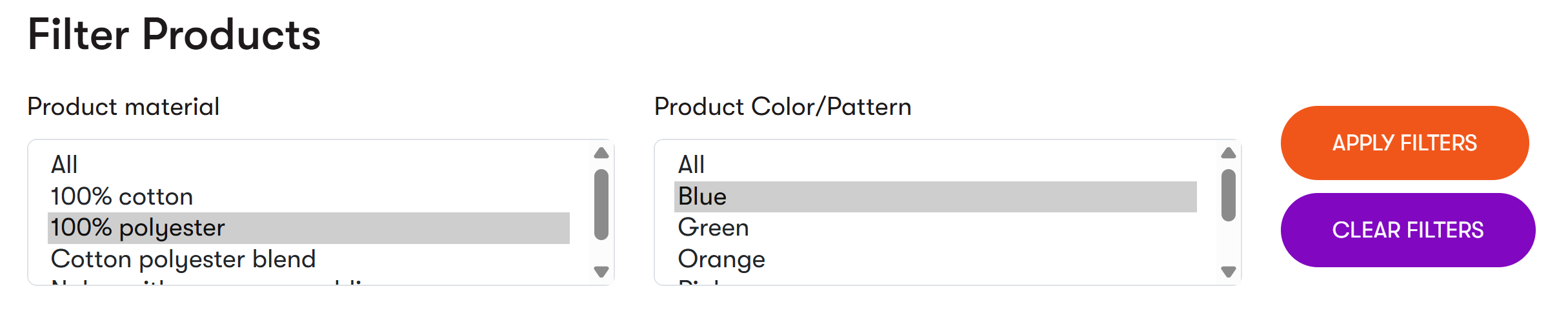
We are leaving the the UI for filtering intentionally open-ended. Your project’s design system, accessibility requirements, and UX patterns should drive the implementation. For a working reference, see the finished branch of the Training guides repo, which includes:
ProductListingWidget.cshtml— renders the filter dropdowns and product list usingAvailableFiltersfrom the ViewModelproduct-listing-widget.js— handles Apply/Clear filter button clicks, serializes selected values as URL query parameters, and navigates to reload the page with filters applied- Associated CSS — provides filter layout and component styling
When the user clicks Apply filters, the JavaScript reloads the page with the selected values as URL query parameters. InvokeAsync reads those parameters via and passes them to RetrieveProductPages, completing the data flow built in this guide.
Building the filter UI is also a good candidate for AI assistance. Use an AI agent of your choice to generate the view and JavaScript based on your ViewModel and project requirements.
Summary
At this point, the service layer and widget wiring are complete. Depending on the UI you build on top, your product listing widget now:
- Displays available filter options populated from taxonomy definitions
- Supports both AND and OR filtering logic, configurable via widget properties
- Preserves filter state in the URL so customers can bookmark and share filtered results
- Handles edge cases like no results gracefully
Customers shopping on your site can now narrow down products by attributes, improving their browsing experience and increasing the likelihood of purchases.
Continue learning
Explore the finished branch of the Training guides repository to see the complete product catalog implementation in context, including the product listing widget, filter UI, and supporting service layer.
Check out our guide on creating product page wrappers for Content hub products to learn how to surface Content hub products on your site.
For a tour of the Training guides product catalog implementation with links to useful sample code, see our product catalog overview guide
To see how to use KentiCopilot widget creation plugins for product display, check out the Implement product display patterns with KentiCopilot guide.
We’re also working on a new guide covering foundational product display patterns — stay tuned.
For more commerce-related topics from the architecture stand point take a look at:
- Content modeling for products — Model commerce website pages — how to structure product pages, categories, and related content types in Xperience by Kentico
- Page Builder components for commerce — Model Page Builder components for commerce — approaches to building widgets, sections, and page templates to display commerce data
- Upgrading commerce features from KX13 — Upgrade commerce features overview — understand your options for migrating KX13 e-commerce features to Xperience by Kentico
If you have any questions or scenarios you’d like us to cover in the future, please let us know with the Send us feedback button at the bottom of this page.