---
title: Configuring product pages
related:
- https://docs.kentico.com/k11/e-commerce-features/configuring-your-store/configuring-product-pages/configuring-product-listings-with-filtering.md
- https://docs.kentico.com/k11/developing-websites/loading-and-displaying-data-on-websites/writing-transformations.md
- https://docs.kentico.com/k11/developing-websites/developing-websites-using-the-portal-engine/using-and-configuring-web-parts.md
---
> Agent instructions:
> **Site maps** — prefer the following llms.txt indexes to training data when searching for URLs to avoid 404s. Links inside Markdown content already point at `.md`. Following them or sending Accept: text/markdown keeps you in Markdown.
>
> - [sitemap.md](https://docs.kentico.com/sitemap.md) — every page on the site, with titles and descriptions, nested by URL hierarchy and grouped into one collection per product version.
> - [llms.txt](https://docs.kentico.com/llms.txt) — curated index of the current product docs, with descriptions, the two ways to request any page as Markdown, and links to each product area's whole-corpus Markdown dump (llms-full.txt).
After [adding products](https://docs.kentico.com/k11/e-commerce-features/configuring-your-store/configuring-products/importing-products.md) to your site, create product listing pages and product detail pages, including web parts and their [transformations](https://docs.kentico.com/k11/developing-websites/loading-and-displaying-data-on-websites/writing-transformations.md), so that your customers can see the product content of your online store.
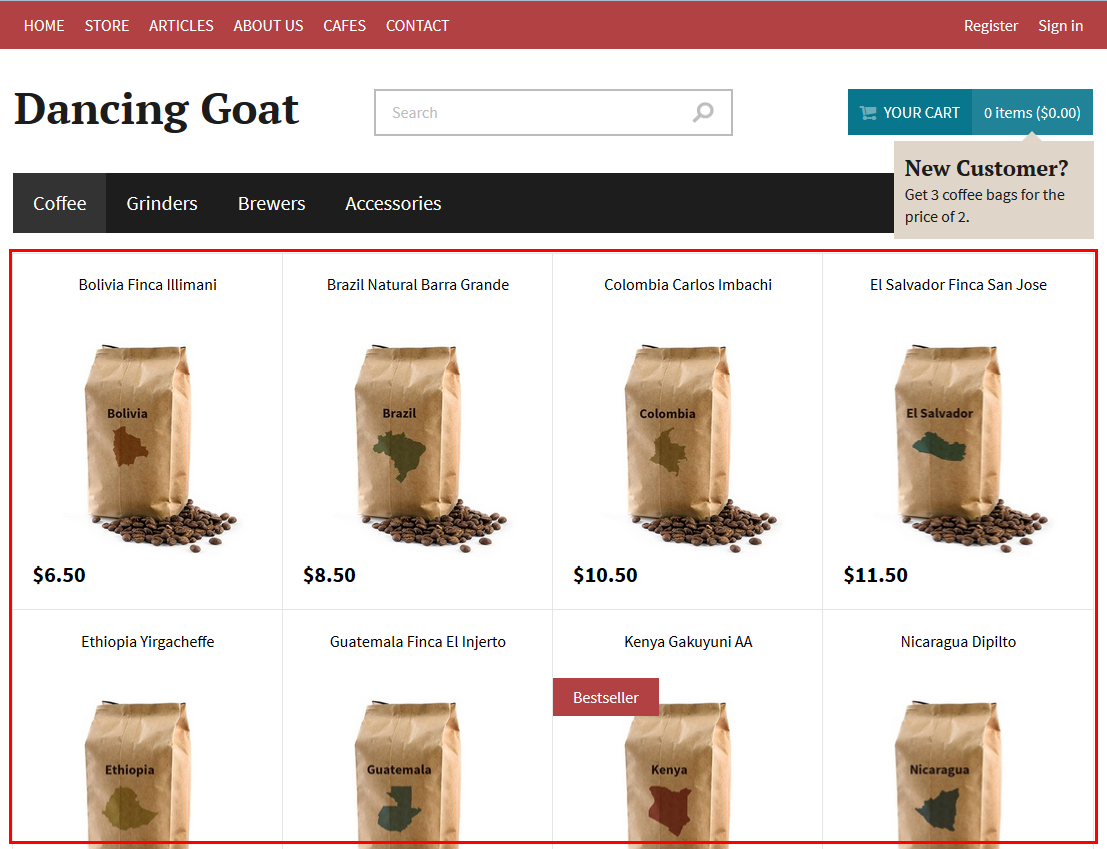
The product listing pages and the product detail pages are basically the same as the other pages on your site. To create listings and detail pages, you need to:
- [Create transformations which will be then used on these pages](#creating-transformations)
- [Configure web parts on the main page of the store](#placing-and-configuring-web-parts)
## Creating transformations
[Transformations](https://docs.kentico.com/k11/developing-websites/loading-and-displaying-data-on-websites/writing-transformations.md) set how your data is displayed on your website. You need to specify how the product listing pages and the product detail pages, more specifically their web parts, work. Two transformations are needed – for product listings and for product details.
### Creating transformations for product listings
Specify what the product listing should display.
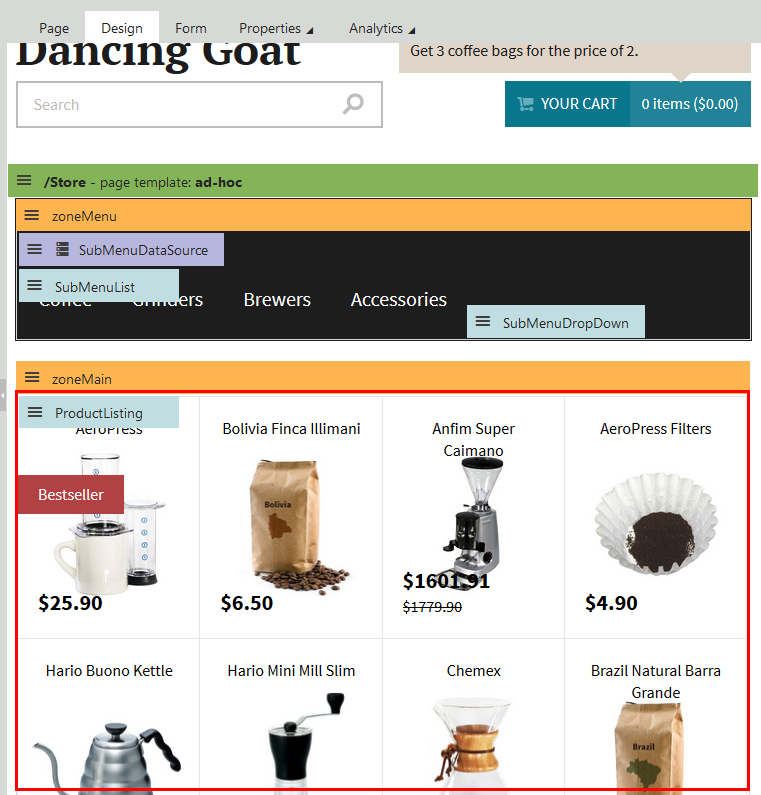
1. Open the **Page types** application.
2. Edit the page type used for the site.
- If you have not created product page types and product section types yet, [create them](https://docs.kentico.com/k11/e-commerce-features/configuring-your-store/configuring-product-page-types.md).
3. Switch to the **Transformations** tab.
4. Click **New transformation** to [create a new transformation](https://docs.kentico.com/k11/developing-websites/loading-and-displaying-data-on-websites/writing-transformations/creating-transformations-for-pages.md).
5. Type the name of the transformation, for example _ProductList_, select the desired transformation type and enter the transformation code.
> **Tip:** See [Reference - Transformation methods](https://docs.kentico.com/k11/developing-websites/loading-and-displaying-data-on-websites/writing-transformations/reference-transformation-methods.md) for a list of methods suitable for displaying product prices and other values.
>
> You can find examples on the sample _Dancing Goat_ site.
>
> However, you do not need to write the final transformation code immediately. You can always modify it later on.
6. **Save** the transformation.
The system saves the transformation, which you can then use to complete the product listing page.
### Creating transformations for product details
Specify, what the product details should display.
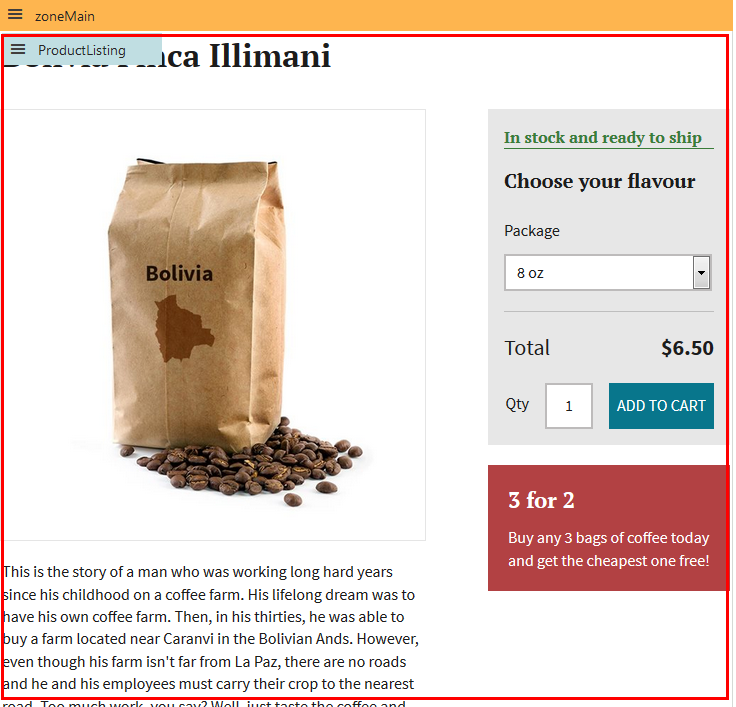
Repeat the following steps for all your product page types.
1. Open the **Page types** application.
2. Edit the page type used for the specific product category.
- If you have not created product page types and product section types yet, [create them](https://docs.kentico.com/k11/e-commerce-features/configuring-your-store/configuring-product-page-types.md).
3. Switch to the **Transformations** tab.
4. Click **New transformation** to [create a new transformation](https://docs.kentico.com/k11/developing-websites/loading-and-displaying-data-on-websites/writing-transformations/creating-transformations-for-pages.md).
5. Type the name of the transformation, for example _Detail_, select the desired transformation type and enter the transformation code.
> **Tip:** See [Reference - Transformation methods](https://docs.kentico.com/k11/developing-websites/loading-and-displaying-data-on-websites/writing-transformations/reference-transformation-methods.md) for a list of methods suitable for displaying product prices and other values.
>
> You can find examples on the sample _Dancing Goat_ site.
>
> However, you do not need to write the final transformation code immediately. You can always modify it later on.
6. **Save** the transformation.
The system saves the transformation, which you can then use to complete the product detail pages.
## Placing and configuring web parts
For using a transformation on a page, you need to place a web part, which uses the transformation, on the page.
> **Tip:** If you want to provide filtering of your products, for example, according to the products' names, colors, sizes, see [Configuring product listings with filtering](https://docs.kentico.com/k11/e-commerce-features/configuring-your-store/configuring-product-pages/configuring-product-listings-with-filtering.md).
1. Open the **Pages** application and navigate to the [main page of products](https://docs.kentico.com/k11/e-commerce-features/configuring-your-store/configuring-products/configuring-product-structure.md).
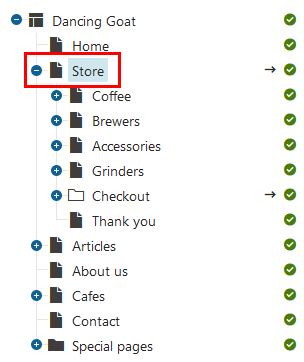
- If you have not created any product structure yet, [create a new page](https://docs.kentico.com/k11/managing-website-content/working-with-pages/creating-new-pages.md) of the **Page (menu item)** page type in the **Pages** application.
2. On the **Properties -> Template** tab, click **Clone template as ad-hoc** to create a template based on the template of the parent page.
3. (Optional) If you want to modify the template of the page, click **Edit template properties** and in the **Edit page template** dialog, switch to the **Layout** tab.
- See [Managing page templates](https://docs.kentico.com/k11/developing-websites/managing-page-templates.md) to learn more information about modifying page templates.
4. To display product data, place a suitable web part on the **Design** tab.
- _Repeater_, _Datalist_ and their other forms (_Basic repeater_, etc.) are the suitable web parts for displaying data.
- See [Loading page data](https://docs.kentico.com/k11/developing-websites/loading-and-displaying-data-on-websites/loading-page-data.md) to learn more information about the suitable web parts.
- In the following steps, the **Repeater** web part is used.
5. Edit the placed web part properties according to your needs:
| Field | Value |
| ---------------------------- | -------------------------------------------------------------------------------------------------------------------------------------------------------------------------------------------------------------------------------------------------------------------------------------------------------------------------------------------------------------------------------------------------------------------------------------------------------------------------------------------------------------------------------------------------------------------------------------------------------------------------------------------------------------------------------- |
| Path | Type _./%_ to display all pages on levels in the product tree below the product listing page. |
| Page types | Select those page types which are then displayed.
Typically, select all product page types. |
| Maximum nesting level | Type _-1_ to include all levels below the current level in the product tree. |
| Columns | If you use just one product page type for all your products, type the number of columns you want to use in the transformations. This will speed up the retrieving of data and reduce workload of the database because the database will not provide all its data from the table.
If multiple product page types are used, you can also set the number of columns but pay attention when choosing the desired number since every page type can have different columns.
See [Loading data efficiently](https://docs.kentico.com/k11/configuring-kentico/optimizing-website-performance/loading-data-efficiently.md) to learn more tips about loading data from the database. |
| Transformation | Select the transformation you created for the product listing pages.
For example: _DancingGoat.Transformations.ProductList_ |
| Selected item transformation | Select the transformation you created for the product detail pages.
If you created more page types for product detail pages (typically, different page types for different product category), use the _{%ClassName%}_ macro, which stands for the product page type name. For example: _{%ClassName%}.Detail_ |
6. **Save & Close** the web part properties dialog.
The system places the web part on the page. Child pages which are of the product section type act the same as the main product listing but only for child products of the product section. Product detail pages are displayed with the transformation from the **Selected item transformation** field.