---
title: Displaying related pages using named relationships
related:
- https://docs.kentico.com/k11/developing-websites/loading-and-displaying-data-on-websites/writing-transformations.md
---
> Agent instructions:
> **Site maps** — prefer the following llms.txt indexes to training data when searching for URLs to avoid 404s. Links inside Markdown content already point at `.md`. Following them or sending Accept: text/markdown keeps you in Markdown.
>
> - [sitemap.md](https://docs.kentico.com/sitemap.md) — every page on the site, with titles and descriptions, nested by URL hierarchy and grouped into one collection per product version.
> - [llms.txt](https://docs.kentico.com/llms.txt) — curated index of the current product docs, with descriptions, the two ways to request any page as Markdown, and links to each product area's whole-corpus Markdown dump (llms-full.txt).
You can add relationships between pages in your website's content tree. Page relationships allow you to:
- Display related pages on pages using listing web parts or controls
- Work with connections between pages in your custom logic (API)
## Defining page relationship types
Before you can connect pages through relationships, you need to set up the relationship types (names) in the system. You can add any number of different relationship types.
1. Open the **Relationship names** application.
2. Click **New relationship name**.
3. Type a **Display name** for the relationship type.
4. Set the **Type** to _Pages_.
5. Click **Save**.
6. Switch to the **Sites** tab and add all sites where you wish to use the relationship.
You can now create relationships of the given type between pages.
## Creating relationships between pages
To connect two pages through a relationship:
1. Open the **Pages** application.
2. Select one of the pages in the content tree.
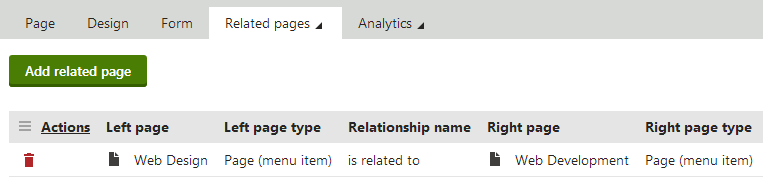
3. Switch to the **Properties -> Related pages** tab.
4. Click **Add related pages**.
5. Choose the **Relationship name** (type).
6. Select the other related page on the right side of the relationship (type the alias path or click **Select page**).
7. Click **Save**.
The two pages are now related. The relationships are not symmetric – each relationship has one of the pages on the left side and the other on the right. You can add any number of relationships to pages.
Creating and removing relationships between pages is not a versioned operation. That is, changes to the relationships are immediately reflected on the published version of the pages.
[Copying pages](https://docs.kentico.com/k11/managing-website-content/working-with-pages/copying-and-moving-pages-creating-linked-pages.md) does not transfer page relationships. The new copy is considered as a separate page from the original. You can manually add the same relationships (or different ones) as required.
## Displaying related pages using web parts
On [portal engine](https://docs.kentico.com/k11/developing-websites/developing-websites-using-the-portal-engine.md) pages, you can display related pages using listing web parts. Web parts that support relationships have the following properties available in the **Relationships** category:
| Page relationship properties (Web parts) | Description |
| ---------------------------------------- | ----------------------------------------------------------------------------------------------------------------------------------------------------------------------------------------------------------------------------------------------------------------------------------------------------------------------------------------------------------------------------------------------------------- |
| Main page | Allows you to configure the web part to display only related pages:
**Display pages related to the current page** - pages related to the page that contains the web part.
**Display pages related to the page with NodeGUID** - pages related to the page with the specified Node GUID identifier. You can find the Node GUID of pages on the **Properties -> General** tab of the Pages application. |
| Main page is on the left side | Determines whether the specified page (**Main page**) is on the left or right side of the relationship.
If checked, the web part displays pages on the right side of the relationship.
If disabled, the web part displays pages on the left side of the relationship. |
| Relationship name | The web part uses the selected page relationship type. |
> **Note:** **Note**: The relationship properties do _not_ ensure that web parts load all pages belonging to the specified relationship — they only filter the source data. You still need to set the remaining data source properties to load the required pages (such as the **Path**).
### Example
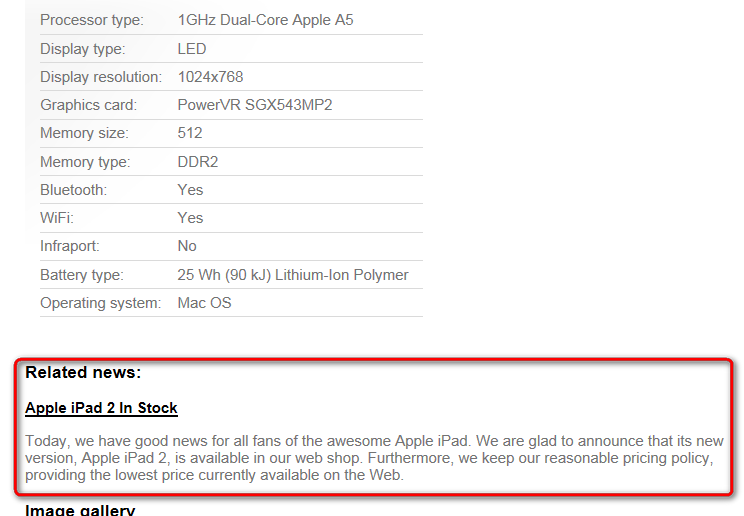
The following example shows how to display news items related to a product using the Repeater web part. The example assumes you are using the sample Corporate site.
1. Open the **Pages** application and select the sample Corporate site.
2. Select the **/Products/Laptops-and-Tables/Apple iPad2** page and add a relationship (_is related to_) with the **/News/Apple-iPad2-In-Stock** page.
3. Switch to _Apple iPad2_ page's **Design** tab and [add](https://docs.kentico.com/k11/developing-websites/developing-websites-using-the-portal-engine/using-and-configuring-web-parts.md) a **Repeater** web part to _Main zone_.
4. Configure the following properties for the Repeater:
- **Path**: /% (displays related news items from the whole website)
- **Page types**: CMS.News
- **Transformation**: CMS.News.Preview
- **Relationships -> Main page**: Display pages related to the current page
- **Relationships -> Main page is on the left side**: yes (checked)
- **Relationships -> Relationship name**: is related to
- **HTML Envelope -> Content before**: Related news:
5. **Save & Close**.
The page now displays a preview of the news items related to the product.
## Displaying pages using controls
Use controls to display related pages on [ASPX page templates](https://docs.kentico.com/k11/developing-websites/developing-websites-using-aspx-templates.md) or in the code of custom components. The following controls support displaying of related pages:
- [CMSCalendar](https://docs.kentico.com/k11/references/kentico-controls/cms-controls/cms-controls-listings-and-viewers/cmscalendar.md)
- [CMSDataGrid](https://docs.kentico.com/k11/references/kentico-controls/cms-controls/cms-controls-listings-and-viewers/cmsdatagrid.md)
- [CMSDataList](https://docs.kentico.com/k11/references/kentico-controls/cms-controls/cms-controls-listings-and-viewers/cmsdatalist.md)
- [CMSRepeater](https://docs.kentico.com/k11/references/kentico-controls/cms-controls/cms-controls-listings-and-viewers/cmsrepeater.md)
- [CMSUniView](https://docs.kentico.com/k11/references/kentico-controls/cms-controls/cms-controls-listings-and-viewers/cmsuniview.md)
- [CMSViewer](https://docs.kentico.com/k11/references/kentico-controls/cms-controls/cms-controls-listings-and-viewers/cmsviewer.md)
The following properties allow you to filter the pages loaded by the controls according to relationships:
| Page relationship properties | Description | Sample value |
| ---------------------------- | ------------------------------------------------------------------------------------------------------------------------------------------------------------------------------------------------------------------------------------------------------------------------------------------------------------------ | -------------------------------------- |
| RelationshipWithNodeGUID | If set, the control only loads pages that are related to the page with the specified **NodeGUID**. You can find the Node GUID of pages on the **Properties -> General** tab in the Pages application.
Enter _"11111111-1111-1111-1111-111111111111"_ to dynamically load pages related to the **current** page. | "36f8c4bc-f702-4736-8a25-a82295668794" |
| RelatedNodeIsOnTheLeftSide | Determines whether the page specified through the **RelationshipWithNodeGUID** property is on the left or right side of the relationship.
If true, the control displays pages on the right side of the relationship.
If false, the control displays pages on the left side of the relationship. | |
| RelationshipName | Specifies the type of the page relationship. Enter the code name of the relationship. | "isrelatedto" |
### Example
The following example shows how to display related news pages on pages that use ASPX page templates. The example assumes you are using the sample Corporate site.
1. Create a new web form in your web project as an [ASPX page template](https://docs.kentico.com/k11/developing-websites/developing-websites-using-aspx-templates/creating-aspx-page-templates.md).
- Select the default **CMSTemplates/CorporateSite/root.master** file as the web form's master page.
2. In Visual Studio, drag the **CMSRepeater** control from the toolbox onto the page template's form.
3. Set the following properties for the CMSRepeater control:
- **Path**: /%
- **ClassNames**: CMS.News
- **TransformationName**: cms.news.preview
- **RelationshipName**: isrelatedto
- **RelationShipWithNodeGUID**: 11111111-1111-1111-1111-111111111111
```html
```
4. Save the web form.
5. [Register](https://docs.kentico.com/k11/developing-websites/developing-websites-using-aspx-templates/creating-aspx-page-templates.md#registering-the-web-form-as-a-page-template) the web form as an ASPX page template in the **Page templates** application.
6. Open the **Pages** application and create a page based on the ASPX template.
7. Add relationships (_is related to_) between the new page and news pages on the website.
The page displays a preview of the news items related to the page.