---
title: Configuring Kentico Azure projects for Cloud Services
---
> Agent instructions:
> **Site maps** — prefer the following llms.txt indexes to training data when searching for URLs to avoid 404s. Links inside Markdown content already point at `.md`. Following them or sending Accept: text/markdown keeps you in Markdown.
>
> - [sitemap.md](https://docs.kentico.com/sitemap.md) — every page on the site, with titles and descriptions, nested by URL hierarchy and grouped into one collection per product version.
> - [llms.txt](https://docs.kentico.com/llms.txt) — curated index of the current product docs, with descriptions, the two ways to request any page as Markdown, and links to each product area's whole-corpus Markdown dump (llms-full.txt).
After you [install a Kentico Azure project](https://docs.kentico.com/k11/running-kentico-on-microsoft-azure/running-kentico-in-azure-cloud-services/installing-kentico-azure-projects.md) and [prepare the cloud environment](https://docs.kentico.com/k11/running-kentico-on-microsoft-azure/running-kentico-in-azure-cloud-services/preparing-the-azure-cloud-environment.md), you need to configure your project before the actual deployment to Azure Cloud Services.
- [Basic configuration](#basic-configuration) – perform these configuration tasks for every Kentico Azure project.
- [Advanced configuration](#advanced-configuration-multiple-web-roles) – perform these configurations when you upgrade your project to use two or more web role instances.
- [Additional configurations](#additional-configurations) – you can perform these configurations in any phase of your project.
> **Note:** **Azure SDK version**
>
> Before you start configuring your Kentico Azure project, check that you have **Azure SDK** **2.9.5 or newer** installed for your version of Visual Studio. See [Requirements and limitations for running Kentico in Azure Cloud Services](https://docs.kentico.com/k11/running-kentico-on-microsoft-azure/running-kentico-in-azure-cloud-services/requirements-and-limitations-for-running-kentico-in-azure-cloud-services.md) for details.
## Adding application settings in an Azure project
Generally, you can add settings for your Azure application either in the **web.config file** or in the **ServiceConfiguration.Cloud.cscfg** file.
However, when you need to modify setting values in the web.config file, you have to deploy the whole project again. When you need to modify setting values configured in the ServiceConfiguration.Cloud.cscfg file, you can modify them on the [Azure Management Portal](https://portal.azure.com/) in **Cloud services ->** your cloud service\*\*-> Configuration\*\*tab. Therefore, we recommend that you configure your application mainly using the ServiceConfiguration.Cloud.cscfg file.
To add new settings to the configuration file:
1. Open your Azure project in Visual Studio.
2. Double-click **CMSApp** role in **CMSAzure/Roles**.
3. Switch to the **Settings** tab.
4. Click **Add Setting**.
When you add or remove settings this way, Visual Studio ensures that all necessary files (ServiceConfiguration.Cloud.cscfg, ServiceConfiguration.Local.cscfg and ServiceDefinition.csdef) are modified according to your changes.
> **Note:** Whenever you add or remove settings, you have to **deploy your project** to the cloud. Therefore, you should decide in advance which functionality you need to configure in your Azure project.
## Basic configuration
These configuration tasks are necessary to perform for every Microsoft Azure project.
### Setting the Azure storage access keys
1. Open your Azure project in Visual Studio.
2. Open the **ServiceConfiguration.Cloud.cscfg** file.
3. Open the [Azure Management Portal](https://portal.azure.com/).
4. Access your storage account.
5. Switch to the **Access keys** tab.
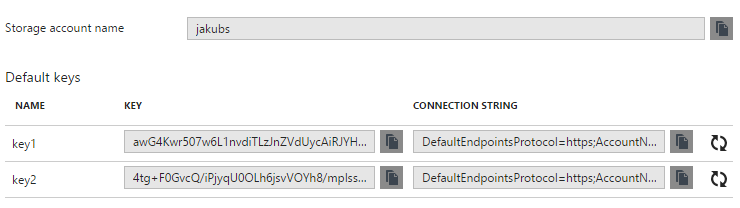
6. Copy the **Storage account name** and enter it as a value of **CMSAzureAccountName**setting in **CMSApp** role section in the ServiceConfiguration.Cloud.cscfg file.
7. Copy one of the provided access keys and enter it as a value of **CMSAzureSharedKey** setting in **CMSApp** role section in the ServiceConfiguration.Cloud.cscfg file (Azure privodes two access keys so that you can maintain connections using one key while regenerating the other).
```xml
```
Replace **YourStorageName** and **YourPrimaryAccessKey** with your own values.
8. Save the configuration file.
You have connected your Azure project with your Azure storage account.
> **Tip:** **Setting the keys after the deployment**
>
> If you do not set the storage access keys before you deploy the Azure project to the cloud, you can do it after the deployment as well in the [Azure Management Portal](https://portal.azure.com/). Navigate to **Cloud services ->** select your service **-> Configuration**, where you can copy the **Storage account name** and one of the provided keys as values of the **CMSAzureAccountName** and **CMSAzureSharedKey** settings for the **CMSApp** and **SmartSearchWorker** roles.
### Configuring smart search
Before you deploy your Azure project to the cloud, you need to decide whether you want to use [locally stored search indexes](https://docs.kentico.com/k11/configuring-kentico/setting-up-search-on-your-website/using-locally-stored-search-indexes.md). You have the following options:
- [Configure the SmartSearchWorker role](#configuring-the-smartsearchworker-role)
- [Remove the SmartSearchWorker role and configure processing of smart search tasks in the CMSApp role](#configuring-the-processing-of-smart-search-tasks-in-the-cmsapp-web-role)
- [Remove the SmartSearchWorker role and disable smart search functionality](#disabling-smart-search-functionality)
> **Info:** **Note**: You can use [Azure Search indexes](https://docs.kentico.com/k11/configuring-kentico/setting-up-search-on-your-website/using-azure-search.md) without the SmartSearchWorker role.
#### Configuring the SmartSearchWorker role
If you want to use the SmartSearchWorker role and utilize local smart search indexes, configure the **Storage account name** and **Primary access key** for this role.
1. Open your Azure project in Visual Studio.
2. Open the **ServiceConfiguration.Cloud.cscfg** file.
3. Copy the **CMSAzureAccountName**and **CMSAzureSharedKey** keys (which you set when [configuring the storage access keys](#setting-the-azure-storage-access-keys)) with their values from the CMSApp role section to the **SmartSearchWorker** role section:
```xml
```
Replace **YourStorageName** and **YourPrimaryAccessKey** with your own values.
4. **Save** the configuration file.
You have configured the SmartSearchWorker role to work on Microsoft Azure. If you do not need to perform any other configuration tasks, continue to [Deploying Azure projects to Cloud Services](https://docs.kentico.com/k11/running-kentico-on-microsoft-azure/running-kentico-in-azure-cloud-services/deploying-azure-projects-to-cloud-services.md).
#### Configuring the processing of smart search tasks in the CMSApp web role
If you would not utilize the whole worker role, but you do not want to lose the smart search functionality entirely, you can configure local search tasks to be processed by the main CMSApp web role. This solution can only be used by small projects, as the search tasks affect the performance of the web role.
1. Open your Azure project in Visual Studio.
2. Remove the **SmartSearchWorker** role from CMSAzure/Roles.
3. Open the **web.config** file from the CMSApp project.
4. Add the **CMSProcessSearchTasksByScheduler**key to the \ section:
```xml
```
5. **Save** the web.config file.
Local smart search tasks are now processed by the CMSApp web role. The SmartSearchWorker role will not be deployed to the hosting environment, so the costs of running your application on Microsoft Azure will be lower. If you do not need to perform any other configuration tasks, continue to [Deploying Azure projects to Cloud Services](https://docs.kentico.com/k11/running-kentico-on-microsoft-azure/running-kentico-in-azure-cloud-services/deploying-azure-projects-to-cloud-services.md).
#### Disabling smart search functionality
If you are certain that you will not need local search indexes for your project:
1. Open your **Azure project** in Visual Studio.
2. Remove the **SmartSearchWorker** role from CMSAzure/Roles.
Removing the SmartSearchWorker reduces the number of roles that need to be hosted, so the costs of running your application on Microsoft Azure will be lower. If you do not need to perform any other configuration tasks, continue to [Deploying Azure projects to Cloud Services](https://docs.kentico.com/k11/running-kentico-on-microsoft-azure/running-kentico-in-azure-cloud-services/deploying-azure-projects-to-cloud-services.md).
## Advanced configuration (multiple web roles)
When you use more than one instance of the CMSApp web role, the system considers these instances as web farm servers. Therefore, you need to configure your project according to the instructions in this section.
### Configuring the number of instances
You can set up the number of instances used for the **CMSApp** role, which represents the Kentico application. This determines the number of virtual machines dedicated to the website. The number of instances influences the performance and load handling capacity of the application.
To set the number of instances used for the CMSApp role, change the value of the **count** attribute of the role's _\_ element:
1. Open your Azure project in Visual Studio.
2. Open the **ServiceConfiguration.Cloud.cscfg** file.
3. Change the **\** setting to the required number of instances:
```xml
...
```
4. Save the configuration file.
Each instance is represented by a separate web farm server within the Kentico system. The creation and management of the servers is handled automatically, and you do not have to perform any further configuration.
> **Tip:** You can also change the number of used instances on the [Azure Management Portal](https://portal.azure.com/) in **Cloud services -> Scale** tab.
> **Warning:** **SmartSearchWorker** **role**
>
> Do NOT increase the number of instances for the **SmartSearchWorker** role. Due to the way smart search indexes are processed, the required tasks must be performed by a single instance.
#### Instance licensing
The Kentico license used for your domain must allow at least as many web farm servers as the amount of instances set for the role. See [http://www.kentico.com](http://www.kentico.com/purchase/price-list/product-license-pricelist) for pricing information.
### Configuring session state storage
If you want your Azure application to use two or more web role instances, choose where to store session state information. See [Storing cache and session state data in Azure environment](https://docs.kentico.com/k11/running-kentico-on-microsoft-azure/storing-cache-and-session-state-data-in-azure-environment.md) for details.
## Additional configurations
You can perform the configurations in this section in any phase of project development.
### Configuring sizes of the CMSApp web role
The size of a web role determines the number of CPU cores, the memory capacity, and the local file system size that is allocated to a running instance. You can change the size of the web role anytime, however, note that **full redeployment** is required after the change.
1. Open your Azure project in Visual Studio.
2. Open the **ServiceDefinition.csdef** file.
3. Set the **vmsize** attribute of the **WebRole** element to the size that you desire.
- For more information about the available size options, see [Sizes for Cloud Services](https://docs.microsoft.com/en-us/azure/cloud-services/cloud-services-sizes-specs).
```xml
```
### Configuring external Windows services
By default, external Windows services (Scheduler and Health monitor) that come with Kentico do not run in the Azure environment. However, you can make a few adjustments to the Visual Studio project to make the services work. After performing the steps described in this section, the Scheduler service will run as part of the **SmartSearchWorker**role and the Health monitoring service will run as part of the **CMSApp** role.
> **Warning:** **Prerequisites for the Health monitoring service**
>
> For the Health monitoring service to work in your Azure project:
>
> - The Azure Cloud Service and SQL Server must share the same Location ([Azure Region](https://azure.microsoft.com/en-us/regions/))
> - The SQL server must have the **Allow access to Azure Services** setting enabled. You can enable this option in the [Azure Management Portal](https://portal.azure.com/) – navigate to **SQL servers**,select your server, and open the **Firewall / Virtual Networks** tab.
>
> You cannot change the Location for existing Cloud Services and SQL Servers. If your services do not have the same Location, you need to delete the services and recreate them in the same Location.
To enable external services in your Azure project:
1. Open your Kentico Azure solution in Visual Studio.
2. Edit the CMSAzure/**ServiceDefinition.csdef** file and uncomment the following code:
```xml title="Scheduler"
```
```xml title="Health monitoring"
```
3. Edit the **web.config** file in the CMSApp project and copy the value of the **CMSApplicationName** key.
4. Open the SmartSearchWorker/**InstallSchedulerService.cmd** and CMSApp/**InstallHealthMonitoringService.cmd** files, and replace _\_ with the value of the **CMSApplicationName** key.
- For example, if the value of the CMSApplicationName key is:
```xml
```
- then the appropriate line would be:
```csharp
SET _applicationIdentifier=My Web Site/Kentico
```
- You can also use the value of the CMSApplicationGuid key, but note that the services will use this value in their names.
5. Choose a password for a new administrator account, which will be created on your Microsoft Azure machine by the InstallSchedulerService.cmd (InstallHealthMonitoringService.cmd) script. Replace _\_ with the chosen password:
```csharp
SET _adminPassword=QyCZ5HDj
```
6. Link the main CMSApp **web.config** file into the **SmartSearchWorker** project:
1. Right-click the **SmartSearchWorker** project and select **Add -> Existing Item**.
2. Select the **CMS\web.config** file within the Kentico project. You may need to set the file filter to _All Files (\*.\*)_.
3. Expand the **Add** menu and click **Add As Link**.
7. Link the **services.xml** file into the **SmartSearchWorker** project:
1. Create the following folder structure under in the **SmartSearchWorker** project: _/App\_Data/CMSModules/WinServices_
2. Right-click the _SmartSearchWorker/App\_Data/CMSModules/WinServices_ folder and select **Add -> Existing Item**.
3. Select the **CMS\App\_Data\CMSModules\WinServices\services.xml**file within the Kentico project. You may need to set the file filter to _All Files (\*.\*)_.
4. Expand the **Add** menu and click **Add As Link**.
8. Open the Visual Studio **Properties Window** (by selecting **View -> Properties Window** in the main menu or by pressing **F4**).
9. Set the **Copy to Output Directory** property to _Copy always_ for the following files:
- CMSApp/App\_Data/CMSModules/HealthMonitoring/**Counters.xpc**
- CMSApp/**InstallHealthMonitoringService.cmd**
- SmartSearchWorker//App\_Data/CMSModules/WinServices/**services.xml** (linked file)
- SmartSearchWorker/**InstallSchedulerService.cmd**
- SmartSearchWorker/**Web.config** (linked file)
Once the application is deployed and starts for the first time, the InstallSchedulerService.cmd and InstallHealthMonitoringService.cmd scripts register the services into the system and start them. You will then be able to manage them via remote desktop.
> **Info:** **Deploying a project without a database**
>
> If you deploy your Azure project without a database (you perhaps intend to install the database later using the web installer), the Windows services will not be started and will not run even after you install the database.
>
> To start the Windows services after you additionally install the database, restart the instances of the cloud service:
>
> 1. Open the [Azure Management Portal](https://portal.azure.com/).
> 2. Select your Cloud Service.
> 3. Switch to the **Roles and Instances** tab.
> 4. Select a role instance and click **Reboot** in the top panel.
> 5. Reboot all other instances including the worker role.
>
> The restart will cause the Windows services to start properly and the performance counters to be registered.
> **Note:** **Known issue**
>
> If you encounter the following error while publishing your Azure project from Visual Studio:
>
> - _Could not copy the file "InstallHealthMonitoringService.cmd" because it was not found._
>
> try publishing your project once again. This error sometimes occurs when you build your Azure solution in the _release_ configuration and subsequently publish the project.
### Configuring monitoring for Cloud Services
You can monitor the performance of your cloud services in the [Azure Management Portal](https://portal.azure.com/), when you select your cloud service and switch to the **Monitor** page. The Azure platform offers two monitoring modes, Minimal and Verbose.
- **Minimal** – the default monitoring mode for new cloud services. Allows you to monitor the following metrics: CPU Percentage, Data In, Data Out, Disk Read Throughput, and Disk Write Throughput.
- **Verbose** – provides more monitoring options, but requires access to the Azure blob storage. You need to provide storage access keys and configure the diagnostics connection string for your roles.
You can find more information about the monitoring options in [How to Monitor Cloud Services](https://docs.microsoft.com/en-us/azure/cloud-services/cloud-services-how-to-monitor).
To configure your Azure project to enable **verbose monitoring**:
1. Open your Azure project in Visual Studio.
2. Right-click the **CMSApp** role in the solution explorer and select **Add Diagnostics Configuration**, which adds a diagnostics configuration file to the solution. See [Configuring Diagnostics for Azure Cloud Services](https://docs.microsoft.com/en-us/azure/vs-azure-tools-diagnostics-for-cloud-services-and-virtual-machines) for more instructions.
3. Double click the **CMSApp** role.
4. On the **Configuration** tab, make sure that the **Enable Diagnostics** option is selected.
5. Click **Configure...**
6. On the General tab of the Diagnostics configuration dialog box, click **Configure**.
7. Select your **Subscription** and **Storage account**, where the diagnostics data will be stored.
8. Close both configuration dialog boxes.
9. Repeat this procedure for the **SmartSearchWorker** role.
After you deploy your project, you can switch to the Verbose monitoring mode in the Azure Management Portal when you select your cloud service and switch to the **Configure** tab. You can also change the diagnostics connection string on the **Configure** tab in the **Diagnostics Connection Strings** section.