---
title: Defining local page indexes
related:
- https://docs.kentico.com/k11/configuring-kentico/setting-up-search-on-your-website/using-locally-stored-search-indexes/creating-local-search-indexes.md
- https://docs.kentico.com/k11/configuring-kentico/setting-up-search-on-your-website/using-azure-search/creating-azure-search-indexes.md
---
> Agent instructions:
> **Site maps** — prefer the following llms.txt indexes to training data when searching for URLs to avoid 404s. Links inside Markdown content already point at `.md`. Following them or sending Accept: text/markdown keeps you in Markdown.
>
> - [sitemap.md](https://docs.kentico.com/sitemap.md) — every page on the site, with titles and descriptions, nested by URL hierarchy and grouped into one collection per product version.
> - [llms.txt](https://docs.kentico.com/llms.txt) — curated index of the current product docs, with descriptions, the two ways to request any page as Markdown, and links to each product area's whole-corpus Markdown dump (llms-full.txt).
You can use two types of locally stored search indexes for the pages of websites (i.e. pages in the content tree):
| Pages | Index the following page data:
The content of text web parts placed on pages (_Editable text_, _Static text_ and similar)
Page metadata
Selected fields of individual page types (see [Configuring search settings for page fields](#configuring-search-settings-for-page-fields))
**Note**: Pages indexes do NOT include the text of other pages or objects displayed through web parts (such as the content of News page displayed through a _Repeater_ web part). |
| ------------- | -------------------------------------------------------------------------------------------------------------------------------------------------------------------------------------------------------------------------------------------------------------------------------------------------------------------------------------------------------------------------------------------------------------------------------------------------------------------------------- |
| Pages crawler | Directly parse the HTML output generated by pages, which allows the search to find any text located on pages. Crawler indexes provide more accurate searches of page content than standard **Pages** indexes. However, building and updating crawler indexes may require more time and resources, particularly in the case of large indexes and complex pages.
See also: [Configuring page crawler indexes](#configuring-page-crawler-indexes) |
> **Info:** **Note**: Page indexes only cover pages that are [published](https://docs.kentico.com/k11/managing-website-content/working-with-pages/using-workflows.md) on the live site.
To define which pages an index covers, specify allowed or excluded content:
1. Open the **Smart search** application.
2. Select the **Local indexes** tab.
3. Edit () the index.
4. Select the **Indexed content** tab.
5. Click **Add allowed content** or **Add excluded content**.
6. Open the **Sites** tab and assign the websites where you wish to use the index.
7. Switch to the **Cultures** tab and select which language versions of the website's pages are indexed.
- At least one culture must be assigned in order for the index to be functional.
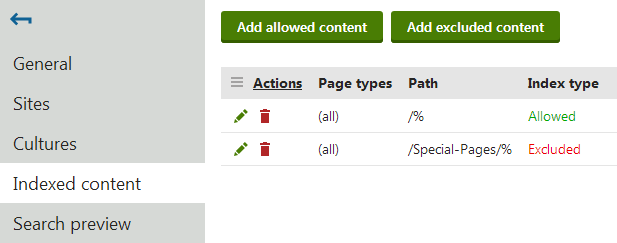
## Adding allowed content
Allowed content defines which of the website's pages are included in the index. Specify pages using a combination of the following options:
- **Path** – [path expression](https://docs.kentico.com/k11/developing-websites/loading-and-displaying-data-on-websites/loading-page-data/writing-page-path-expressions.md) identifying the pages that should be indexed.
- **Page types** – allows you to limit which [page types](https://docs.kentico.com/k11/developing-websites/defining-website-content-structure/page-types.md) are included in the index.
The following properties define types of additional content that you can include in _Page_ search indexes. The settings are not available for _Pages crawler_ indexes:
- **Include ad-hoc forums** – includes the content of ad-hoc [forums](https://docs.kentico.com/k11/community-features/forums.md) placed on the specified pages (if there are any).
- **Include blog comments** – includes blog comments posted for blog post pages.
- **Include message boards** – includes message boards placed on the specified pages.
- **Include attachment content** – if selected, the index includes the text content of files attached to the specified pages. See [Searching attachment files](https://docs.kentico.com/k11/configuring-kentico/setting-up-search-on-your-website/searching-attachment-files.md) for more information.
- **Include categories** – if selected, the index stores the display names of [Categories](https://docs.kentico.com/k11/managing-website-content/working-with-pages/categorizing-pages.md) assigned to the specified pages. This allows users to find pages that belong to categories whose name matches the search expression.
#### Examples
| Allowed content settings | Result |
| ------------------------------------------------------------------ | ---------------------------------------------------------------------------------------------------------- |
| **Path**: /%
**Page types**: empty | Indexes all pages on the site. |
| **Path:** /Partners
**Page types**: empty | Only indexes the _/Partners_ page, without the child pages placed under it. |
| **Path**: /%
**Page types**: CMS.News | Indexes all pages of the _CMS.News_ page type on the entire site. |
| **Path**: /Products/%
**Page types**: CMS.Smartphone;CMS.Laptop | Indexes all pages of the _CMS.Smartphone_ and _CMS.Laptop_ page types found under the _/Products_ section. |
## Adding excluded content
Excluded content allows you to remove pages or entire website sections from the allowed content. For example, if you allow **/%** and exclude **/Special-pages/%** at the same time, the index will include all pages on the site except for the ones found under the **/Special-pages** node.
You can specify the following options:
- **Path** – [path expression](https://docs.kentico.com/k11/developing-websites/loading-and-displaying-data-on-websites/loading-page-data/writing-page-path-expressions.md) identifying the pages that should be excluded.
- **Page types** – allows you to limit which [page types](https://docs.kentico.com/k11/developing-websites/defining-website-content-structure/page-types.md) are excluded from the index.
#### Examples
| Excluded content settings | Result |
| ------------------------------------------------------------------ | -------------------------------------------------------------------------------------------------------------------------- |
| **Path:** /Partners
**Page types**: empty | Excludes the _/Partners_ page from the index. Child pages are not excluded. |
| **Path**: /%
**Page types**: CMS.News | Excludes all pages of the _CMS.News_ page type from the index. |
| **Path**: /Products/%
**Page types**: CMS.Smartphone;CMS.Laptop | Excludes all pages of the _CMS.Smartphone_ and _CMS.Laptop_ page types found under the _/Products_ section from the index. |
> **Info:** **Excluding individual pages from all indexes**
>
> You can also exclude specific pages from all smart search indexing:
>
> 1. Open the **Pages** application.
> 2. Select the given page in the content tree.
> 3. In **Edit** mode, open the **Properties -> Navigation** tab.
> 4. Enable the **Exclude from search** property.
> 5. Click **Save**.
## Configuring search settings for page fields
Pages are often complex data structures with many different fields. Not all fields may be relevant to the search that you are implementing. [Page types](https://docs.kentico.com/k11/developing-websites/defining-website-content-structure/page-types.md) allow you to adjust how the system indexes specific fields. We recommend indexing only necessary fields to keep your indexes as small (and fast) as possible.
> **Note:** **Pages crawler** search indexes directly index the HTML output of pages. As a result, crawler indexes are not affected by the field settings of page types.
To edit the field search settings for page types:
1. Open the **Page types** application.
2. Edit () a page type.
3. Open the **Search fields** tab.
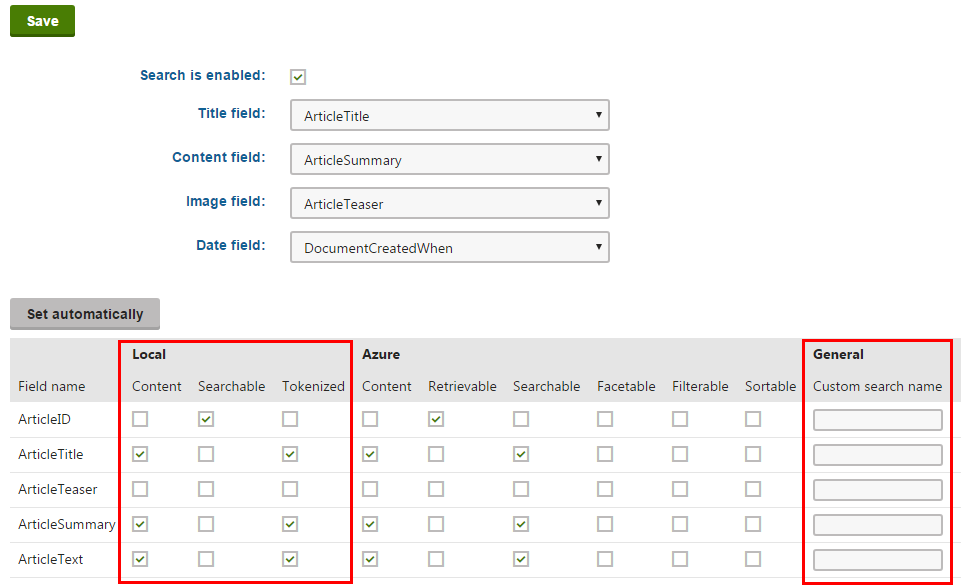
The options in the top part of the tab allow you to configure how the system displays pages of the given type in search results. Note that the final appearance of the search results always depends on the used [search result transformation](https://docs.kentico.com/k11/configuring-kentico/setting-up-search-on-your-website/using-locally-stored-search-indexes/displaying-local-index-search-results-using-transformations.md).
- **Title field** – select the page field whose value is used for the title of search results.
- **Content field** – the field whose value is used for the content extract of search results.
- **Image field** – the field that contains the image displayed in search results.
- **Date field** – the field whose value is used for the date and time displayed in search results.
The grid in the bottom section of the tab determines how the smart search indexes the page type's fields (as defined on the **Fields** tab).
For [locally stored search indexes](https://docs.kentico.com/k11/configuring-kentico/setting-up-search-on-your-website/using-locally-stored-search-indexes.md), only the options under the **Local** and **General** sections of the grid apply (to learn about Azure Search page indexes, see [Creating Azure Search indexes](https://docs.kentico.com/k11/configuring-kentico/setting-up-search-on-your-website/using-azure-search/creating-azure-search-indexes.md)). You can set the following search options for individual fields:
| Content | If selected, the content of the field is indexed and searchable in the standard way. Within search indexes, the values of all fields with the _Content_ option enabled are combined into a system field named **\_content** (this field is used to find or filter matching search items, but is NOT suitable for reading and displaying human-readable information such as search result extracts).
For the purposes of standard search, _Content_ fields are automatically tokenized by the analyzer of the used search index. |
| ------------------ | --------------------------------------------------------------------------------------------------------------------------------------------------------------------------------------------------------------------------------------------------------------------------------------------------------------------------------------------------------------------------------------------------------------------------------------------------------------------------------------------------------------------------------------------------------------------------------------------------------------------------------------------------------------------------------------------------------------------------------------------------------------------------------------------------------------------------------------------------------------- |
| Searchable | If selected, the field is stored separately within indexes and its content can be searched using expressions in format:
_\:\_
See [Smart search syntax](https://docs.kentico.com/k11/configuring-kentico/setting-up-search-on-your-website/using-locally-stored-search-indexes/smart-search-syntax.md) for more information about field searches.
Fields must be set as _Searchable_ to be usable in [Search filters](https://docs.kentico.com/k11/configuring-kentico/setting-up-search-on-your-website/using-locally-stored-search-indexes/adding-filters-for-local-search-indexes.md) and general search result filtering or ordering conditions (such as the _Search condition_ and _Search sort_ properties of Smart search result web parts)[.](http://preview/Documentation/devguide/smart_search_filter.htm) |
| Tokenized | Relevant for **Searchable** fields. Indicates if the content of the field is processed by the analyzer when indexing. This allows the search to find results that match individual tokens (subsets) of the field's value. If disabled, the search only returns items if the full value of the field exactly matches the search expression.
If a field has both the _Content_ and _Searchable_ options enabled, the _Tokenized_ option only affects the content used for field searches (content is always automatically tokenized for the purposes of standard search). |
| Custom search name | Relevant for **Searchable** fields. The specified value is used as a substitute for the field code name in _\:\_ search expressions.
**Note**: If you enter a Custom search name value, the original field name cannot be used. |
> **Note:** After you **Save** changes of the field settings, you need to **Rebuild** all indexes that cover pages of the given type.
When running searches using page indexes, the system returns results according to the field search settings of individual page types. The page type search settings are shared by all page indexes in the system.
### SKU (product) and general page fields
To configure the field search settings for [E-commerce SKUs](https://docs.kentico.com/k11/e-commerce-features/managing-your-store/products.md) (products):
> **Warning:** **Warning**: It is highly recommended to modify only the settings of custom SKU fields. Changing the settings of the default fields may prevent the system from searching through products correctly.
1. Open the **Modules** application.
2. Edit () the **E-commerce** module.
3. Open the **Classes** tab.
4. Edit the **SKU** class.
5. Select the **Search** tab.
6. Click **Customize**.
You can configure the search settings for fields just like for page types. The SKU fields are joined together with general page fields, such as fields that store the content of editable regions on pages (_DocumentContent_) or the content of text widgets (_DocumentWebParts_).
> **Note:** **Important**: The search settings of general fields affect all pages, even those that are not products.
## Configuring page crawler indexes
Page crawler search indexes read the content of pages while logged in under a user account. You can configure the following properties for every page crawler index (on the **General** tab of the index editing interface):
| Index property | Description |
| -------------- | ------------------------------------------------------------------------------------------------------------------------------------------------------------------------------------------------------------------------------------------------------------------------------------------------------------------------------------------------------------------------------------------------------------------------------------------------------------------------------------------------------------------------------------------------------------------------------------------------------------------------------------------------------------------------------------------------------------------------------------------------------------------------------------------------------------------------------------------------------------------------------------------------------------------------------------------------------------------------------------------------------------------------------ |
| User | Sets the user account that the crawler uses to index pages. Reading pages under a user allows the crawler to:
Load user-personalized content for the given user
Avoid indexing of pages that the user is not allowed to access
If empty, the index uses the user account specified in **Settings -> System -> Default user ID** (or the default _administrator_ user account if the setting is empty).
On websites that use [Windows authentication](https://docs.kentico.com/k11/managing-users/user-registration-and-authentication/configuring-windows-ad-authentication.md), you need to type the user name (including the Active Directory domain in format _**domain\username**_) and password. To guarantee that the crawler indexes under the specified Active Directory user, the covered pages cannot be accessible by public users (i.e. Windows authentication must be required).
**Note**: The specified user account _**must be enabled**_ (content will not be indexed if the user is disabled). |
| Domain | Sets the domain that the crawler uses when indexing sites. Enter the domain name without the protocol, for example: _www.domain.com_
If empty, the crawler automatically uses the [main domain](https://docs.kentico.com/k11/configuring-kentico/managing-sites/setting-domain-names-for-sites.md) of the site where the indexed pages belong.
For example, you can set a custom domain for [web farm servers](https://docs.kentico.com/k11/configuring-kentico/optimizing-website-performance/setting-up-web-farms.md) that do not have access to the main domain. |
By default, page crawlers also index pages that use redirection from the site's main domain name to a [domain alias](https://docs.kentico.com/k11/configuring-kentico/managing-sites/setting-domain-names-for-sites.md). To only allow indexing for pages that use the website's main domain, set the **CMSCrawlerAllowSiteAliasRedirect** key to _false_ in your application's web.config file:
```xml
```
The key applies to all page crawler indexes in the system.
### Customizing how crawlers process page content (API)
By default, the system converts the HTML output of pages to plain text before saving it to page crawler indexes:
- Strips all HTML tags
- Removes the _Head_ tag, _Style_ tags and all JavaScript
- Converts all whitespace formatting to simple spaces
If you wish to index the content of any tags or exclude parts of the page output, you can customize how the crawlers process the HTML. You need to implement your custom functionality in a [handler](https://docs.kentico.com/k11/custom-development/handling-global-events.md) of the **OnHtmlToPlainText** event of the **CMS.Search.SearchCrawler** class. This event occurs whenever a page search crawler processes the HTML output of a page.
To assign a method as the handler for the _OnHTMLToPlainText_ event, create a [custom module class](https://docs.kentico.com/k11/custom-development/creating-custom-modules/initializing-modules-to-run-custom-code.md) and override its **OnInit** method. Either add the class into a custom project within the Kentico solution (recommended) or directly into the Kentico web project (into a custom folder under the **CMSApp** project for _web application_ installations, into the **App\_Code** folder for _web site_ installations). For example, you can define the content of the class as shown below:
```csharp
using System.Web;
using CMS;
using CMS.DataEngine;
using CMS.Search;
using CMS.Helpers;
// Registers the custom module into the system
[assembly: RegisterModule(typeof(CustomSearchCrawlerModule))]
public class CustomSearchCrawlerModule : Module
{
// Module class constructor, the system registers the module under the name "CustomSearchCrawler"
public CustomSearchCrawlerModule()
: base("CustomSearchCrawler")
{
}
// Contains initialization code that is executed when the application starts
protected override void OnInit()
{
base.OnInit();
// Assigns a handler for the OnHtmlToPlainText event
SearchCrawler.OnHtmlToPlainText += new SearchCrawler.HtmlToPlainTextHandler(SearchHelper_OnHtmlToPlainText);
}
// Add your custom HTML processing actions and return the result as a string
static string SearchHelper_OnHtmlToPlainText(string plainText, string originalHtml)
{
string outputResult = originalHtml;
// Removes new line entities
outputResult = outputResult.Replace("\n", " ");
// Removes tab spaces
outputResult = outputResult.Replace("\t", " ");
// Removes JavaScript
outputResult = HTMLHelper.RegexHtmlToTextScript.Replace(outputResult, " ");
// Removes tags
outputResult = HTMLHelper.RegexHtmlToTextTags.Replace(outputResult, " ");
// Decodes HTML entities
outputResult = HttpUtility.HtmlDecode(outputResult);
return outputResult;
}
}
```
The _OnHTMLToPlainText_ event provides the following string parameters to the handler:
- **plainText** – the page output already stripped of all tags and converted to plain text
- **originalHTML** – the raw page HTML code without any modifications