---
title: Configuring time zones
related:
- https://docs.kentico.com/k11/custom-development/miscellaneous-custom-development-tasks/displaying-correct-time-in-your-code.md
- https://docs.kentico.com/k11/multilingual-websites/changing-the-date-and-time-format.md
---
> Agent instructions:
> **Site maps** — prefer the following llms.txt indexes to training data when searching for URLs to avoid 404s. Links inside Markdown content already point at `.md`. Following them or sending Accept: text/markdown keeps you in Markdown.
>
> - [sitemap.md](https://docs.kentico.com/sitemap.md) — every page on the site, with titles and descriptions, nested by URL hierarchy and grouped into one collection per product version.
> - [llms.txt](https://docs.kentico.com/llms.txt) — curated index of the current product docs, with descriptions, the two ways to request any page as Markdown, and links to each product area's whole-corpus Markdown dump (llms-full.txt).
The **Time zones** application allows you to configure time zones that will be available in the system. You can set time zones for the following:
- particular **[users](#setting-time-zones-for-users)**
- particular **sites**
- physical location of the **server**
This can be useful if your site has an international audience and you want the date and time displayed on your site to be correct for users from across the world.
To use time zones, enable it in the settings:
1. Open the **Settings** application.
2. Navigate to **Settings** -> **System**.
3. In the **Time Zones** section, select the **Enable time zones** checkbox.
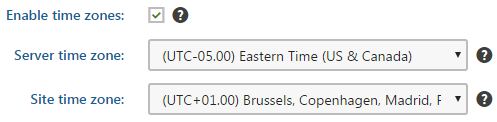
4. Click **Save**.
Time zones are currently supported in various applications throughout the Kentico administration interface.
> **Tip:** **Changing server time zones in Azure-hosted applications**
>
> Changing the server time zone using this approach is not possible in Azure-hosted applications. Furthermore, due to the nature of cloud-based services, the server hosting your application changes frequently. These changes are also reflected in event time-stamps and other places where server time is displayed or used, which may be undesirable.
>
> If you wish to persistently configure the time zone for Azure-hosted applications, follow the instructions outlined in [Changing the server time zone on Azure](https://blogs.msdn.microsoft.com/tomholl/2015/04/06/changing-the-server-time-zone-on-azure-web-apps/).
## Usage examples
A typical example of use is displaying the time of forum posts when you have a global community – while the server may be located in New York (UTC-05:00), visitors coming from Paris (UTC+01:00) may see their new posts were added at 8am, while they would expect to see 2pm according to their current time.
Another example is a website of a global company that runs on a server in New York, but contains content for a French office. In this case, French visitors may wonder why the current time displayed by the server is 8am while it’s 2pm in Paris. That’s when you use the built-in support for multiple time zones.
> **Info:** **Day and time in the Pages application**
>
> [User time zone](#setting-time-zones-for-users)
>
> - User Andy sets the _Publish from_ value of a page to _3/14/2016 3:14:15 PM_. His user time zone is set to _UTC+00:00 (London)_.
>
> 
>
> - User Claire visits the page and sees that the _Publish from_ value is _3/14/2016 11:14:15 AM_ because her user time zone is set to _UTC-05:00 (New York)_.
>
> 
>
> Site time zone
>
> - If a user has no time zone specified, the day and time values are relative to the _Site time zone_. In this example, the site time zone is set to _UTC+01:00 (Paris)_.
>
> 
>
> Server time zone
>
> - If neither _user time zone_ nor _Site time zone_ are specified, the _Server time zone_ is used.
## Time zones in web parts
Web parts related to the [Blogs](https://docs.kentico.com/k11/managing-website-content/blogs.md), [Forums](https://docs.kentico.com/k11/community-features/forums.md), [Message boards](https://docs.kentico.com/k11/community-features/message-boards.md), [Messaging](https://docs.kentico.com/k11/community-features/messaging.md) and [Smart search](https://docs.kentico.com/k11/configuring-kentico/setting-up-search-on-your-website.md) applications have the **Time zones** section in their **web part properties**, where you can set the applied time zone. The section contains the following two properties:
| Time zone | Specifies the type of time zone that the web part uses for its content. The following types are available:
**Inherit** – inherits the time zone settings from the _Page placeholder_ web part that displays the page template containing the web part (only applies to [nested pages](https://docs.kentico.com/k11/developing-websites/developing-websites-using-the-portal-engine/inheriting-portal-engine-page-content.md)).
**Server** – uses the _Server time zone_ settings.
**Website** – uses the _Site time zone_ settings.
**User** – uses the time zone settings of individual users.
**Custom** – uses the time zone selected in the _Custom time zone_ property. |
| ---------------- | ------------------------------------------------------------------------------------------------------------------------------------------------------------------------------------------------------------------------------------------------------------------------------------------------------------------------------------------------------------------------------------------------------------------------------------------------------------------------------------------------------------------------------------------------------------------------------------------------------------------------------------------------------------------------------------------- |
| Custom time zone | Assigns a custom time zone specifically for the content of the web part. The web part uses the selected time zone regardless of the time zone settings of the website or user viewing the page. |
In the case of the **Calendar** and **Event calendar** web parts, these web part properties take no effect. Instead, you have to ensure the displaying of the correct time zone in the used transformation, as described in [Displaying correct time in your code](https://docs.kentico.com/k11/custom-development/miscellaneous-custom-development-tasks/displaying-correct-time-in-your-code.md).
## Setting time zones for users
Each user can have their own time zone settings:
1. Open the **Users** application.
2. Edit () a user.
3. On the **Settings** tab, select a time zone from the **Time zone** drop-down list.
4. Click **Save**.
Where applicable, these time zone settings are used instead of the _Site time zone_.
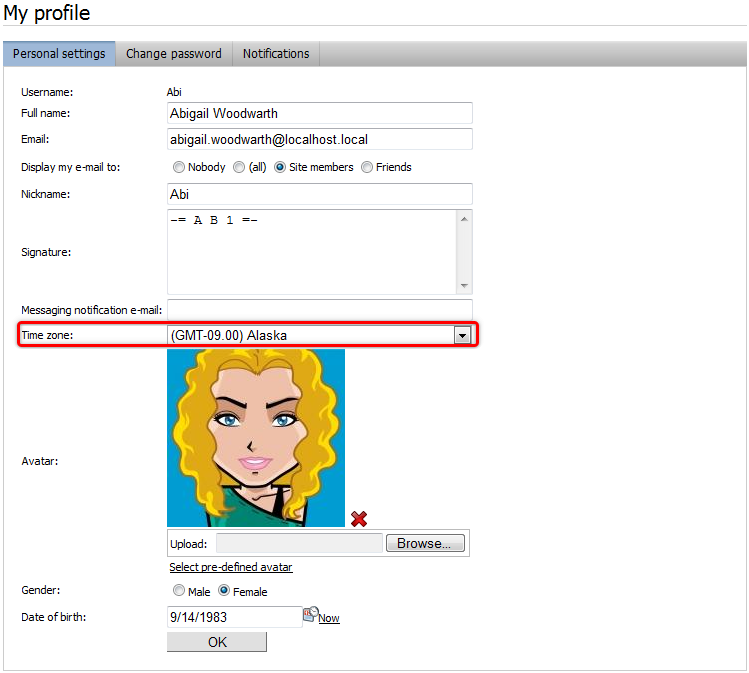
Users can also select their time zone on the live site, if you place the **My Account** or **My Profile** web part on one of your pages. If they have access to the administration interface, they can select their time zones in the **My profile** application using the **Time zone** drop-down list.