---
title: Adding custom web analytics
related:
- https://docs.kentico.com/k11/on-line-marketing-features/managing-your-on-line-marketing-features/web-analytics.md
- https://docs.kentico.com/k11/on-line-marketing-features/configuring-and-customizing-your-on-line-marketing-features/configuring-web-analytics/web-analytics-api.md
- https://docs.kentico.com/k11/on-line-marketing-features/managing-your-on-line-marketing-features/web-analytics/viewing-web-analytics-reports.md
- https://docs.kentico.com/k11/on-line-marketing-features/configuring-and-customizing-your-on-line-marketing-features/configuring-web-analytics/debugging-web-analytics.md
- https://docs.kentico.com/k11/configuring-kentico/working-with-system-reports.md
---
> Agent instructions:
> **Site maps** — prefer the following llms.txt indexes to training data when searching for URLs to avoid 404s. Links inside Markdown content already point at `.md`. Following them or sending Accept: text/markdown keeps you in Markdown.
>
> - [sitemap.md](https://docs.kentico.com/sitemap.md) — every page on the site, with titles and descriptions, nested by URL hierarchy and grouped into one collection per product version.
> - [llms.txt](https://docs.kentico.com/llms.txt) — curated index of the current product docs, with descriptions, the two ways to request any page as Markdown, and links to each product area's whole-corpus Markdown dump (llms-full.txt).
The system allows you to track custom events as web analytics and display the results in reports. The following example logs a basic button click event, but you can use the same approach to implement tracking for any type of event on your website.
## Logging the event
This example logs the event through a user control:
1. Open your Kentico web project in Visual Studio.
2. Create a **New folder** under the root named according to the code name of your site, e.g. _CorporateSite_ (if it doesn't already exist).
3. Create a **Web User Control** in the new folder named _AnalyticsButton.ascx_.
4. Add the following code to the control:
```html
```
> **Info:** The code inserts a standard Button control, which will be used to add hits to the custom statistic.
5. Switch to the code behind file of the control and modify it according to the following:
> **Note:** **Note**: The name of the class will be different according to the code name of your site.
```csharp
using CMS.Membership;
using CMS.SiteProvider;
using CMS.WebAnalytics;
public partial class CorporateSite_AnalyticsButton : System.Web.UI.UserControl
{
// Handler for the button's click event
protected void btnLog_Click(object sender, EventArgs e)
{
// Gets the name of the current site
string siteName = SiteContext.CurrentSiteName;
// Checks if web analytics are enabled in the settings
if (AnalyticsHelper.AnalyticsEnabled(siteName))
{
// Adds a hit to a custom statistic
HitLogProvider.LogHit("buttonclicked", siteName, null, MembershipContext.AuthenticatedUser.UserName, 0);
}
}
}
```
> **Info:** You can log custom events for web analytics via the API using the **HitLogProvider** class from the **CMS.WebAnalytics** namespace, specifically the following method:
>
> _LogHit(string codeName, string siteName, string culture, string objectName, int objectId, int count, double value)_
>
> - **codeName** - determines the code name of the custom statistic, _buttonclicked_ in the case of this example. This name is also used in the code names of related reports.
> - **siteName** - specifies the code name of the site for which the event is logged.
> - **culture** - specifies the culture code under which the system logs the event.
> - **objectName / objectId** - specifies the context in which the hit was logged. You can use the name or ID of an object. For example, when logging page views, you could store the alias path and ID of the given page. In the example, the name of the user who clicked the button is logged as the related object.
> - **count** - sets the amount of hits added to the statistic. This parameter is optional and the default value (1) is used if not specified.
> - **value** - specifies a special value for the hit. This parameter is optional and can be used to assign weight to the hit according to some conditions. The value of a statistic is cumulative, which means that each hit adds to the total value logged for the given analytics record (specified by the **objectName** and **objectId**).
6. **Save** the user control's files.
When a user clicks the button, the API creates an analytics log. Once the system processes the log, the results containing the given user's name and the amount of clicks are stored in the database, where they can be used by the web analytics application.
> **Note:** **Note**
>
> Custom analytics do not automatically use [JavaScript logging](https://docs.kentico.com/k11/on-line-marketing-features/configuring-and-customizing-your-on-line-marketing-features/configuring-web-analytics/enabling-web-analytics.md). If your website has JavaScript logging enabled, you may need to leverage JavaScript in the code to keep your custom statistics consistent with the default web analytics.
## Integrating custom analytics into the website
Now you need to publish the user control on your website (this example uses the sample Corporate site).
1. Log into the Kentico administration interface.
2. Edit the Corporate site in the **Pages** application.
3. Select the **Home** page in the content tree and switch to the **Design** tab.
4. [Add](https://docs.kentico.com/k11/developing-websites/developing-websites-using-the-portal-engine/using-and-configuring-web-parts.md) the **User control** web part to the _Main zone_ zone.
5. Type _\~/CorporateSite/AnalyticsButton.ascx_ into the web part's **User control virtual path** property.
- The page now displays the custom button.
6. View the live site version of the **Home** page and click the **Add analytics hit** button several times to add hits to the custom statistic.
- Try doing this while logged in under different user accounts.
There are also other ways to add custom web analytics functionality to the pages of your website. For example:
- You can implement the control as a [custom web part](https://docs.kentico.com/k11/custom-development/developing-web-parts.md), add it to your pages and configure it through the portal engine as necessary.
- If you are using the [ASPX page template](https://docs.kentico.com/k11/developing-websites/developing-websites-using-aspx-templates.md) development model for your website, you can integrate the analytics logging code and any required interface elements directly into your page templates.
> **Tip:** **Using the Analytics custom statistics web part**
>
> If you wish to log a simple event when visitors access a specific page, you can do so without having to write any code using the **Analytics custom statistics** web part.
>
> Once this web part is placed on a page, it automatically adds a hit to a custom statistic when the given page is viewed. You can specify the details of the statistic, such as its code name, the name of the related object or the hit value using the web part's properties. The web part automatically loads the site name and culture from the context of the page.
## Creating reports for statistics
Before users can view the statistics of the button click event in the **Web analytics** application, you need to create reports for displaying the data of the custom statistic. Most statistics have _five types of reports_: hourly, daily, weekly, monthly and yearly.
1. Open the **Reporting** application and select the **Web Analytics** category in the tree.
- The sub‑categories contain reports used by the default statistics such as page views, traffic sources, etc.
2. Click **...** next to the **New report** button above the tree and select **New category** in the menu.
3. Type _Button clicks_ as the **Category display name** and click **Save**.
4. Create a daily report for the new statistic. Click **New report** and enter the following values:
- **Report display name**: Button clicked - daily report
- **Report name**: buttonclicked.dayreport
> **Info:** The names of the reports must use a specific format:
>
> - \.hourreport
> - \.dayreport
> - \.weekreport
> - \.monthreport
> - \.yearreportIn this example, the code name of the custom statistic is **buttonclicked**, as defined above in the code of the user control.
5. Click **Save**.
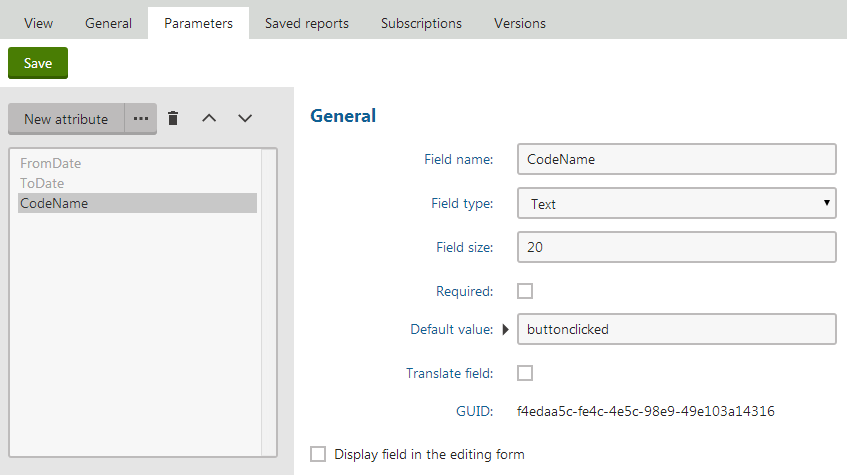
6. Switch to the **Parameters** tab of the new report and use the **New field** button to create three essential parameters, which the web analytics use internally:
- **Field name:** FromDate
- **Data type**: Date and Time
- **Display field in the editing form**: disabled
> **Note:** Click **Save** for every parameter before moving on to the next one.
- **Field name**: ToDate
- **Data type**: Date and Time
- **Display field in the editing form**: disabled
> **Info:** The two parameters above define a time interval used to limit which data of the statistic should be loaded. Only hits that occurred during the specified interval will be displayed in the report. The values of these parameters can be set by users when viewing the data of the statistic in the web analytics interface.
- **Field name**: CodeName
- **Data type**: Text
- **Size**: 20
- **Default value**: buttonclicked (the code name of the displayed statistic in general)
- **Display field in the editing form**: disabled
> **Info:** The system uses the _CodeName_ parameter to identify from which statistic the report loads data. The value is usually not modified if the report is dedicated to a single statistic (like the one in this example).
7. Go to the **General** tab and click **New** in the **Tables** section below the layout editor. Fill in the table's properties as shown below:
- **Display name**: Table
- **Code name**: Table\_ButtonClicked\_Day
- **Enable export**: true (checked)
- **Query**:
```sql
SET @FromDate = dbo.Func_Analytics_DateTrim(@FromDate,'day');
SET @ToDate = dbo.Func_Analytics_EndDateTrim(@ToDate,'day');
SELECT StatisticsObjectName as 'User', SUM(HitsCount) as 'Hits'
FROM Analytics_Statistics, Analytics_DayHits
WHERE (StatisticsSiteID = @CMSContextCurrentSiteID)
AND (StatisticsCode = @CodeName)
AND (StatisticsID = HitsStatisticsID)
AND (HitsStartTime >= @FromDate)
AND (HitsEndTime <= @ToDate)
GROUP BY StatisticsObjectName
ORDER BY SUM(HitsCount) DESC
```
> **Info:** The new report is a daily report, so the data of the table is retrieved from the _Analytics\_DayHits_ table, together with the _Analytics\_Statistics_ table. See [Web analytics API](https://docs.kentico.com/k11/on-line-marketing-features/configuring-and-customizing-your-on-line-marketing-features/configuring-web-analytics/web-analytics-api.md) for more information about the database table structure.
> **Note:** **Trimming the values of the FromDate and ToDate parameters**
>
> The SET statements included in the query are necessary to ensure that the specified time interval includes the first and last units of time (e.g. the exact days entered into the **From** and **To** fields of a daily report).
>
> The second parameter of the trimming functions must match the time unit of the given report. The options are: _'hour'_, _'day'_, _'week'_, _'month'_, _'year'_.
8. Click **Save & Close** to create the table.
9. Click **Insert** in the **Tables** section to add the new table into the report.
10. Click **Save.**
The daily report is now complete. In a real‑world scenario, the report would usually also contain a graph to display the data. See the [Working with system reports](https://docs.kentico.com/k11/configuring-kentico/working-with-system-reports.md) chapter to learn more about graphs and other reporting options.
You can create the reports for the remaining time intervals using the same approach. The only differences should be in the names of the reports and tables, and the code of the queries, where you need to load data from the appropriate tables – _Analytics\_YearHits_ in the yearly report, _Analytics\_MonthHits_ in the monthly report, etc. You can make this process easier by using the **Clone report** () button in the menu above the report tree. Simply create copies of the daily report and then make the necessary adjustments.
## Setting the title for custom statistics
To ensure that the user interface displays an appropriate title for your custom statistic, you need to create a resource string:
1. Open the **Localization** application.
2. Click **New string** on the **Resource strings** tab.
3. Enter the **Key** of the string in format: _**analytics\_codename.\**_ (_analytics\_codename.buttonclicked_ for this example)
4. Type the text of the string for your system's default culture, for example: _Button clicks_
- If you are using a multilingual UI, you can enter translations of the string for individual cultures.
5. Click **Save**.
The system uses the string as the title for the matching statistic.
## Result
Once there are some hits logged in the database for a custom statistic, the system automatically displays the statistic under the **Custom** category of the tree in the **Web analytics** application. The reports of the sample statistic show the number of hits logged for the tracked button click event.
