Module: Work with assets
12 of 24 Pages
Exercise 3 -- Try smart upload in a rich text widget
You already saw how the smart drag-and-drop asset upload functionality speeds up your editing process in the previous exercise. Let’s try smart upload while editing rich text content. You can easily insert images into the rich text without leaving the Page Builder, or switching to the Content hub first.
- Open a Rich text widget for editing
- Stay on the Premier credit card page, and add a new Rich text widget below the FAQ widget.
- Drag and drop an image into the rich text widget
- Drag an image file from your computer and drop it directly into the rich text editor.
- Xperience uploads the image and automatically creates a new reusable asset in the Content hub.
- Choose Workspace: Kbank Global Media Assets.
- Leave Location: Uncategorized (no folder).
- Create the new content item using the Upload button.
- You can now style your rich text field, including the image.
- Preview the asset and publish the changes
- Apply the changes you just made, and Save the page to Preview your updates.
- If you’re happy with the newly created image, return to the Page Builder view and Publish the latest version of the Premier credit card page.
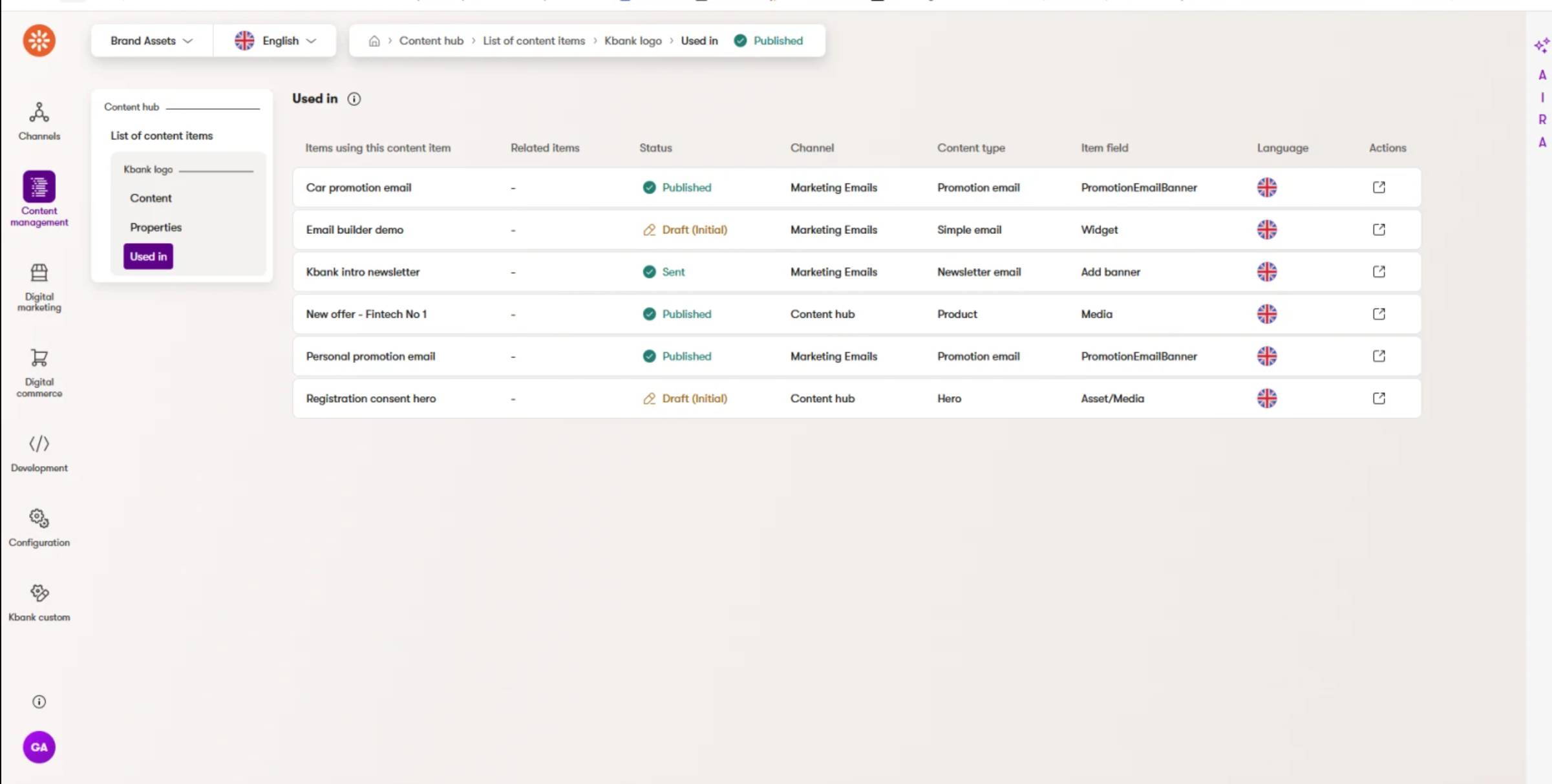
See where your images are used before making any changes
Before you edit or remove an image, take a moment to review the impact of your changes with the Content Reuse Locator. You’ll find this tool in the Used in tab of the asset details within Content hub. The Used in tab shows every page or content item that references the image. You can confidently update or change the image while knowing how your changes affect other content.