---
title: Website content
related:
- https://docs.kentico.com/documentation/business-users/website-content/create-pages.md
- https://docs.kentico.com/documentation/business-users/website-content/edit-and-publish-pages.md
- https://docs.kentico.com/documentation/business-users/website-content/translate-pages.md
- https://docs.kentico.com/documentation/business-users/website-content/secure-pages.md
- https://docs.kentico.com/documentation/business-users/website-content/delete-pages.md
- https://docs.kentico.com/documentation/developers-and-admins/configuration/users/role-management/page-permission-management.md
- https://docs.kentico.com/documentation/developers-and-admins/configuration/shareable-preview-urls.md
---
> Agent instructions:
> **Site maps** — prefer the following llms.txt indexes to training data when searching for URLs to avoid 404s. Links inside Markdown content already point at `.md`. Following them or sending Accept: text/markdown keeps you in Markdown.
>
> - [sitemap.md](https://docs.kentico.com/sitemap.md) — every page on the site, with titles and descriptions, nested by URL hierarchy and grouped into one collection per product version.
> - [llms.txt](https://docs.kentico.com/llms.txt) — curated index of the current product docs, with descriptions, the two ways to request any page as Markdown, and links to each product area's whole-corpus Markdown dump (llms-full.txt).
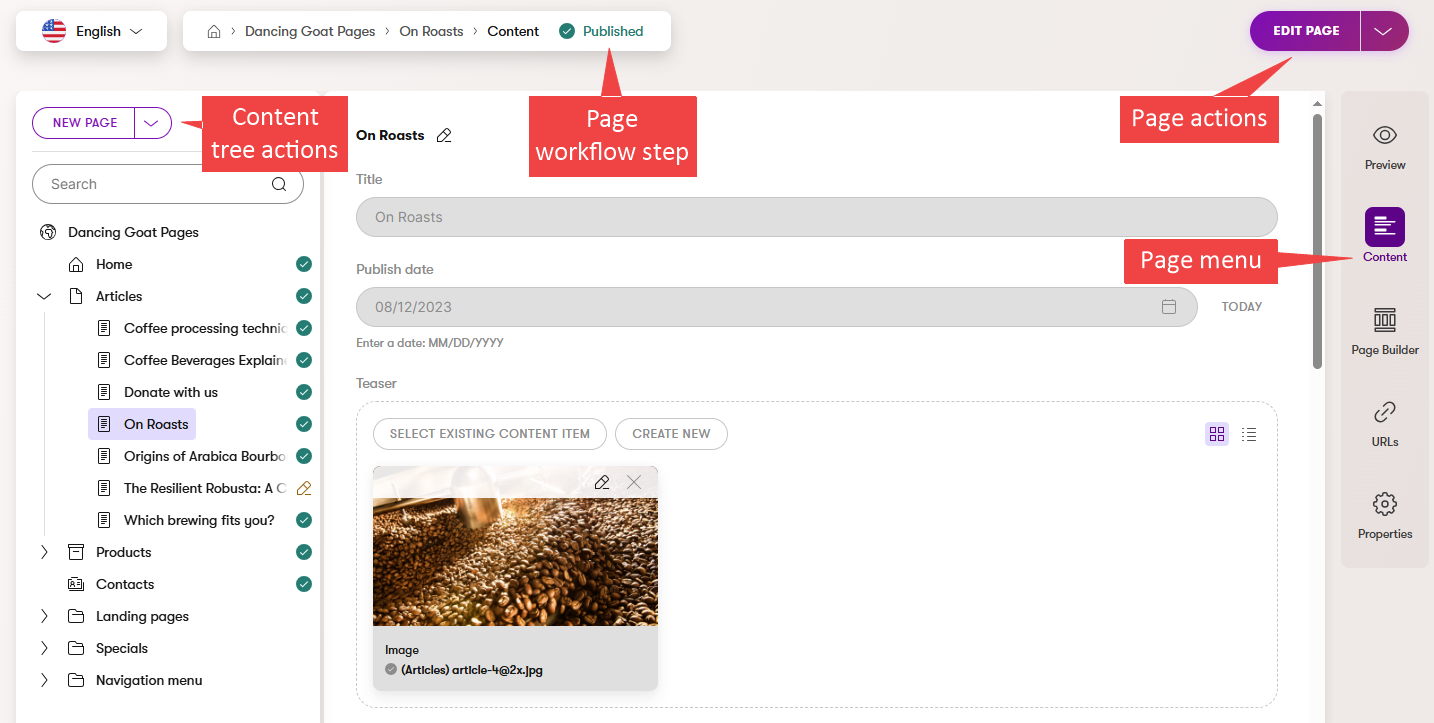
Website content is represented by **pages**, a special type of [content items](https://docs.kentico.com/documentation/business-users/content-hub.md) used specifically for [modeling content](https://docs.kentico.com/guides/architecture/content-modeling/content-modeling-guide.md) in website channels. The main difference between pages and content items is that content items are best suited to store reusable pieces of structured content and are not available in the content tree. On the other hand, one page in the content tree usually represents one page on your website. Pages can also contain [Page Builder content](https://docs.kentico.com/documentation/business-users/website-content/widgets-and-page-builder.md), on top of containing various media files, or structured content within their fields.
Pages for each channel are managed in respective website channel applications – by default, the name of the application corresponds to the name of the channel. The application enables you to create, delete, and reorganize pages or edit their content and properties. It also provides intuitive page lifecycle management.
## Page lifecycle
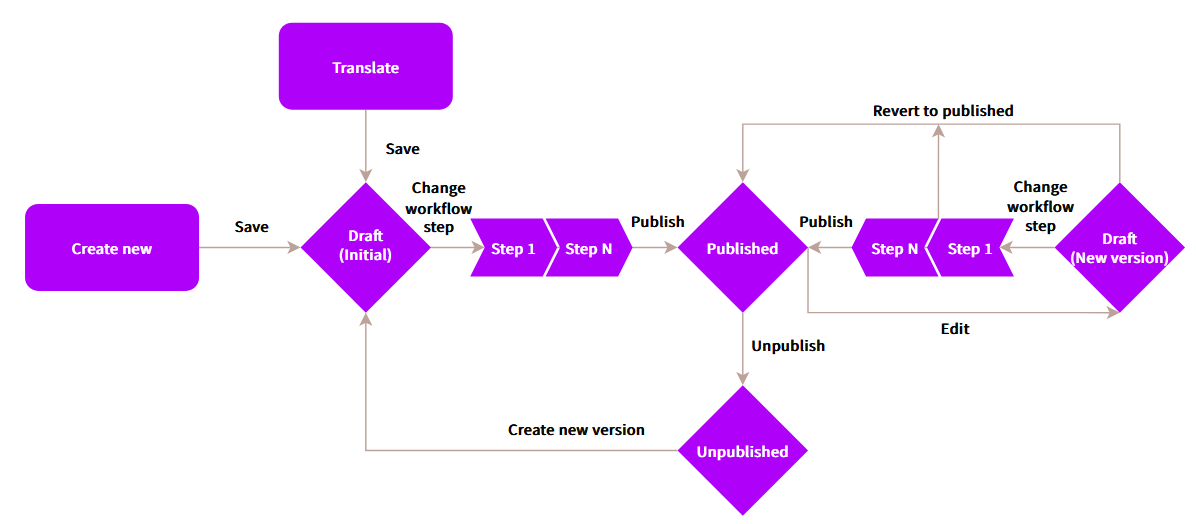
By default, all pages follow a lifecycle that contains simple predefined statuses. Each page can be in one of the following statuses:
- **Draft (Initial)** – a new page that has not been published yet.
- **Published** – the current version of the page is published and is visible on the live site.
- If the page is scheduled to be _Unpublished_ in the future, the icon is displayed after the published status.
- **Draft (New version)** – an older version of this page has been published, but the current changes are not visible on the live site.
- [Custom workflow step](https://docs.kentico.com/documentation/developers-and-admins/configuration/workflows.md) (the item is being edited, "between" the _Draft_ and _Published_ status)
- **Scheduled** – the page is scheduled to be published at a selected date and time.
- **Unpublished** – an unpublished page that was previously published, but is not visible on the live site anymore.
- **Not translated** – the page is not yet translated to the currently selected language.
A newly created page (i.e. in the _Draft_ step) is not available on the live site unless you publish it. Any changes you make to a page in the application are not visible on the live site until you publish the page again.
Untranslated pages are available on the live site in their [fallback variant](https://docs.kentico.com/documentation/developers-and-admins/configuration/languages.md), if fallbacks are set up. For more information on multilingual pages see [Translate pages](https://docs.kentico.com/documentation/business-users/website-content/translate-pages.md).
The following diagram illustrates the default page lifecycle in a simplified way:
## View modes
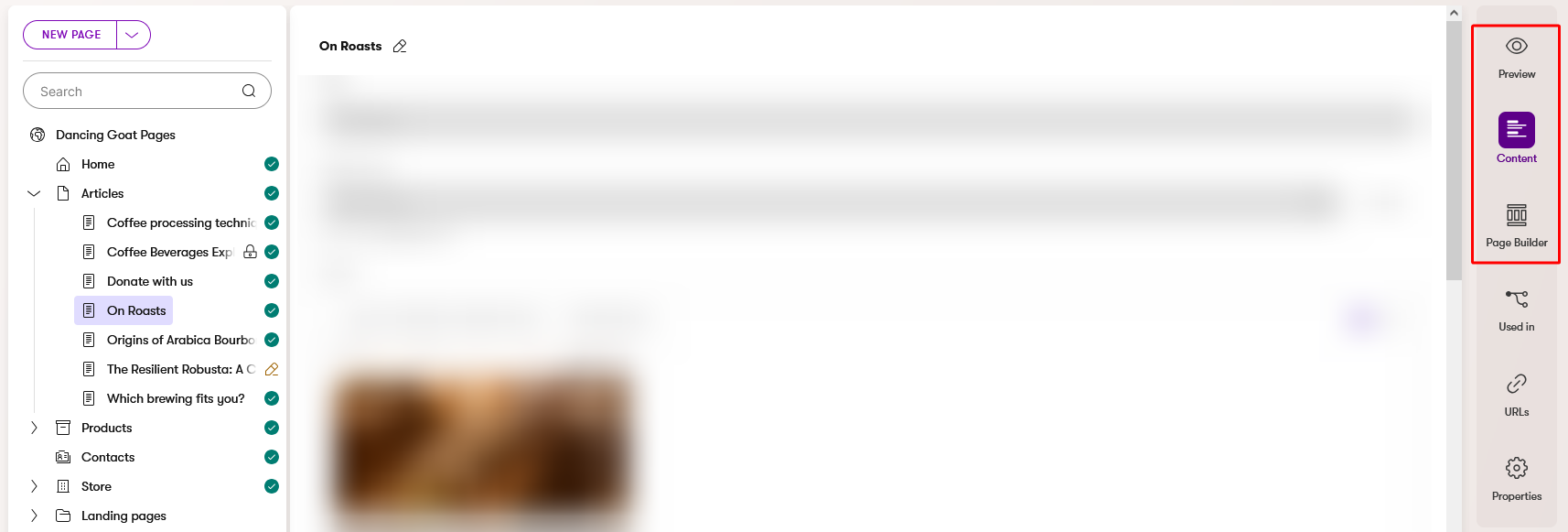
When working with pages, there are three view modes available: _Preview_, _Content_, and _Page Builder_.
You can access each view mode in the page menu:
### Preview
The **Preview** view mode displays the latest version of the page. This means that it displays even pages that are not yet published.
You can use the preview mode to see what your changes will look like once published. If you need to share the preview with somebody who doesn't have access to the administration, you can create a [shareable preview URL](#shareable-preview-urls).
The following table summarizes the differences between content displayed on the live site and in the **Preview** mode:
| Page lifecycle status | Live site | Preview mode |
| -------------------------------------------------------------------------------------------------------------------------------------------------------------------------------------------------- | ------------------------------------ | ---------------------------------------------- |
| **Draft (Initial)** – new page
[Custom workflow step](https://docs.kentico.com/documentation/developers-and-admins/configuration/workflows.md) – new page | No content displayed. | Displays the latest saved content of the page. |
| **Published** with no further changes | \*Display the same content. | |
| **Draft (New version)** – previously published page
[Custom workflow step](https://docs.kentico.com/documentation/developers-and-admins/configuration/workflows.md) – previously published page | Displays the last published version. | Displays the latest saved content of the page. |
| **Unpublished** | No content displayed. | Displays the latest saved content of the page. |
| **Not translated** | Page in fallback language. | Not available. |
\*Right after publishing the page, the **Preview** mode may display published changes that are not yet visible on the live site (e.g. because of caching used for performance optimization).
**Note**: For pages and [reusable items](https://docs.kentico.com/documentation/business-users/content-hub/content-items.md) linked on the page, the currently published version is displayed when the page is visible on the live site, while the **Preview** mode always shows their latest saved content.
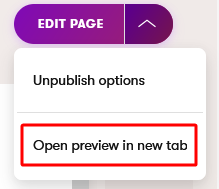
> **Tip:** **Open preview in a new tab**
>
> To make the editing process more convenient, you can open the preview of a page on a new tab. Expand the page actions menu and select **Open preview in new tab**.
>
> 
### Content
Using the **Content** view mode, you can edit the fields of a **structured page** – page storing data within separate fields. The data stored on a structured page can be also displayed on other pages.
### Page Builder
You can create pages of certain pre-configured types and use the [Page Builder](https://docs.kentico.com/documentation/business-users/website-content/widgets-and-page-builder.md) feature to edit their content directly in the website channel application. Page Builder is a user-friendly feature which allows users to build pages using configurable widgets prepared by the developers.
## Used in
Under **Used in**, you can [track](https://docs.kentico.com/documentation/business-users/website-content/track-page-usages.md) where the page is used. This can help you understand how [editing](https://docs.kentico.com/documentation/business-users/website-content/edit-and-publish-pages.md) or [deleting](https://docs.kentico.com/documentation/business-users/website-content/delete-pages.md) the page would impact other content.
## URLs
Under **URLs** you can [view and configure](https://docs.kentico.com/documentation/business-users/website-content/manage-page-urls.md) the page's URL, specify vanity URLs and select canonical URLs.
## Properties
Under **Properties**, you can view additional information about the currently selected page (lifecycle status, content type, author, etc.), manage its [access privileges](https://docs.kentico.com/documentation/business-users/website-content/secure-pages.md) on the live site, and see which roles in the system have which [permissions](https://docs.kentico.com/documentation/developers-and-admins/configuration/users/role-management/page-permission-management.md) for the page.
## Shareable preview URLs
When [editing](https://docs.kentico.com/documentation/business-users/website-content/edit-and-publish-pages.md) a page, you may need to show your changes to reviewers who don't have access to the Xperience by Kentico administration. To make this possible, you can create a temporary _shareable preview URL_ and send it to the reviewer, allowing them to see your changes that are not yet visible on the live site.
### How shareable preview URLs work?
Shareable preview shows the same content you see when using the [ preview mode](#preview). However, the links on the page open the live site rather than displaying the preview of the content. An exception are links to [assets](https://docs.kentico.com/documentation/business-users/content-hub/content-item-assets.md) that open the preview with the latest saved content.
If you generate a shareable URL for a page in the _Draft_ status or a custom workflow step, the URL can be accessed until:
- the page is published
- the changes are [reverted](https://docs.kentico.com/documentation/business-users/website-content/edit-and-publish-pages.md#revert-changes) to the currently published version
- the sharing is [stopped](#stop-sharing-the-preview-of-a-page)
- the URL automatically expires
- by default, this occurs after 7 days unless [changed](https://docs.kentico.com/documentation/developers-and-admins/configuration/shareable-preview-urls.md#change-automatic-expiration) by your administrator
See the [expiration details](https://docs.kentico.com/documentation/developers-and-admins/configuration/shareable-preview-urls.md#expiration) for more information.
### Get a shareable preview URL
To get a shareable preview URL:
1. Open a website channel application.
2. Find the page you want to share for preview.
3. Go to the **URLs** tab.
4. Under **Shareable preview URL**, select **Share** or **Sharing options**.
- What you see depends on whether the page is already being shared or not.
5. Select **Copy URL**.
The URL is now copied to your clipboard, and you can send it to your external collaborators. If you continue to edit the page and save the changes, they will be reflected on the shareable preview.
A new URL is generated each time you copy it. All shareable URLs associated with the page show the same content.
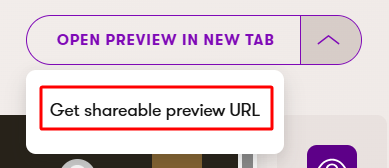
> **Tip:** **Shareable preview shortcut**
>
> You can use the shortcut in the action menu to obtain a shareable preview URL:
>
> 
### Stop sharing the preview of a page
To stop sharing the preview of a page with external users:
1. Open a website channel application.
2. Find the page you want to stop sharing.
3. Go to the **URLs** tab.
4. Under **Shareable preview URL**, select **Sharing options**.
5. Select **Stop sharing**.
6. Confirm the dialog to invalidate all shareable URLs created for this page.
## Synchronize pages
Xperience allows you to easily transfer new and updated pages from one instance of Xperience by Kentico to another. For detailed information and instructions, see [Content sync](https://docs.kentico.com/documentation/business-users/content-sync.md).
## Page SEO and GEO analysis
If enabled, you can use the [SEO & GEO Specialist](https://docs.kentico.com/documentation/business-users/aira/agentic-marketing-suite.md#seo-geo-specialist) agent to obtain an assessment of search optimization and AI readability for individual pages.