---
title: Connecting Kentico to social media
related:
- https://docs.kentico.com/k8/community-features/integrating-social-media/adding-social-media-accounts.md
- https://docs.kentico.com/k8/community-features/integrating-social-media/posting-to-facebook-and-twitter.md
---
> Agent instructions:
> **Site maps** — prefer the following llms.txt indexes to training data when searching for URLs to avoid 404s. Links inside Markdown content already point at `.md`. Following them or sending Accept: text/markdown keeps you in Markdown.
>
> - [sitemap.md](https://docs.kentico.com/sitemap.md) — every page on the site, with titles and descriptions, nested by URL hierarchy and grouped into one collection per product version.
> - [llms.txt](https://docs.kentico.com/llms.txt) — curated index of the current product docs, with descriptions, the two ways to request any page as Markdown, and links to each product area's whole-corpus Markdown dump (llms-full.txt).
Kentico supports connecting to **Facebook** and **Twitter**. Such a connection allows you to:
- [add and view posts on Facebook and Twitter](https://docs.kentico.com/k8/community-features/integrating-social-media/posting-to-facebook-and-twitter.md)
- monitor your [Facebook page insights](https://docs.kentico.com/k8/community-features/integrating-social-media/viewing-facebook-insights.md) and [Twitter channel analytics](https://docs.kentico.com/k8/community-features/integrating-social-media/viewing-twitter-analytics.md)
- [log in to your websites using your Facebook account](https://docs.kentico.com/k8/managing-users/user-registration-and-authentication/facebook-authentication.md)
You connect to a social media by means of an **app** that you create on the social media, and then register the app within Kentico, as described on this page.
## Creating Apps
Apps on social media serve as an interface for connecting other applications, such as Kentico, to the particular social media.
### Creating a Facebook App
1. Log in to your Facebook account at .
2. Visit and click **Apps -> Create a New App**.
- Facebook opens a platform selection dialog.
3. Select the **Website** platform.
4. Enter the following details into the form:
- **Display Name**: choose a name for your app
- **Category**: Apps for Pages
5. Click **Create App**.
6. Retype the CAPTCHA security code and click **Submit**.
- Facebook may also require you to verify your identity using your phone number.
7. **Submit selected permissions for review.**
**Submitting permissions for review**
1. Go to the **Settings -> Developers** section in your Facebook account, and edit your application.
2. Switch to the **Status & Review** tab.
3. Make sure your application is public.
4. Click **Start a Submission**.
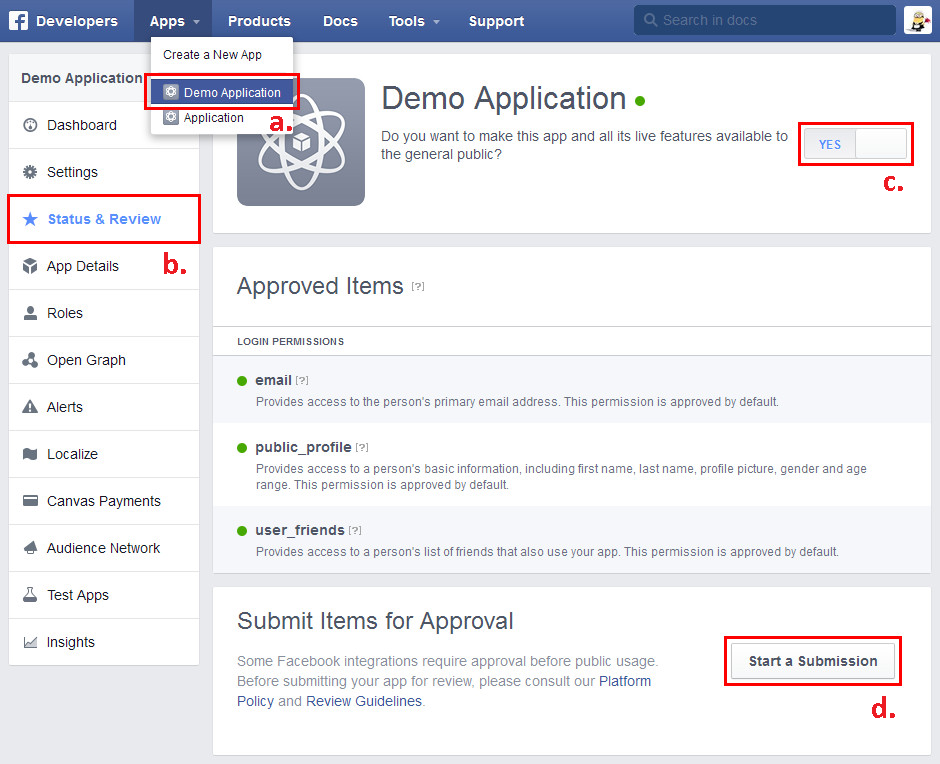
- Facebook opens a dialog window, allowing you to select the items you want to include in the submission.
5. In the dialog window, select the following permissions, and click **Add items**.
**Permissions for Facebook post publishing**
- **manage\_pages**
- **read\_insights**
- **publish\_action**For each permission item, add a note explaining the purpose of the permission. The note consists of an explanation part, and an instructions part.
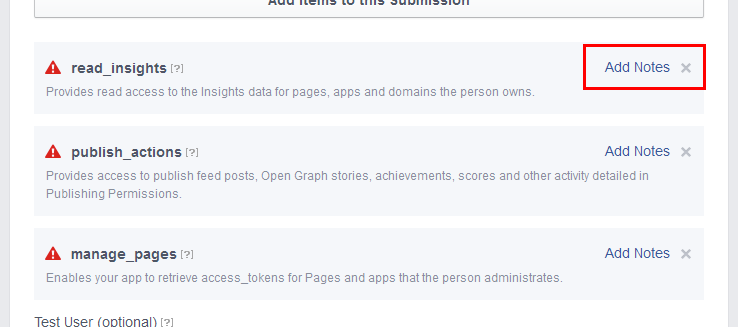
- You can use the following sample notes:
- **manage\_pages**
- **explanation part** - we use the permission for page authorization. If allowed, the users can post to their Facebook pages from Kentico.
- **instructions part** - https://docs.kentico.com/display/K8/Adding+social+media+accounts
- **read\_insights**
- **explanation part** - we use the permission to retrieve statistics about Facebook posts that the users published, and about pages that they published the posts on.
- **instructions part** - https://docs.kentico.com/display/K8/Viewing+Facebook+insights
- **publish\_action**
- **explanation part** - we use the permission for authorization of Facebook post publishing. Kentico allows the users to publish posts to their Facebook pages when posting to their blogs on Kentico websites to announce the new blog posts to the Facebook community. The users can post directly to their pages on Facebook, too.
- **instructions part** - https://docs.kentico.com/display/K8/Posting+to+Facebook+and+Twitter**Permissions for signing in through Facebook**
- **user\_location**
- **user\_about\_me**
- **user\_birthday**
- **user\_website**For each permission item, add a note explaining how you use the data downloaded from Facebook. The note consists of an explanation part, and an instructions part.
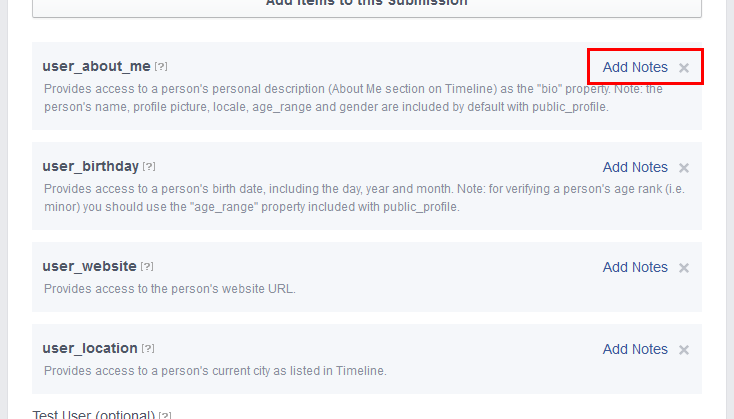
- You can use the following links in the instructions part:
- https://docs.kentico.com/display/K8/Facebook+authentication
- https://docs.kentico.com/display/K8/Loading+user+information+from+Facebook+profiles
6. Make sure your application has the following properties specified:
- **logo**
- **Long Description**
- **Privacy policy URL**
- If any of the properties is missing, Facebook displays a red triangle icon next to the permission name. If you mouse over the icon, Facebook informs you which property is missing.
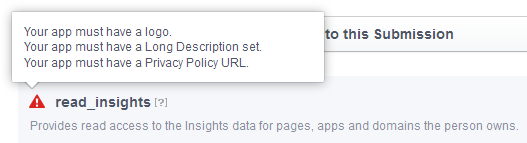
- You can specify the missing properties on the **App Details** tab.
7. Upload at least four screenshots depicting how you plan to use your Facebook application.
8. Click **Submit for Review**.
- Permissions represent data related to your users, which is stored on Facebook. You ask for this data when the users log into your application via Facebook login.
- Facebook generally review permissions that require review within 14 business days.
- See [Permissions with Facebook Login](https://developers.facebook.com/docs/facebook-login/permissions/v2.0#requirereview), available on the Facebook website, for further details.
Facebook registers your application and displays its **Dashboard**. You now have the required data that you can use to register the app into Kentico.
### Creating a Twitter App
1. Go to and log in.
2. Click **Create New App**.
3. Fill in the required details and click **Create your Twitter application**.
- Required fields are marked with a star symbol.
4. Switch to **Permissions**, select **Read and Write** and click **Update settings**.
5. Switch to **API keys** and under**Your access token**, click **Create my access token**.
You now have the required data that you can use to register the app into Kentico.
Registering Apps into Kentico
To be able to use social media features through apps, you must register the apps in the system. Depending on what social media features you want to use, you register your apps in different places:
- For **posting** to social media from within Kentico, register the app in Kentico, in the **Facebook** or **Twitter** application.
**Registering a Facebook app in Kentico**
1. Open the **Facebook** application and switch to **Apps**.
2. Click **New app**.
3. Type a **Display name** you want to use for this app.
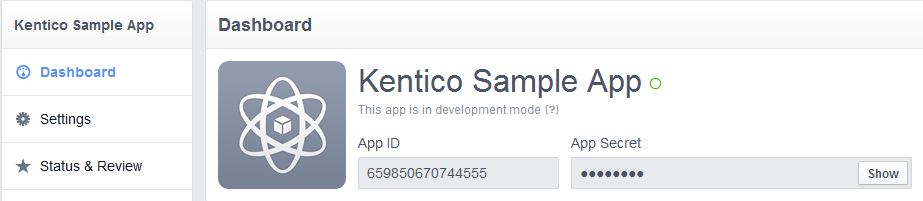
4. Enter your Facebook app's credentials – **Facebook App ID** and **Facebook App Secret**.
- You can find these on your app's Dashboard on Facebook.
5. Click **Save**.The system saves the app's credentials to the database and the app appears in the list on the **Apps** page.
To finish the integration setup, [create a Page](https://docs.kentico.com/k8/community-features/integrating-social-media/adding-social-media-accounts.md) in **Facebook -> Pages**.
**Registering a Twitter App in Kentico**
1. Open the **Twitter** application and switch to **Apps**.
2. Click **New app**.
3. Type a **Display name** you want to use for this app.
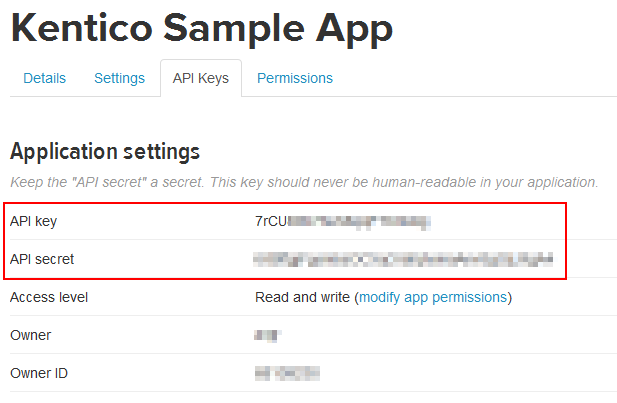
4. Enter your Twitter app's credentials – **Consumer key**, **Consumer secret**.
- You can get these on your API Keys page on Twitter:
5. Click **Save**.The system saves the app's credentials to the database and the app appears in the list on the **Apps** page.
To finish the integration setup, [create a channel](https://docs.kentico.com/k8/community-features/integrating-social-media/adding-social-media-accounts.md) in **Twitter -> Channels**.
- For **allowing users to log in** to your website with Facebook credentials, register your app in **Settings -> Social media -> Facebook**.
**Registering a Facebook app in Settings**
> **Note:** Your user account must have the Global administrator [privilege level](https://docs.kentico.com/k8/managing-users/user-management.md) to do this.
1. Open the **Settings** application and go to **Social media -> Facebook**.
2. Copy the **App ID** and **App Secret** from your Facebook app Dashboard to the **Facebook app** settings group in Kentico.
3. **Save** the settings.The system stores the app information in the database. You can test the configuration by using one of the integrated Facebook features, such as [Facebook authentication](https://docs.kentico.com/k8/managing-users/user-registration-and-authentication/facebook-authentication.md).
## Required permissions for registering Apps
To register apps in Kentico, an administrator must grant you with permissions for the Social media module. You need either **Modify** or **Modify applications**.