---
title: Creating static campaign emails
related:
- https://docs.kentico.com/k82/on-line-marketing-features/email-marketing/working-with-email-campaigns/preparing-email-campaign-templates.md
- https://docs.kentico.com/k82/on-line-marketing-features/email-marketing/working-with-email-campaigns/writing-static-campaign-emails.md
- https://docs.kentico.com/k82/on-line-marketing-features/email-marketing/working-with-email-campaigns/managing-email-marketing-subscribers.md
---
> Agent instructions:
> **Site maps** — prefer the following llms.txt indexes to training data when searching for URLs to avoid 404s. Links inside Markdown content already point at `.md`. Following them or sending Accept: text/markdown keeps you in Markdown.
>
> - [sitemap.md](https://docs.kentico.com/sitemap.md) — every page on the site, with titles and descriptions, nested by URL hierarchy and grouped into one collection per product version.
> - [llms.txt](https://docs.kentico.com/llms.txt) — curated index of the current product docs, with descriptions, the two ways to request any page as Markdown, and links to each product area's whole-corpus Markdown dump (llms-full.txt).
Before you start writing static emails, you need to create a static (template-based) [campaign](https://docs.kentico.com/k82/on-line-marketing-features/email-marketing/working-with-email-campaigns.md) and assign subscribers to it.
The following steps demonstrate how to create a static email campaign:
1. Open the **Email marketing** application and click **New email campaign**.
2. Fill in the basic properties of the campaign:
**Email campaign properties**
| Property | Description |
| --------------------------- | --------------------------------------------------------------------------------------------------------------------------------------------------------------------------------------------------------------------------------- |
| Email campaign display name | Name of the campaign that is displayed in the administration interface. |
| Email campaign code name | Name of the campaign that is used as an identifier in web part properties, URLs and the API. You can leave the _(automatic)_ option to have the system generate an appropriate code name from the display name. |
| Subscription confirmation | Select the [template](https://docs.kentico.com/k82/on-line-marketing-features/email-marketing/working-with-email-campaigns/preparing-email-campaign-templates.md) that the campaign uses for subscription confirmation e-mails. |
| Unsubscription confirmation | Select the [template](https://docs.kentico.com/k82/on-line-marketing-features/email-marketing/working-with-email-campaigns/preparing-email-campaign-templates.md) that the campaign uses for unsubscription confirmation e-mails. |
| Sender name | Name of the sender used in campaign emails. Authors of individual emails can override the value and set a different sender name. |
| Sender email | The email address that the campaign uses as the sender in emails. Authors of individual emails can override the sender address. |
3. Select **Template-based campaign** option and select the primary [template](https://docs.kentico.com/k82/on-line-marketing-features/email-marketing/working-with-email-campaigns/preparing-email-campaign-templates.md) for the emails.
4. Click **Save**.
- The system creates the campaign and opens its **Configuration** tab.
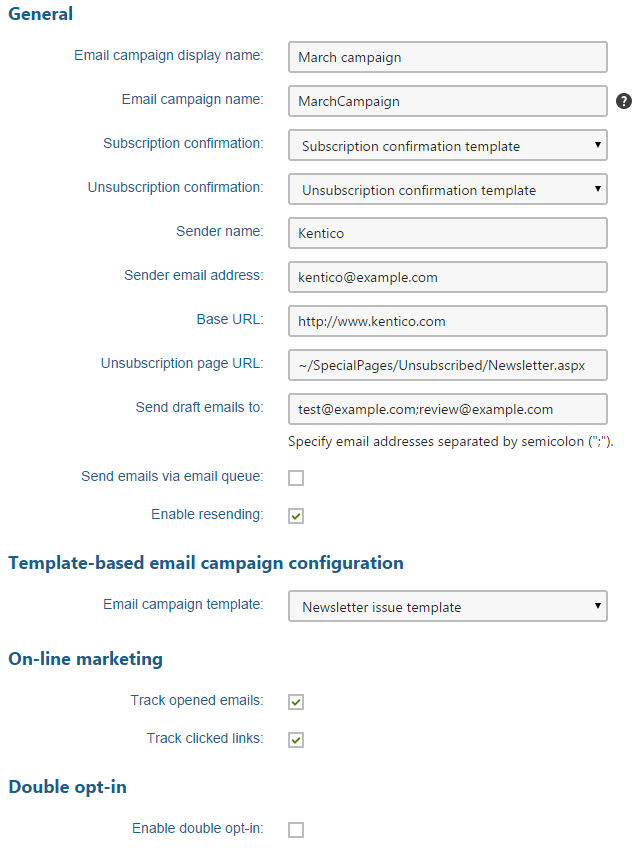
5. Configure the advanced properties of the campaign:
**Static email campaign properties**
| Property / Section | Description |
| --------------------------- | ------------------------------------------------------------------------------------------------------------------------------------------------------------------------------------------------------------------------------------------------------------------------------------------------------------------------------------------------------------------------------------------------------------------------------------------------------------------------------------------------------------- |
| Base URL | Enter the base URL of your website (including the protocol, domain name and virtual directory). The campaign uses the base URL to convert relative links to absolute URLs inside emails (for unsubscription links, image paths, etc.).
Example: __ |
| Unsubscription page URL | The URL of the page where users can unsubscribe from the email campaign. The page must contain the **Unsubscription** web part, which ensures the required functionality.
If you leave the property empty, the campaign uses the value of the **Settings -> On-line marketing -> Email marketing-> Email campaign unsubscription page URL** setting. |
| Send draft emails to | The addresses specified here are pre‑entered by default when sending draft emails for testing purposes. You can enter multiple addresses separated by semicolons.
Draft e-mails are not included in [tracking statistics](https://docs.kentico.com/k82/on-line-marketing-features/email-marketing/tracking-email-campaigns.md) (e-mail opening and link clicking). |
| Send emails via email queue | If enabled, the emails are sent [queued](https://docs.kentico.com/k82/managing-users/sending-emails.md) to be sent via the **Send queued emails** [scheduled task](https://docs.kentico.com/k82/configuring-kentico/scheduling-tasks.md). Recommended for large amounts of subscribers or when using role or contact group subscribers.**Note:** After applying [hotfix 8.2.12](http://devnet.kentico.com/download/hotfixes) or newer, the property is always enabled and the field is not available anymore. |
| Enable resending | If enabled, emails can be edited and manually sent again even after they have been mailed out to subscribers. Disable this property to ensure that subscribers do not accidentally receive the same content multiple times.
Emails that utilize A/B testing are an exception and can never be re-sent. |
| **On-line marketing** | The properties in this section are related to tracking of the campaign's emails and keeping marketing statistics.
See [Tracking email campaigns](https://docs.kentico.com/k82/on-line-marketing-features/email-marketing/tracking-email-campaigns.md). |
| **Double opt-in** | You can use the properties in this section to set up [double opt-in subscription](https://docs.kentico.com/k82/on-line-marketing-features/email-marketing/working-with-email-campaigns/enabling-double-opt-in-for-email-campaigns.md) for the email campaign. |
6. Click **Save**.
7. Open the **Subscribers** tab and assign subscribers to the campaign.
- See [Managing email marketing subscribers](https://docs.kentico.com/k82/on-line-marketing-features/email-marketing/working-with-email-campaigns/managing-email-marketing-subscribers.md) for details.
- To allow visitors to subscribe to the campaign, developers need to place [web parts](https://docs.kentico.com/k82/on-line-marketing-features/email-marketing/working-with-email-campaigns/integrating-email-campaigns-into-sites.md) to your website.
Your email campaign is ready. You can now [write and send out new emails](https://docs.kentico.com/k82/on-line-marketing-features/email-marketing/working-with-email-campaigns/writing-static-campaign-emails.md).