---
title: Working with catalog discounts
related:
- https://docs.kentico.com/k8/e-commerce-features/configuring-and-managing-your-store/discounts/configuring-discount-rules.md
- https://docs.kentico.com/k8/e-commerce-features/configuring-and-managing-your-store/discounts/configuring-discount-rules/example-adding-a-catalog-rule.md
---
> Agent instructions:
> **Site maps** — prefer the following llms.txt indexes to training data when searching for URLs to avoid 404s. Links inside Markdown content already point at `.md`. Following them or sending Accept: text/markdown keeps you in Markdown.
>
> - [sitemap.md](https://docs.kentico.com/sitemap.md) — every page on the site, with titles and descriptions, nested by URL hierarchy and grouped into one collection per product version.
> - [llms.txt](https://docs.kentico.com/llms.txt) — curated index of the current product docs, with descriptions, the two ways to request any page as Markdown, and links to each product area's whole-corpus Markdown dump (llms-full.txt).
You can use catalog discounts to motivate selected customers to purchase more products. If you use catalog discounts, the system offers your products on the live site to all eligible [customers](https://docs.kentico.com/k8/e-commerce-features/configuring-and-managing-your-store/customers.md) for discounted prices. The system also displays the products' discounted prices to your on-line store administrators while creating/editing orders of your eligible customers.
You can configure catalog discounts to apply only to [products](https://docs.kentico.com/k8/e-commerce-features/configuring-and-managing-your-store/products.md) specified by rules (macro conditions); the catalog rules use properties of the respective SKUs (product objects), and can include the range of the product price, manufacturer of the product, its public status, etc. You can also specify periods of validity for catalog discounts.
For example, you can provide special Christmas sale discounts to all eligible customers who purchase any products from the selected [departments](https://docs.kentico.com/k8/e-commerce-features/configuring-and-managing-your-store/departments.md) such as Clothing, Electronics, etc. between November 15 and December 23.
> **Info:** The system binds catalog discounts to specific sites, for example to the sample _E-commerce Site_.
>
> If you run [multiple sites](https://docs.kentico.com/k8/e-commerce-features/configuring-and-managing-your-store/multisite-store.md) and want to use catalog discounts, you thus need to define dedicated catalog discounts for each site.
## Adding catalog discounts
You can add catalog discounts in the **Catalog discounts** application.
- [Adding catalog discounts limited by periods of validity](#adding-catalog-discounts-limited-by-periods-of-validity)
- [Adding catalog discounts targeted on selected customers](#adding-catalog-discounts-targeted-on-selected-customers)
- [Adding catalog discounts limited to selected product scopes](#adding-catalog-discounts-limited-to-selected-product-scopes)
> **Info:** You can combine the catalog discount limitations.
>
> For example, you can add discounts effective on all footwear products throughout January, and targeted on your registered customers.
### Adding catalog discounts limited by periods of validity
To add catalog discounts limited by periods of validity:
1. Click**New catalog discount**.
2. Enter the catalog discount [properties](#reference).
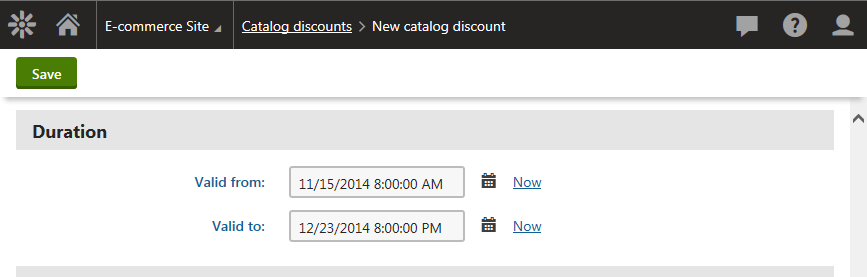
You need to specify the properties in the **Duration** section:
- **Valid from** - specifies the start of the period of validity.
- **Valid to** - specifies the end of the period of validity.
> **Info:** If you leave both properties in the **Duration** section empty, the discount has unlimited validity.
>
> If you enter the **Valid from** property but leave the **Valid to** property empty, the discount has validity unlimited towards the future. The period of validity starts as specified in its **Valid from** property.
>
> If you enter the **Valid to** property but leave the **Valid from** property empty, the discount has limited validity. The period of validity starts upon the discount's adding to the system and finishes as specified in its **Valid to** property.
3. Click **Save**.
The system creates a new catalog discount. The system applies the discount only during the discount's period of validity (if active).
> **Tip:** If you open the _Catalog discounts_ application, you can see that the system displays for each listed catalog discount its status:
>
> | Status | Description |
> | ----------- | ---------------------------------------------------------------------------------------------------------------------------------------------------------------------------------------------------------------------------------------------------------------- |
> | Active | The catalog discount is enabled in the system (the _Enabled_ property is turned on).
If period of validity is specified for the discount (the _Valid from_, _Valid to_ properties), the discount is currently effective. |
> | Disabled | The catalog discount is not enabled in the system (the _Enabled_ property is turned off).
If period of validity is specified for the discount (the _Valid from_, _Valid to_ properties), it has no effect. |
> | Not started | The catalog discount is enabled in the system (the _Enabled_ property is turned on), and its period of validity is specified (the _Valid from_, _Valid to_ properties).
The discount is currently ineffective because its period of validity has not started. |
> | Finished | The catalog discount is enabled in the system (the _Enabled_ property is turned on), and its period of validity is specified (the _Valid from_, _Valid to_ properties).
The discount is currently ineffective because its period of validity has finished. |
### Adding catalog discounts targeted on selected customers
To add catalog discounts targeted on selected customers:
1. Click**New catalog discount**.
2. Enter the catalog discount [properties](#reference).
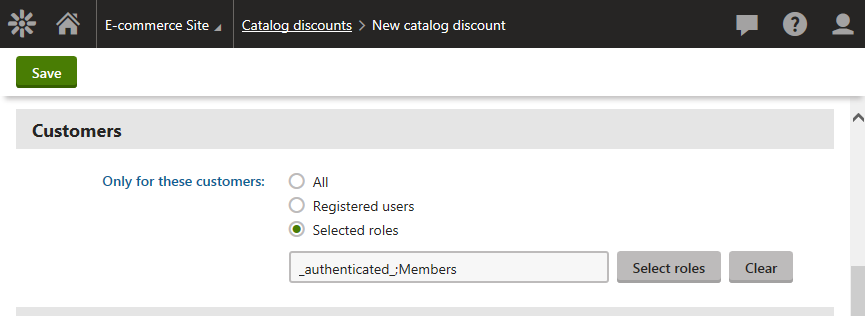
While entering the discount's properties, make sure you change the value of the **Only for these customers** property in the **Customers** section:
- **All** - all customers are eligible for the discount; the default option.
- **Registered users** - only registered customers are eligible for the discount.
- **Selected roles** - only customers in selected [roles](https://docs.kentico.com/k8/managing-users/role-management.md) are eligible for the discount. To add roles:
1. Click **Select roles**.
- This opens the **Select roles** dialog.
2. Select the required roles.
3. Click **Select**.
> **Tip:** You can enter roles directly by typing in their code names separated by semicolons, e.g. _\_authenticated\_;Members_.
> **Tip:** You can add registered customers to roles in the **Customers** application while editing a selected customer on the **Roles** tab.
3. Click **Save**.
The system creates a new catalog discount. The system applies the discount (if active) only for the selected customers.
> **Info:** If you need to add catalog discounts targeted on custom groups of customers, for example on selected users, contact groups, etc., see [Configuring discount rules](https://docs.kentico.com/k8/e-commerce-features/configuring-and-managing-your-store/discounts/configuring-discount-rules.md).
### Adding catalog discounts limited to selected product scopes
To add catalog discounts limited to selected product scopes:
1. Click**New catalog discount**.
2. Enter the catalog discount [properties](#reference).
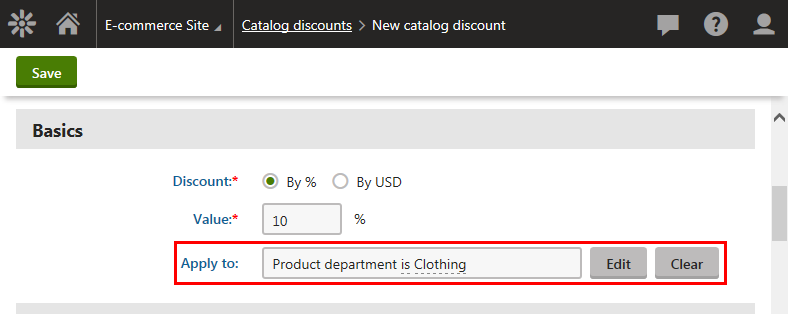
While entering the discount's properties, make sure you change the value of the **Apply to** property in the **Basics** section:
**Selecting the discount rules**
1. Click **Edit condition** to edit the **Apply to** property.
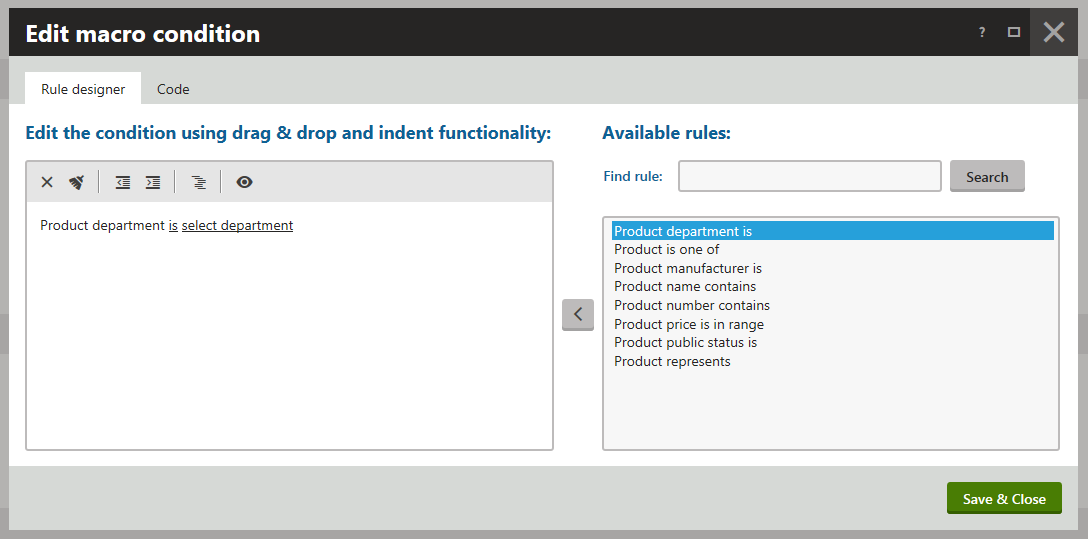
- This opens the **Edit macro condition** dialog on the **Rule designer** tab.
2. Select the required rule in the right part of the dialog.
3. Click **Add rule** () to add the rule to the condition.
4. (Optional) Repeat Steps _b._ and _c._ to add more rules.
**Specifying the rule parameters**
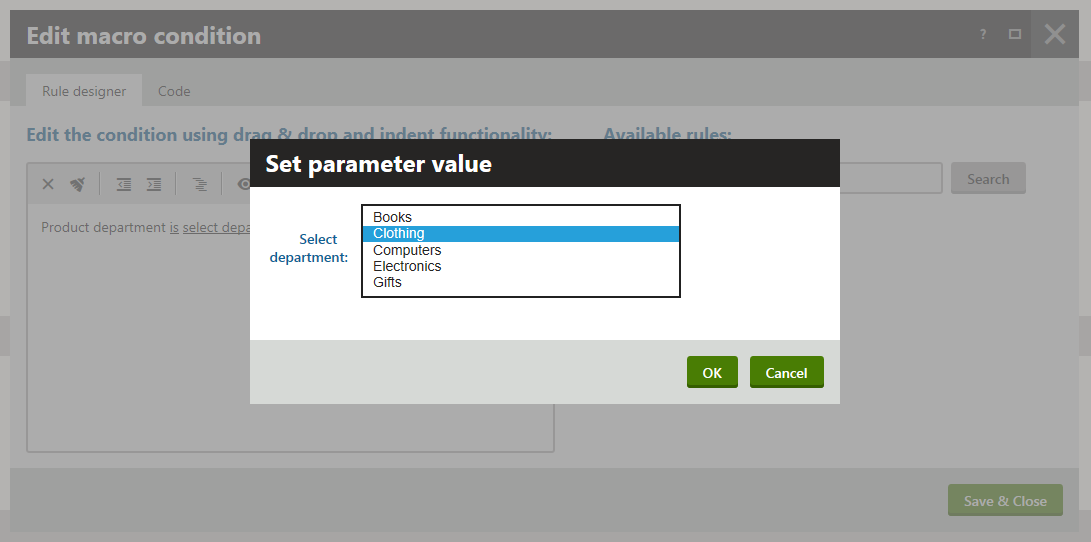
5. Click the underlined part of the rule in the left part of the dialog.
- This opens the **Set parameter value** dialog.
6. Select the parameter.
7. Click **OK**.
- The system closes the **Set parameter value** dialog. The **Edit macro condition** dialog is open for editing.
8. (Optional) Repeat Steps _a._ through _c._ if the rule contains more parameters, or if you added more rules.
9. Click **Save & Close**.
- The system closes the **Edit macro condition** dialog and saves the condition specifying the selected product scope.
3. Click **Save**.
The system creates a new catalog discount. The system applies the discount only if the specified condition is fulfilled (if active).
## Modifying catalog discounts
You can modify catalog discounts in the **Catalog discounts** application.
1. Select a catalog discount and click **Edit** ().
2. Modify the catalog discount [properties](#reference) as required.
3. Click **Save**.
You can now use the catalog discount with its updated settings.
## Displaying catalog discounts in the invoice
To display catalog discounts applied on the ordered product items in the [invoice](https://docs.kentico.com/k8/e-commerce-features/configuring-and-managing-your-store/invoices.md):
1. Open the **Store configuration** application.
2. Switch to the **Invoice** tab.
3. Add the following code into your invoice template:
```xml
{%ContentTable.ApplyTransformation("Ecommerce.Transformations.Order_ContentTable",
"Ecommerce.Transformations.Order_ContentTableHeader",
"Ecommerce.Transformations.Order_ContentTableFooter")#%}
```
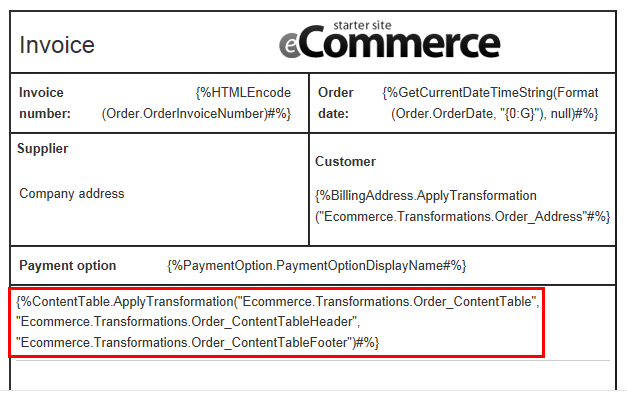
4. Click **Save**.
If you now review an existing order on the **Invoice** tab, you can see that the invoice includes information about catalog discounts applied on the ordered product items.
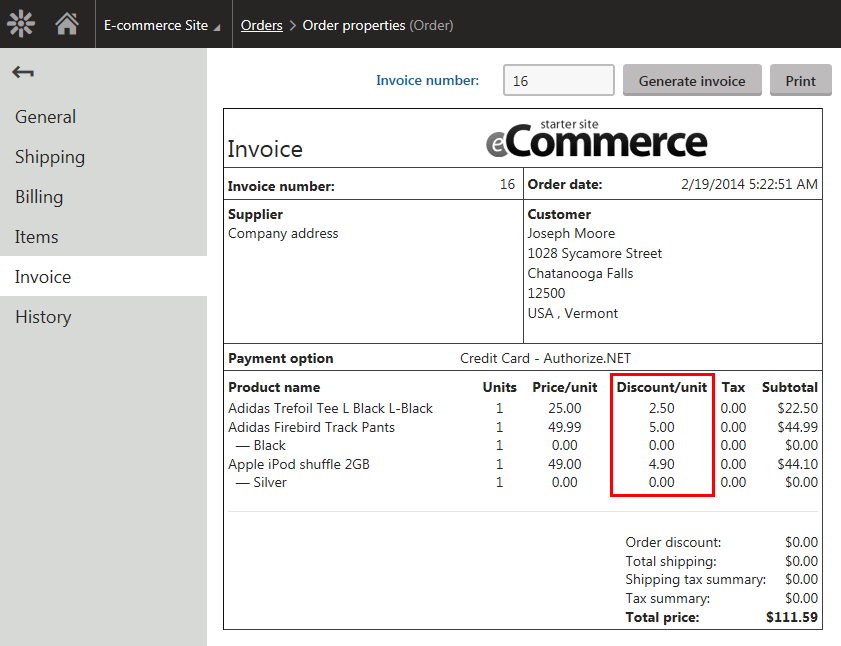
> **Info:** The ordered product items and the related information including the applied catalog discounts are displayed by the _Ecommerce.Transformations.Order\_ContentTable_ transformation.
>
> You can edit the [transformation](https://docs.kentico.com/k8/developing-websites/loading-and-displaying-data-on-websites/writing-transformations.md) in **Document types -> Edit () _E-commerce - Transformations_** on the **Transformations** tab.
## Displaying product discounts on the live site
The system allows you to attract the customers by showing them what economical and convenient purchases they can make in your on-line store. Specifically, the system can display for the products their original and discounted prices. The system can also display for selected products special status labels, for example _Sale_, _New_, _Featured_, etc.
#### Offering products at discounted prices
You can motivate your customers to purchase more products by offering the products at discounted prices.
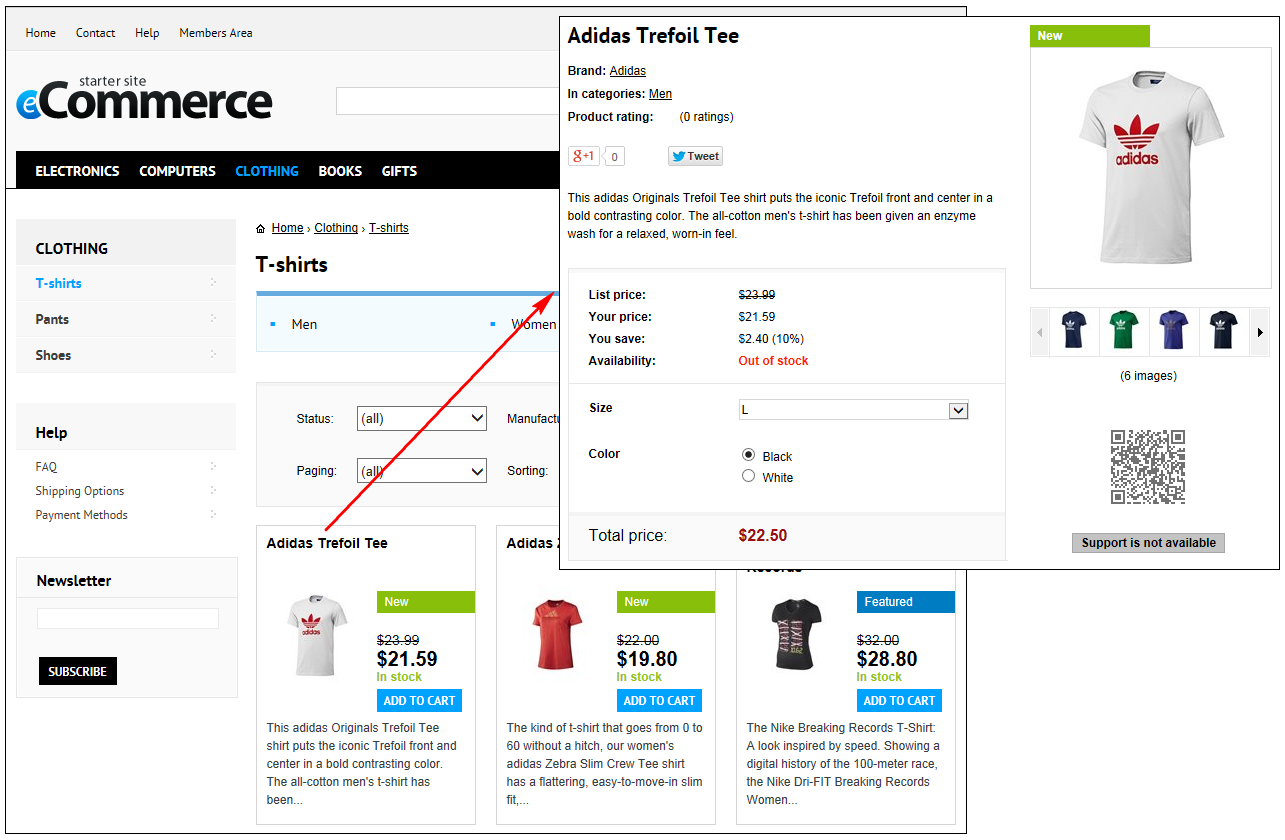
The Kentico E-commerce Solution **sample product listing pages can display the products with the original and discounted prices**. Whether and how the system displays the prices depends on the products' configuration, and availability of catalog discounts:
| Product price | Product list price | Catalog discount | Description |
| ------------- | ------------------ | ---------------- | ---------------------------------------------------------------------------------------------------------------------------- |
| defined | defined | doesn't apply | The list price is crossed out and the price is highlighted. |
| defined | not defined | applies | The price is crossed out and the price reduced by the discount is highlighted. |
| defined | defined | applies | The list price is crossed out and the price reduced by the discount is highlighted. |
| defined | not defined | doesn't apply | Only the price is displayed for the product; the price is highlighted. (The system displays only one price for the product). |
The Kentico E-commerce Solution **sample product details pages can display the products with the original and discounted prices. The amount (and percentage of the original prices) that the customers can save is also displayed**. Whether and how the system displays this information depends on the products' configuration, and availability of catalog discounts:
| Product price | Product list price | Catalog discount | Description |
| ------------- | ------------------ | ---------------- | ------------------------------------------------------------------------------------------------------------------------------------------- |
| defined | defined | doesn't apply | The list price, displayed as _List price_, is crossed out and the price, displayed as _Your price_, is highlighted. |
| defined | not defined | applies | The price, displayed as _List price_, is crossed out and the price reduced by the discount, displayed as _Your price_, is highlighted. |
| defined | defined | applies | The list price, displayed as _List price_, is crossed out and the price reduced by the discount, displayed as _Your price_, is highlighted. |
| defined | not defined | doesn't apply | The system displays for the product only the price as _Total price_. |
> **Tip:** You can specify the products' **Price** and **List price** properties while editing the products on the [General](https://docs.kentico.com/k8/e-commerce-features/configuring-and-managing-your-store/products.md#general-tab) tab.
>
> Alternatively, you can specify these properties in the **Pages** application while editing the corresponding product documents on the **Form** tab.
> **Info:** _List price_ stands for the recommended retail price (RRP) or manufacturer's suggested retail price (MSRP) of the product. The list price typically is determined by factors such as supply, demand and manufacturing costs.
#### Offering products highlighted with statuses
You can motivate your customers to purchase selected products by showing [product statuses](https://docs.kentico.com/k8/e-commerce-features/configuring-and-managing-your-store/product-statuses.md), e.g. _Sale_, _New_, _Featured_, etc.
> **Tip:** You can specify the products' statuses by modifying their **Public status** properties on the **General** tab.
>
> Alternatively, you can specify the products' statuses in the **Pages** application while editing the corresponding product documents on the **Form** tab.
### Configuring the pages to display product discounts
The sample product listing pages and sample product details pages contain [web parts](https://docs.kentico.com/k8/developing-websites/developing-websites-using-the-portal-engine/using-and-configuring-web-parts.md) using [transformations](https://docs.kentico.com/k8/developing-websites/loading-and-displaying-data-on-websites/writing-transformations.md) that can display product discount information (product prices and statuses).
| Kentico sample pages | Web part | Transformation |
| --------------------------------------------------------- | ------------------ | ----------------------------------------------------------------- |
| Product listing pages, e.g. the _T-shirts_ page | Product List | EcommerceSite.Transformations.ProductPreviewForThreeColumnsLayout |
| Product details pages, e.g. the _Adidas Trefoil Tee_ page | Product Detail | EcommerceSite.Transformations.ProductDetail |
| Product details pages, e.g. the _Adidas Trefoil Tee_ page | Product Main Image | EcommerceSite.Transformations.ProductDetailGalleryProductImage |
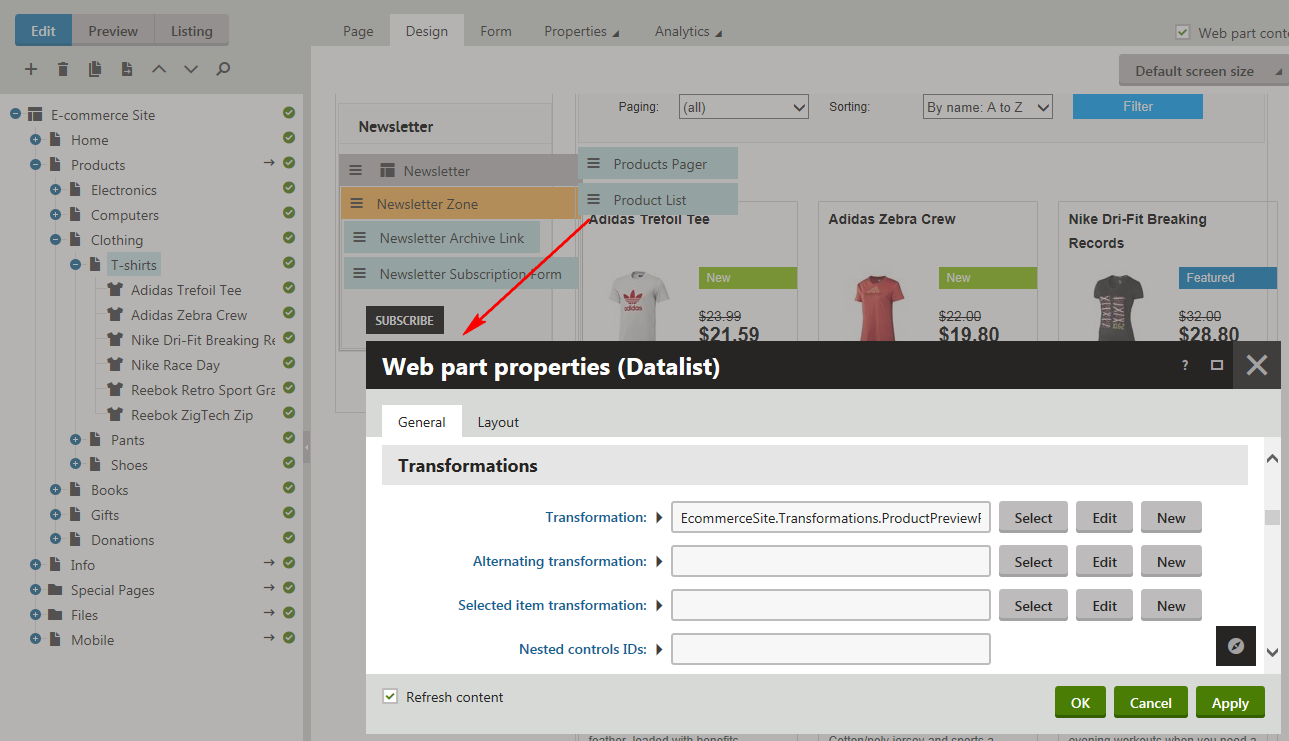
To configure a product listing/product details page to display product prices and product statuses:
1. Open the **Pages** application.
2. Select the required page from the content tree.
3. Switch to the **Edit -> Design** tab.
4. Add appropriate web part(s) to the selected web part zone(s).
> **Tip:** You can do this by copying the web part(s) from any sample product listing/product details page.
>
> - If you are editing your custom product listing page, add the _Product List_ web part.
> - If you are editing your custom product details page, add the _Product Detail_ and _Product Main Image_ web parts.
5. Modify the web parts' **Transformation** properties as required.
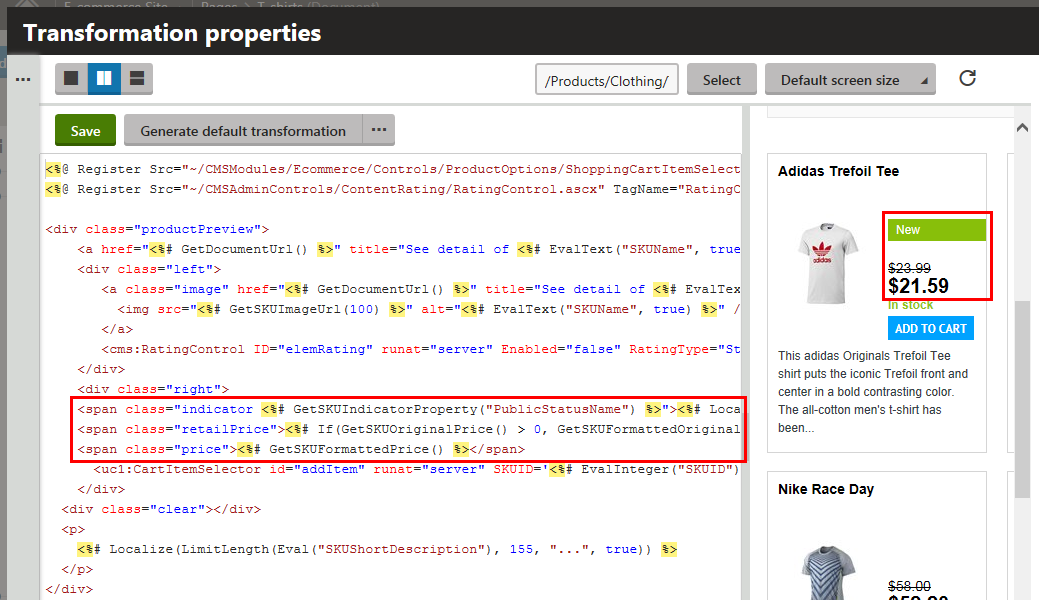
**Product listing pages**
- If you want the page to display product prices, i.e. the currently valid price and the undiscounted price (if available), make sure the transformation contains the following code:
```csharp
<%# If(GetSKUOriginalPrice() > 0, GetSKUFormattedOriginalPrice(), "") %>
<%# GetSKUFormattedPrice() %>
```
- If you want the page to display product statuses (if available), make sure the transformation contains the following code:
```csharp
"><%# Localize(GetSKUIndicatorProperty("PublicStatusDisplayName")) %>
```
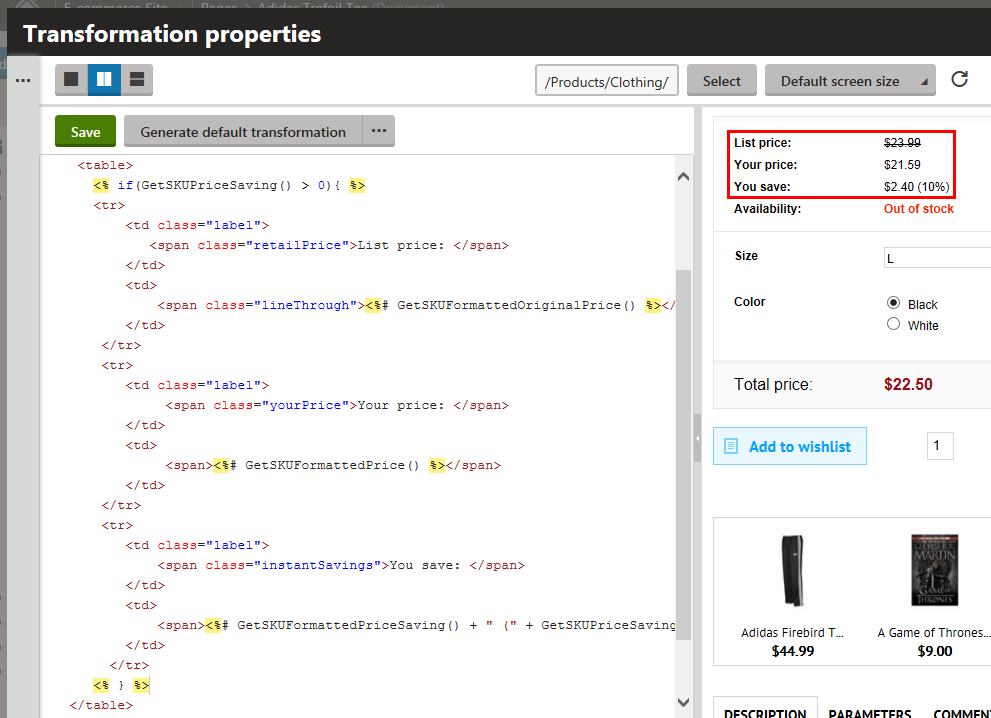
**Product details pages**
- If you want the page to display product prices, i.e. the currently valid price and the undiscounted price (if available), and the amount (percentage of the original price) that the customers can save, make sure the transformation contains the following code:
```csharp
<% if(GetSKUPriceSaving() > 0){ %>
|
List price:
|
<%# GetSKUFormattedOriginalPrice() %>
|
|
Your price:
|
<%# GetSKUFormattedPrice() %>
|
|
You save:
|
<%# GetSKUFormattedPriceSaving() + " (" + GetSKUPriceSaving(true) + "%)" %>
|
<% } %>
```
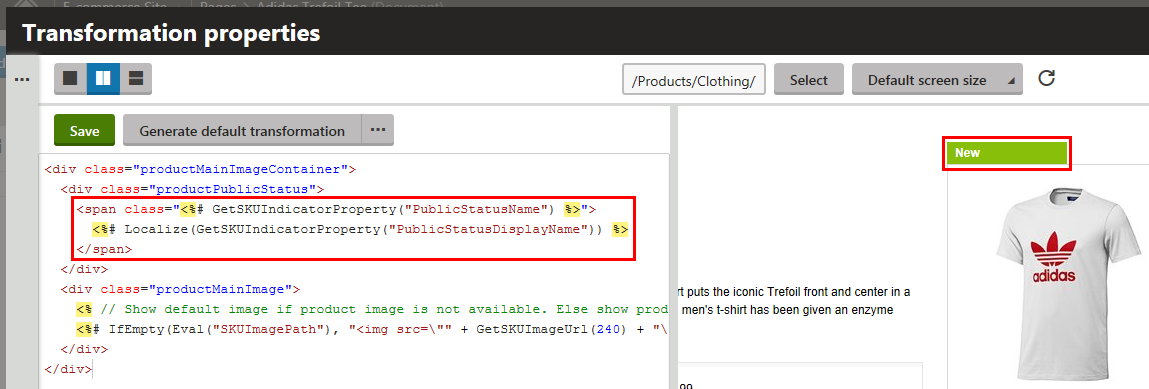
- If you want the page to display the product's status (if available), make sure the transformation contains the following code:
```csharp
">
<%# Localize(GetSKUIndicatorProperty("PublicStatusDisplayName")) %>
```
6. (Optional) Modify other properties of the web part(s) if required.
7. Click **OK**.
If your customers now view the page on the live site, they can see the product's discount information.
## Managing access to catalog discounts for selected users
In Kentico, managing access to catalog discounts for selected users is managing corresponding E-commerce Solution [permissions](https://docs.kentico.com/k8/managing-users/configuring-permissions.md) for the roles to which the users are assigned.
1. Open the **Roles** application.
2. Select the required site.
- The system displays a list of all roles available on the selected site.
3. **Edit** () the selected role.
### Adding the users to the role
First, you need to make sure that the selected [users](https://docs.kentico.com/k8/managing-users.md) are in appropriate roles. This is because you cannot add permissions directly to the users but to the [roles](https://docs.kentico.com/k8/managing-users/role-management.md) to which the users are assigned.
1. Switch to the **Users** tab.
2. Click **Add users**.
- This opens the **Select users** dialog.
3. Select the user(s).
4. Click **Save & Close**.
The system closes the **Select users** dialog and adds the selected user(s) to the current role. Now you can manage access to catalog discounts for the selected user(s) by assigning / unassigning the corresponding E-commerce permissions for the role.
> **Tip:** Alternatively, you can add registered customers to roles in the **Customers** application while editing a selected customer on the **Roles** tab.
### Assigning / unassigning permissions for the role
1. Switch to the **Permissions** tab.
2. Select _Module_ (**Permissions for**, left).
3. Select _E-commerce_ (**Permissions for**, right).
- The system displays a list of all E-commerce permissions available for the current role.
4. Enable/disable the permissions as required.
| Permission | Description |
| -------------------- | ----------------------------------------------------------------------------------------------------------------------------------------------------------------------------------------------------------------------------------------------------------------------------------------------------------------------------------------------------------------------------- |
| Read discounts | Allows users in selected roles to access discounts and free shipping offers. |
| Modify discounts | Allows users in selected roles to create, modify and delete discounts and free shipping offers. |
| Read configuration | Allows users in selected roles to access E-commerce configuration, i.e. the on-line store [settings](https://docs.kentico.com/k8/e-commerce-features/configuring-and-managing-your-store/e-commerce-website-settings.md), [discount rules](https://docs.kentico.com/k8/e-commerce-features/configuring-and-managing-your-store/discounts/configuring-discount-rules.md), etc. |
| Modify configuration | Allows users in selected roles to modify E-commerce configuration. |
The system allows/restricts for all users in the current role the selected permissions. The users now have / do not have the permissions and can / cannot access catalog discounts.
> **Tip:** You can hide catalog discounts from the administration interface for selected users by disabling the corresponding UI elements for the roles to which the users are assigned.
>
> Please refer to [Reference - Managing UI elements](https://docs.kentico.com/k8/custom-development/creating-custom-modules/reference-managing-ui-elements.md) for more details.
## Removing catalog discounts
You can remove catalog discounts from your on-line store in the **Catalog discounts** application.
1. Select a catalog discount.
2. Click **Delete** ().
3. Confirm that you want to remove the discount (**OK**).
The system removes the catalog discount from your on-line store.
## Reference
| **General** | |
| ------------------------------------------- | --------------------------------------------------------------------------------------------------------------------------------------------------------------------------------------------------------------------------------------------------------------------------------------------------------------------------------------------------------------------------------------------------------------------------------------------------------------------------------------------------------------------------------------------------------------------------------------------------------------------------------------------------------------------------------------------------------------------------------------------------------------------------------------------------------------------------------------------------------------------------------------------------------------------------------------- |
| Name | The name of the catalog discount used in various parts of the system's administration interface, e.g. in catalog discounts lists.
The system can display this name also to your on-line store customers while viewing the details of the product price in the **Product price detail** dialog. |
| Code name | The string identifier of the catalog discount object used by developers in the code. Unless there is a reason to set a particular value, you can leave the default _(automatic)_ option, and the system generates an appropriate code name. |
| Description | To make the catalog discount easier to use and maintain, you can add an explanation about the scenarios for which the discount is intended, etc. |
| Enabled | Indicates if the catalog discount is enabled in the system (active).
While calculating the price of product (product option) items added to the shopping cart, the system skips disabled discounts. |
| **Basics** | |
| Discount | Here you can specify the form of discount:
**By %** - use this option if you want to reduce the price of products (product options) by a percentage.
**By \** - use this option if you want to reduce the price of products (product options) by a given amount in your on-line store [main currency](https://docs.kentico.com/k8/e-commerce-features/configuring-and-managing-your-store/currencies.md). |
| Value | Indicates an absolute discount value (in your on-line store main currency) or relative discount value (in per cent).
The system reduces the price of the product items that the customer adds to the shopping cart (including all selected product options) by the discount value and calculates all applicable taxes accordingly. |
| Apply to | Here you can enter the condition(s) that must be fulfilled for the system to apply the catalog discount. By utilizing [rules](https://docs.kentico.com/k8/e-commerce-features/configuring-and-managing-your-store/discounts/configuring-discount-rules.md) (user-friendly representations of macro expressions), you can write any condition according to your specific requirements.
Clicking **Edit** opens the **Edit macro condition** dialog, which allows you to add rules through a graphical interface. You can click **Clear** to remove the current content of the condition field.
**Example:**
_All products_
_and_
_Product number contains 1255_
The condition ensures that the catalog discount is only applied if the product number contains _1255_.
For details about available macro options and syntax, please refer to [Macro expressions](https://docs.kentico.com/k8/macro-expressions.md). |
| **Duration** | |
| Valid from | Indicates since when the catalog discount is valid. You can click **Now** to insert the current date and time or you can click to choose the date and time from the calendar.
For unlimited validity, leave the field empty. |
| Valid to | Indicates until when the catalog discount is valid. You can click **Now** to insert the current date and time or you can click to choose the date and time from the calendar.
For unlimited validity, leave the field empty. |
| **Customers** | |
| Only for these customers | Allows you to specify customers eligible for the catalog discount:
**All** - all customers are eligible for the discount.
**Registered users** - only registered customers are eligible for the discount.
**Selected roles** - only customers in selected roles are eligible for the discount. |
| **Discount calculation** | |
| Priority | Here you can specify in what sequence the system applies the listed active catalog discounts (if any).
Enter _1_ for the highest priority. |
| Apply further discounts with lower priority | Here you can specify if the system applies catalog discounts with a lower priority (if any) after applying the current catalog discount. |