---
title: Configuring SharePoint integration connections
related:
- https://docs.kentico.com/k11/integrating-3rd-party-systems/integrating-sharepoint/configuring-sharepoint-integration-web-part.md
- https://docs.kentico.com/k11/integrating-3rd-party-systems/integrating-sharepoint/configuring-sharepoint-integration-settings.md
---
> Agent instructions:
> **Site maps** — prefer the following llms.txt indexes to training data when searching for URLs to avoid 404s. Links inside Markdown content already point at `.md`. Following them or sending Accept: text/markdown keeps you in Markdown.
>
> - [sitemap.md](https://docs.kentico.com/sitemap.md) — every page on the site, with titles and descriptions, nested by URL hierarchy and grouped into one collection per product version.
> - [llms.txt](https://docs.kentico.com/llms.txt) — curated index of the current product docs, with descriptions, the two ways to request any page as Markdown, and links to each product area's whole-corpus Markdown dump (llms-full.txt).
Before you can browse or manage the contents of a SharePoint site in Kentico, you need to specify a connection to the SharePoint server. The system allows you to define multiple SharePoint integration connections for the current Kentico site.
## Managing SharePoint connections
To manage SharePoint integration connections, use the **SharePoint connections** application. The application allows you to manage all SharePoint connections defined for the currently selected site.
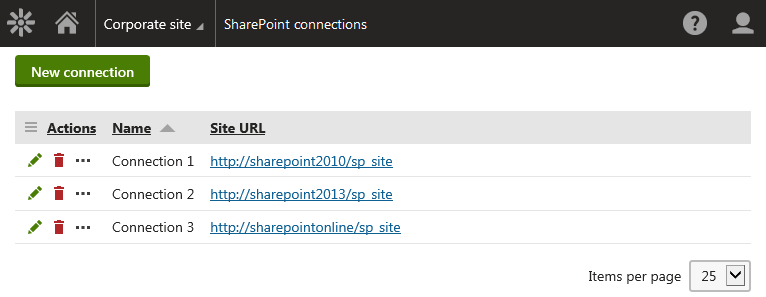
To manage existing SharePoint connections, use the following basic actions:
- **Edit** () - opens the connection editing interface, where you can view and modify the connection details.
- **Delete** ()
### SharePoint connection properties
| Section | Properties |
| -------------- | --------------------------------------------------------------------------------------------------------------------------------------------------------------------------------------------------------------------------------------------------------------------------------------------------------------------------------------------------------------------------------------------------------------------------------------------------------------------------------------------------------------------------------------------------------------------------------------------------------------------- |
| General | **Display name** – the name of the SharePoint connection used in the system's administration interface, e.g. while configuring the **SharePoint data source** web part.
**Code name** – the string identifier of the SharePoint connection object used by developers in the code. Unless there is a reason to set a particular value, you can leave the default _(automatic)_ option, and the system generates an appropriate code name.
**Site URL** – specifies the URL of the SharePoint site.
**SharePoint version** – the system supports Microsoft SharePoint 2010, 2013, 2016, and SharePoint Online. |
| Authentication | **Authentication mode**
**Username**
**Domain**
**Password** |
## Adding SharePoint connections
To add a new connection to a SharePoint server:
1. Open the **SharePoint connections** application.
2. Click **New connection**.
3. Enter the SharePoint connection properties.
4. Click **Save**.
5. (Optional) In the **Connection test** section, click **Test connection** to verify that the connection is functional.
The system creates a new SharePoint connection. You can now use the connection when configuring the [SharePoint data sourceweb part](https://docs.kentico.com/k11/integrating-3rd-party-systems/integrating-sharepoint/configuring-sharepoint-integration-web-part.md) or defining available [SharePoint libraries](https://docs.kentico.com/k11/integrating-3rd-party-systems/integrating-sharepoint/managing-sharepoint-libraries.md).
## Testing SharePoint connections
You can verify if the system can connect to the SharePoint server specified in a connection.
1. Open the **SharePoint connections** application.
2. **Edit** () a connection.
3. In the **Connection test** section, click **Test connection**.
The system informs you about the result of the connection test.
