---
title: Custom activities
related:
- https://docs.kentico.com/documentation/business-users/digital-marketing/contact-activities.md
- https://docs.kentico.com/documentation/developers-and-admins/digital-marketing-setup/cross-site-tracking.md
---
> Agent instructions:
> **Site maps** — prefer the following llms.txt indexes to training data when searching for URLs to avoid 404s. Links inside Markdown content already point at `.md`. Following them or sending Accept: text/markdown keeps you in Markdown.
>
> - [sitemap.md](https://docs.kentico.com/sitemap.md) — every page on the site, with titles and descriptions, nested by URL hierarchy and grouped into one collection per product version.
> - [llms.txt](https://docs.kentico.com/llms.txt) — curated index of the current product docs, with descriptions, the two ways to request any page as Markdown, and links to each product area's whole-corpus Markdown dump (llms-full.txt).
Activities represent actions that your [contacts](https://docs.kentico.com/documentation/business-users/digital-marketing/contact-management.md) perform. In addition to the [default activity types](https://docs.kentico.com/documentation/developers-and-admins/digital-marketing-setup/set-up-activities.md), you can also define custom activity types, which allow you to track any other required actions.
1. [Add custom activity types in the Xperience administration](#add-custom-activity-types)
2. [Implement custom activity logging](#log-custom-activities)
Marketers can view custom activities in the standard [activity log](https://docs.kentico.com/documentation/business-users/digital-marketing/contact-activities.md) for contacts. You can also segment contacts according to custom activities by preparing [contact groups](https://docs.kentico.com/documentation/business-users/digital-marketing/contact-groups.md) with activity-based conditions. The contact groups can then be used to [personalize content](https://docs.kentico.com/documentation/developers-and-admins/digital-marketing-setup/content-personalization.md) on your websites.
For example, a custom activity could be used on a bank's website in the following scenario. The site uses a custom [Page Builder widget](https://docs.kentico.com/documentation/business-users/website-content/widgets-and-page-builder.md) to display a loan calculator. The widget logs a custom "Loan calculator usage" activity whenever a visitor runs the calculator. A contact group stores all contacts who have performed this custom activity, which marketers can use to send targeted loan offers and display personalized content on other pages.
## Add custom activity types
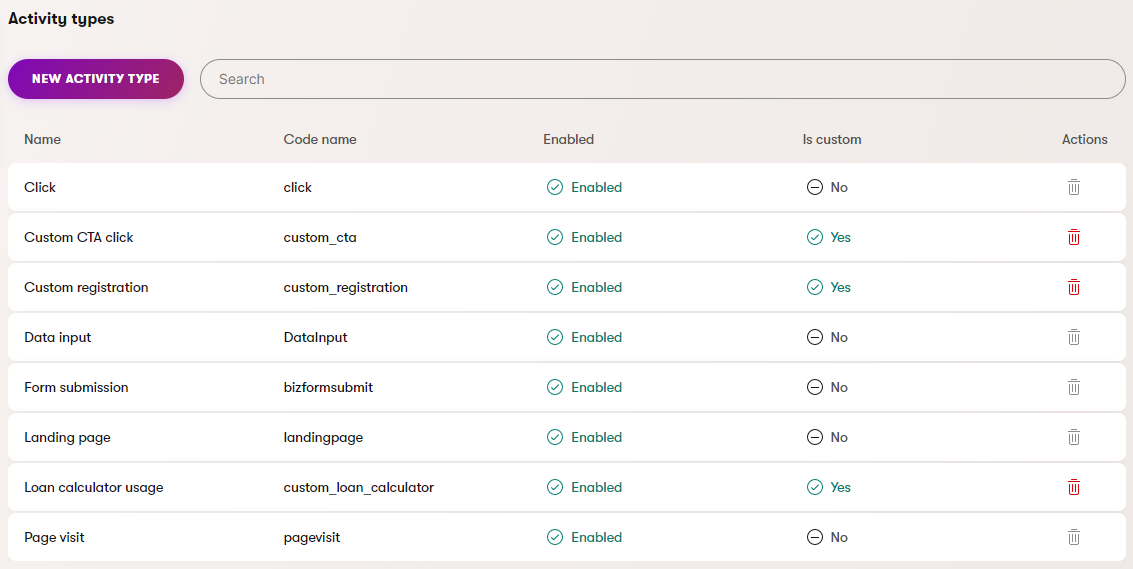
1. Open the **Contact management** application in the Xperience administration.
2. Switch to the **Activity** **types** tab.
3. Select **New activity type**.
4. Fill in the fields:
- **Activity type name** – the name of the activity type displayed in the Xperience administration.
- _(Optional)_ **Identifiers** – specify the code name if you wish to use a code name different than the pre-filled value.
- The code name is used when [logging activities](#log-custom-activities) of the given type.
- **Description** – we strongly recommend adding a description for all custom activity types. Describe the purpose of the activity and what actions are tracked. The description is displayed to other marketers in the Xperience administration.
- **Enabled** – controls whether activities of this type are logged. Can be disabled or enabled at any time.
5. Select **Save**.
Your custom activity type is now ready to be logged.
## Log custom activities
After defining custom activity types, developers need to set up the system to log the activities when the corresponding visitor actions occur. The following options are available:
- [Server-side code](#server-side-code)
- [Client-side code](#client-side-code)
- [Headless tracking](#headless-tracking)
- [Cross-site tracking](#cross-site-tracking)
> **Note:** **Tracking consent required**
>
> Due to [personal data protection](https://docs.kentico.com/documentation/developers-and-admins/data-protection.md) policies, custom activities on [website channels](https://docs.kentico.com/documentation/developers-and-admins/configuration/website-channel-management.md) are only logged for visitors who give [consent to be tracked as contacts](https://docs.kentico.com/documentation/developers-and-admins/data-protection/consent-development.md) and have the required [cookie level](https://docs.kentico.com/documentation/developers-and-admins/data-protection/cookies.md) set (_Visitor_ or _All_).
### Server-side code
You can log custom activities using the Xperience server-side API. For example, this approach can be used in the code of [Page Builder](https://docs.kentico.com/documentation/developers-and-admins/development/builders/page-builder.md) components.
1. Edit the code where you want the activity to be logged.
- Custom activities are logged for the **current contact**, so you cannot use code where the HTTP request context is not available (e.g., asynchronous worker threads).
2. Call the `Log` method of the `ICustomActivityLogger` service (e.g., obtained using [dependency injection](https://docs.kentico.com/documentation/developers-and-admins/development/website-development-basics/dependency-injection.md)).
3. Specify the method's parameters:
- `customActivityType` – the _Code name_ of the activity type.
- `activityData` – a `CustomActivityData` object that specifies the properties of the logged activity. We recommend setting at least the `ActivityTitle` (displayed in the activity log). Optionally, you can set a `string` as the `ActivityValue` for every logged activity.
```csharp
using CMS.Activities;
// Stores an instance of the ICustomActivityLogger service (e.g., obtained using dependency injection)
private readonly ICustomActivityLogger customActivityLogger;
..
// Prepares the activity data (e.g., using the loan size as the activity value)
var loanCalculatorActivityData = new CustomActivityData() {
ActivityTitle = "Loan calculator usage",
ActivityValue = "50000"
};
// Logs the 'custom_loan_calculator' activity for the current contact
customActivityLogger.Log("custom_loan_calculator", loanCalculatorActivityData);
```
The activities are now logged when your custom code is triggered.
### Client-side code
To track some types of visitor actions, you may wish to log custom activities using JavaScript on the client side. This can be useful for basic interactions with important elements on your pages, for example when a visitor clicks a "call to action" button or link.
As a prerequisite, you need to register an activity logging script onto your pages.
Make sure the `Html.Kentico().ActivityLoggingScriptV2` extension method is called on all pages where you wish to log custom activities – either in your site's main layout, or in the views of individual pages. We recommend adding the script at the end of the _\_ tag in the page code. The method's `logCustomActivity` parameter must be `true`. This is the default state if you call the method without any parameters.
```cshtml
@using Kentico.Activities.Web.Mvc
@* Registers the script that allows custom activity logging *@
@Html.Kentico().ActivityLoggingScriptV2()
```
You can then log custom activities in your scripts by calling the `kxt('`customactivity`')` function. Specify the following parameters for the logged activity:
- `type` – the _Code name_ of the activity type.
- `value`
- `title`
```html
...
```
The `kxt('`customactivity`')` function sends a request that logs the specified custom activity for the **current contact**. These activity logging requests are handled by a dedicated endpoint, which is added by calling the `UseActivityTracking` method in your Xperience application's startup code (see [Set up activities](https://docs.kentico.com/documentation/developers-and-admins/digital-marketing-setup/set-up-activities.md)).
#### Script conflicts
If you encounter script conflicts with the `kxt` function (for example when using custom or third-party JavaScript libraries), you can rename the function by setting a custom name in the `loggingFunctionName` parameter of the `ActivityLoggingScriptV2` registration method.
```cshtml
@* Changes the name of the custom activity logging function to 'customActivityTracker' *@
@Html.Kentico().ActivityLoggingScriptV2(loggingFunctionName: "customActivityTracker")
...
```
### Headless tracking
You can log custom activities through the [headless tracking API](https://docs.kentico.com/documentation/developers-and-admins/digital-marketing-setup/headless-tracking.md).
1. Make sure the tracking API is enabled.
2. Consider and evaluate consent requirements for the current contact.
3. Send a POST request from your external application to the **/Kentico.Tracking/activities** endpoint. The following example demonstrates the data structure required for the request body:
```json
{
"Channel": "df6721ee-2562-4ef3-ae0f-9d733458550a",
"Contact": "052fff6b-cedb-4757-b939-b5cbee2a7aff",
"Activities": [
{
"Type": "custom_loan_calculator",
"Value": "5000"
}
]
}
```
### Cross-site tracking
You can log custom activities from external sites covered by [cross-site tracking](https://docs.kentico.com/documentation/developers-and-admins/digital-marketing-setup/cross-site-tracking.md). Call the `kxt('`customactivity`')` function in your cross-site tracking scripts.
```js
// Logs a custom activity
kxt('customactivity', {
// The 'type' parameter must match the code name of the custom activity type
type: 'custom_loan_calculator',
value: 'value'
});
```