The layout of forms composed via the Xperience Form Builder is based on elements called sections. Each form section defines a block of HTML code containing one or more zones. These zones can then hold any number of form fields (based on form components).
When creating forms in the Form Builder interface of the Forms application, editors first add or adjust the sections, and then add individual fields into the resulting zones.
The system provides a Default form section that organizes fields in a basic single-column layout (one zone). The default section is automatically added to new forms, and in cases where an editor removes the last section from a form. If you wish to use more advanced layouts for fields in your forms, you need to develop and register your own form sections.
Form submit button
The submit button of a form is rendered after the last section (when displaying forms on the website using the Form widget). If you need to adjust the position of the submit button, use appropriate CSS styling in your site's stylesheet.
Form sections are implemented as either:
Note: Form sections are designed to be used in the global scope and their code files must be placed in the application root of your Core project (not in an Area (opens in a new tab)). Creating sections in Areas may lead to unexpected behavior.
In both cases, you can develop sections with properties, which allow editors to adjust the section content or behavior directly in the Form Builder interface. For sections with configurable properties, you need to create an additional model class that represents the section properties. For information about this more advanced scenario, see Form section properties.
Create partial views with the required formatting. Use the HtmlHelper.Kentico().FormZoneAsync() extension method to add zones where form fields can be placed. Alternatively, you can use the equivalent <form-zone /> Tag Helper element.
We recommend placing form section view files into your project's ~/Components/FormSections folder. Add a subfolder for specific sections that consist of multiple files.
@using Kentico.Web.Mvc
@using Kentico.Forms.Web.Mvc
<div>
<div style="float:left; width:50%;">
@await Html.Kentico().FormZoneAsync()
</div>
<div style="float:left; width:50%;">
@await Html.Kentico().FormZoneAsync()
</div>
<div style="clear:both;" />
</div>When a user changes the section type in the Form Builder interface, components (form fields) are moved to the new section's zones automatically based on the order in which the zones are specified in the section code. This may require additional work from editors to get the desired form layout. To ensure that form components are moved to correct zones when the section type is changed:
When a section type is changed, the system moves form components to matching named zones.
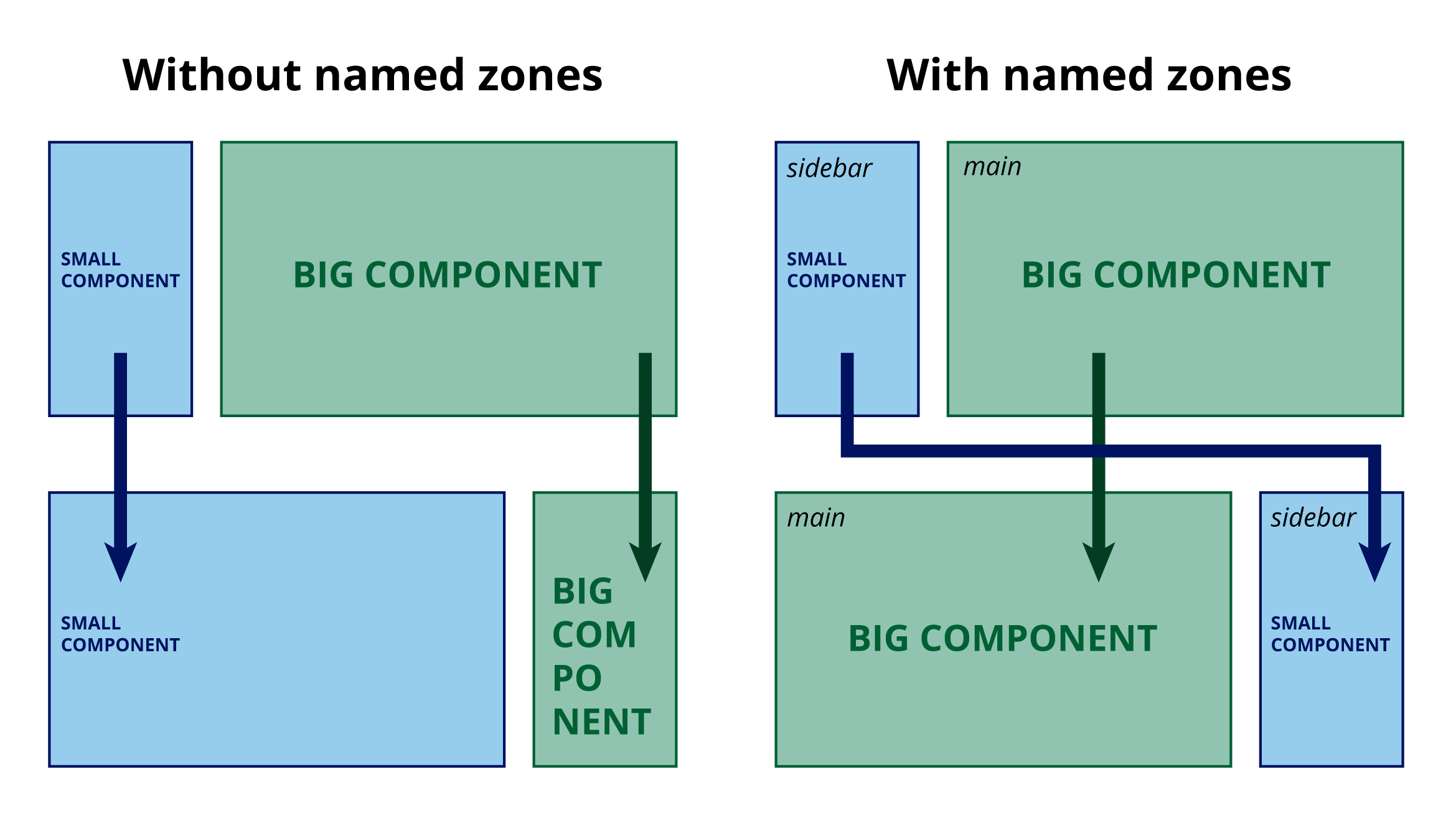
@await Html.Kentico().FormZoneAsync("main-zone")The basic implementation of a section consists of only a partial view (and possibly a properties class). If you need additional advanced logic (for example to execute operations not suitable for views), you can develop sections based on ASP.NET Core view components (opens in a new tab). Such sections consist of a view component class and the corresponding partial view it renders.
Use the following process to implement sections based on a view component:
Create a view component class (opens in a new tab) for the section.
Implement the component's Invoke or InvokeAsync method (both synchronous and asynchronous approaches are supported, this choice depends solely on your requirements).
The system invokes the view component when the section is inserted via the Form B
uilder. For sections with custom properties, you must declare the FormSectionViewModel parameter with the section's properties class as the generic parameter .
// The signature of a view component's InvokeAsync method for sections without custom properties
public async Task<IViewComponentResult> InvokeAsync()
// The signature of a view component's InvokeAsync method for sections with custom properties
public async Task<IViewComponentResult> InvokeAsync(FormSectionViewModel<TSectionPropertiesClass> sectionProperties)Create view model classes to pass any required data to the partial view. For sections with properties, you can directly pass the FormSectionViewModel .
Prepare the partial view that defines the section's layout.
In the return statement of the view component's Invoke method, add the full relative path to the section's partial view.
using Microsoft.AspNetCore.Mvc;
using System.Threading.Tasks;
using Kentico.Forms.Web.Mvc;
public class MySectionViewComponent : ViewComponent
{
public Task<IViewComponentResult> Invoke(FormSectionViewModel<MySectionProperties> sectionProperties)
{
return View("~/Components/FormSections/MySection/_MySection.cshtml", sectionProperties);
}
}Register the section into the system.
When the section is inserted using the Form Builder, the system invokes the corresponding view component and renders its partial view. Using this approach, you can decouple business and view-layer code, maintaining separation of concerns.
Every section needs to be registered before it becomes available in the Form Builder. Register sections by adding the RegisterFormSection assembly attribute (available in the Kentico.Forms.Web.Mvc namespace).
To register sections represented as a single view file without an additional business logic class, we recommend adding the assembly attributes to a dedicated code file. For example, you can create a class named FormBuilderComponentRegister in your project and use it to register your form sections. Specify the following attribute parameters:
Identifier – a string identifier of the form section. We recommend using sufficiently unique identifiers to avoid potential conflicts with other third-party sections, for example using a company name prefix.Name – the display name of the form section. Displayed when selecting sections in the Form Builder interface.CustomViewName – specifies the name and location of the view that defines the section's output. If not set, the system searches for a corresponding _<Identifier>.cshtml view in the ~/Views/Shared/Sections folder (any period characters '.' in the identifier are replaced by underscores '_').using Kentico.Forms.Web.Mvc;
[assembly: RegisterFormSection("LearningKit.FormSections.ThreeColumns",
"Three columns",
customViewName: "~/Components/FormSections/ThreeColumns/_ThreeColumns.cshtml",
Description = "Organizes fields into three equal-width columns side-by-side.",
IconClass = "icon-l-cols-3")]For sections based on a view component , you can add the assembly attribute directly into the view component code file. In this case, specify the following attribute parameters:
Identifier – a string identifier of the form section. We recommend using sufficiently unique identifiers to avoid potential conflicts with other third-party sections, for example using a company name prefix.ViewComponentType – the System.Type of the section's view component class.Name – the name of the form section. Displayed when selecting sections in the Form Builder interface.using Kentico.Forms.Web.Mvc;
[assembly: RegisterFormSection("LearningKit.FormSections.MySection",
typeof(MySectionViewComponent),
"My section",
PropertiesType = typeof(MySectionProperties),
Description = "Organizes fields into a section with a configurable title.",
IconClass = "icon-square")]When registering any type of section, you can also set the following attribute properties:
PropertiesType – required for sections with properties. Specifies the System.Type of the section's property model class.Description – a description of the form section. Displayed as a tooltip when selecting sections the Form Builder interface.IconClass – the icon assigned to the form section. Displayed when selecting sections the Form Builder interface. The value must be a font icon class from the set of icons (opens in a new tab) starting with the icon- prefix. Alternatively, you can pick the icon from the pre-packaged, annotated list of icons (opens in a new tab) that's part of the KentiCopilot initiative.The section is now available in the Form Builder interface.
To add JavaScript and CSS styles required by your form sections, we recommend placing script and stylesheet files into sub-folders under:
GetEditorHtmlAttributes extension method.You can use sub-folders that match the identifiers of individual components, or a Shared sub-folder for assets used by multiple components. Note that this recommendation only applies when using the default configuration of the bundling support provided by Xperience and may be different for your project. See Bundle static assets of builder components.
CSS notes
#CompanyName-mid-button), or use similar measures to ensure their uniqueness.In many cases, you will need to initialize your scripts from the views of form sections (for example if you need to call a function on page load or register an event listener). For most types of page or element events, you can use HTML Event Attributes (opens in a new tab) of elements in your views.
For scripts that you want to run on page load, you need to consider the following:
For example, the following script demonstrates how to reliably call a custom function on page load:
if (document.readyState === "loading") {
// Calls the function during the 'DOMContentLoaded' event, after the HTML document has been completely loaded
document.addEventListener("DOMContentLoaded", function () {
customFunction();
});
} else {
// Calls the function directly in cases where the component is rendered dynamically after 'DOMContentLoaded' has occurred
customFunction();
}This approach ensures that the initialization script runs correctly when the form section is displayed on the live site, as well as in the Form Builder interface.
Note: Apart from initialization code, avoid linking or executing scripts directly within form section views – this could lead to duplicated scripts for forms that contain multiple sections of the same type, or on pages with multiple forms.